Right after a user completes Windows Autopilot, the device often has an older Windows Defender Antimalware build. Real-time protection can even be off until Windows Update delivers a newer version. If you enforce Intune compliance with a minimum Defender version and no grace period, that device can be marked non-compliant until Defender is updated. Which can mean a poor first experience for the user. Triggering a Defender update during enrollment fixes this: the device gets current signatures and engine before the user is expected to be compliant. This post describes a PowerShell script that forces a Defender update and how to run it as a Win32 app during Autopilot so Defender is up to date before sign-in.
The Problem
Out of the box, a newly provisioned Windows device may not yet have the latest Defender engine or signatures. Windows Update will eventually deliver them, but that can take time. If your compliance policy requires a minimum Antimalware version and you don’t use a grace period, the device fails compliance until that update lands. Running a forced Defender update as part of the enrollment sequence closes the gap: you get a current Defender state early, real-time protection turns on when expected, and compliance can pass sooner.
Forcing a Defender Update
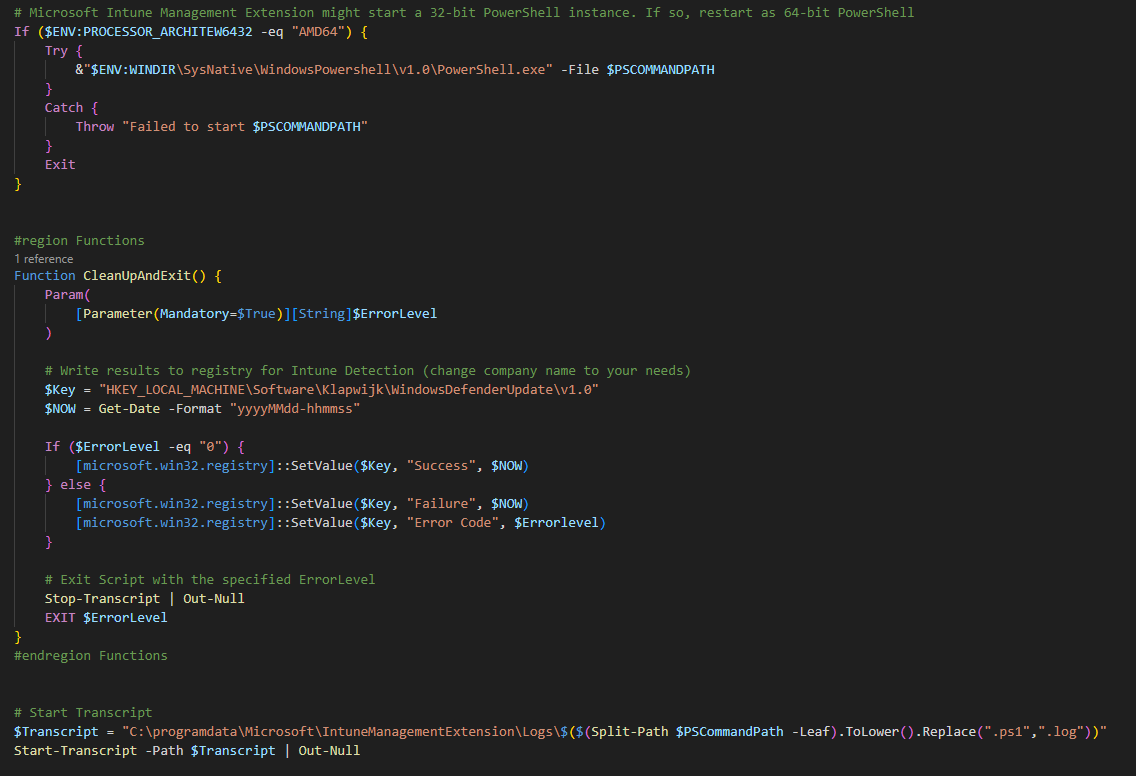
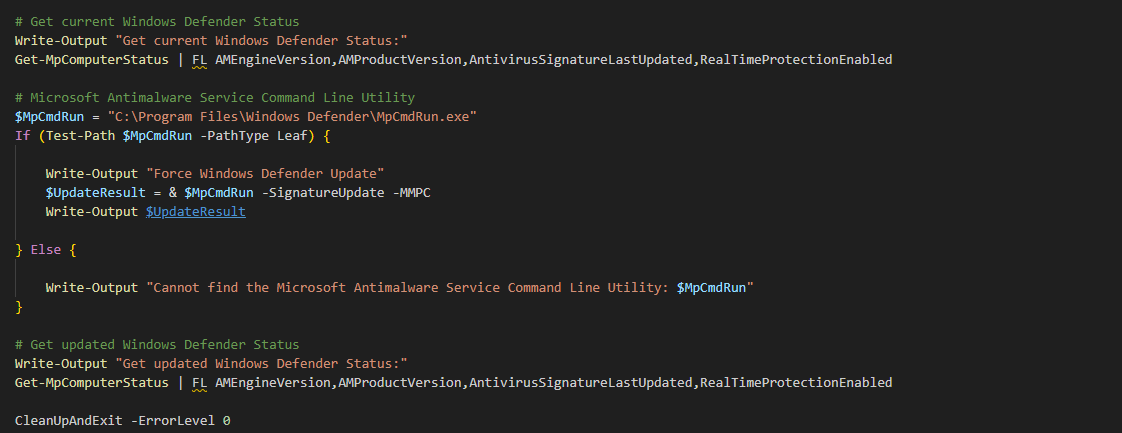
The core of the solution is the Microsoft Antimalware Service Command Line Utility, MpCmdRun.exe, in C:\Program Files\Windows Defender\. To pull the latest signatures directly from Microsoft (without waiting for Windows Update), run:
& "C:\Program Files\Windows Defender\MpCmdRun.exe" -SignatureUpdate -MMPCA typical script would: check that MpCmdRun.exe exists; optionally log the current Defender status (e.g. Get-MpComputerStatus for engine version, product version, last update time, real-time protection); run the update; then log the status again. If the Intune Management Extension runs the script in 32-bit PowerShell, the script can detect that (e.g. $ENV:PROCESSOR_ARCHITEW6432 -eq "AMD64") and re-launch itself under 64-bit PowerShell so it uses the correct Defender binaries. Logging can go to a transcript under %ProgramData%\Microsoft\IntuneManagementExtension\Logs so you can collect it via Intune diagnostics if needed.
Detection and Exit Handling
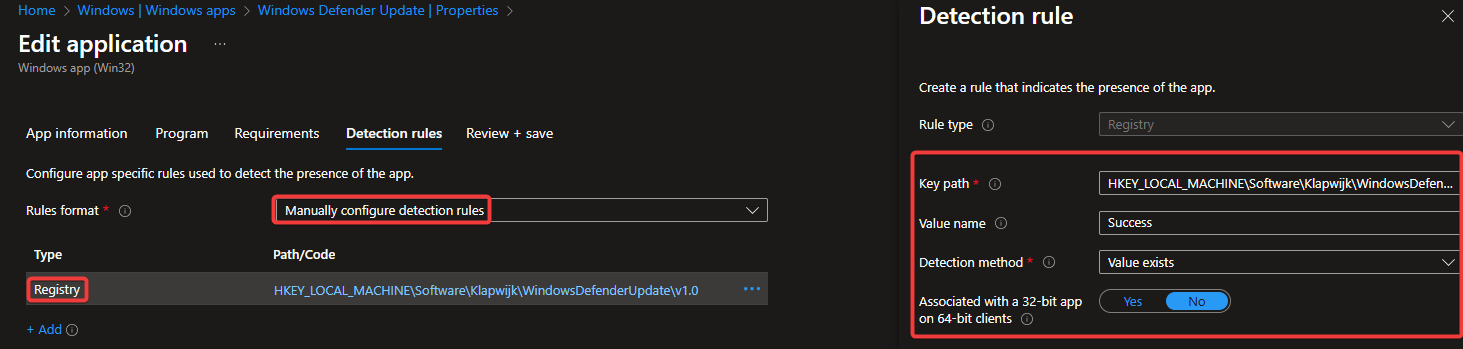
When you package the script as a Win32 app, Intune needs a way to know whether the script succeeded. A common pattern is to write the result to the registry at the end of the script (e.g. a key under HKLM\Software\YourOrg\WindowsDefenderUpdate with a “Success” or “Failure” value and timestamp). The Win32 app’s detection rule can then check for that registry key and value so Intune marks the app as installed only after a successful run. The script should exit with code 0 on success and a non-zero code on failure so the installer behaviour is clear.
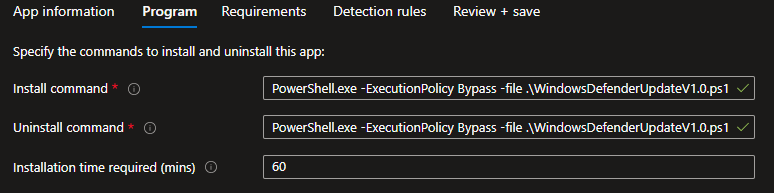
The screenshot below shows the Intune install command used to run the Defender update script.
Below: the detection rule in Intune that uses the registry key to confirm a successful Defender update.
Packaging as a Win32 App for Autopilot
Use the Microsoft Win32 Content Prep Tool to wrap your PowerShell script (and any helper files) into an .intunewin package. In Intune, create a new Win32 app and set the install command to run the script, for example:
PowerShell.exe -ExecutionPolicy Bypass -File ".\YourDefenderUpdateScript.ps1"Use a detection rule that checks the registry path and value your script writes on success (e.g. HKEY_LOCAL_MACHINE\Software\YourOrg\WindowsDefenderUpdate\v1.0 with a “Success” value). Assign the app to the same device group used for Autopilot (or to the Enrollment Status Page group) so it runs during provisioning. You can also set it as a dependency for another app that requires an up-to-date Defender so the update runs first.
Verifying the Result
After the script runs, check the transcript log under Intune Management Extension logs to see the Defender status before and after the update. You should see an updated engine version, product version, and AntivirusSignatureLastUpdated, and RealTimeProtectionEnabled should be true once the update completes. That confirms the device has current signatures and real-time protection before the user hits compliance checks.
The log file below shows Defender status before and after the update script runs.
Below: the updated Defender status on the device after the script has completed.
Summary
To update Windows Defender during Autopilot: use a PowerShell script that calls MpCmdRun.exe -SignatureUpdate -MMPC (with 64-bit and logging handled as needed), write success or failure to the registry for detection, and package it as a Win32 app with an install command and a registry-based detection rule. Deploy the app during Autopilot so Defender is updated before the user signs in, avoiding unnecessary non-compliance when you require a minimum Defender version. You can also deploy the same script as a standard Intune PowerShell script if you prefer not to use the Win32 format.