On managed Macs, the desktop background should match your organisation’s standards. One look, one brand, and a clear signal that the device is corporate. If you already push wallpapers to Windows (for example from Azure Blob Storage or another public URL), you can reuse that same image URL for macOS. If you don’t have a hosted image yet, you’ll need to publish your wallpaper to a URL that devices can reach before continuing.
Two Pieces: Script and Profile
Microsoft publishes two files in the shell-intune-samples repo under macOS/Config/Wallpaper. The first is a shell script that fetches an image from a URL you specify and saves it as /Library/Desktop/Wallpaper.jpg. The second is a mobileconfig that tells macOS to use that file as the desktop picture. Edit the script and replace the sample URL with your own image URL; the profile can stay as-is as long as the path matches.
The screenshot below shows the Microsoft GitHub Wallpaper folder containing the script and mobileconfig files.
Below: the wallpaper script with the URL variable you need to change to your image location.
Step 1: Deploy the Download Script
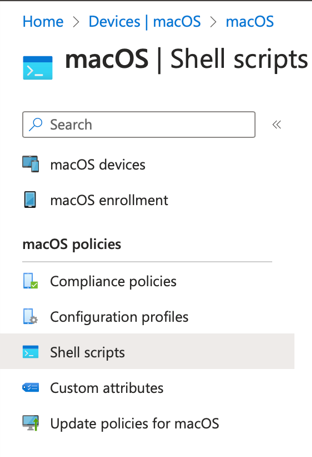
In the Intune admin center, go to Home → Devices → macOS → Shell scripts. Click Add to create a new script. Give it a name (e.g. “macOS – Download wallpaper”) and upload your edited script file. Choose whether the script runs as the signed-in user or as a non–signed-in user; for consistency across shared and single-user Macs, running as non–signed-in user is often best. Turn off script notifications if you don’t want users to see a prompt, and set how often the script runs and how many times to retry on failure. Assign the script to the groups that contain your Intune-managed macOS devices, then save. After devices run the script, /Library/Desktop/Wallpaper.jpg will be present; you can confirm in the script report and on a test device.
Below: navigating to Devices → macOS → Shell scripts in the Intune admin center.
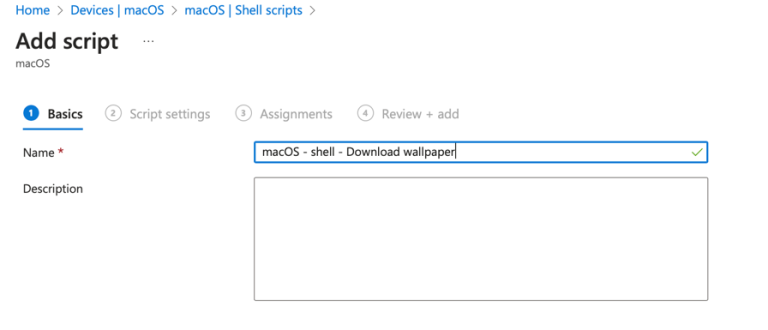
The screenshot shows adding a new macOS shell script and giving it a name.
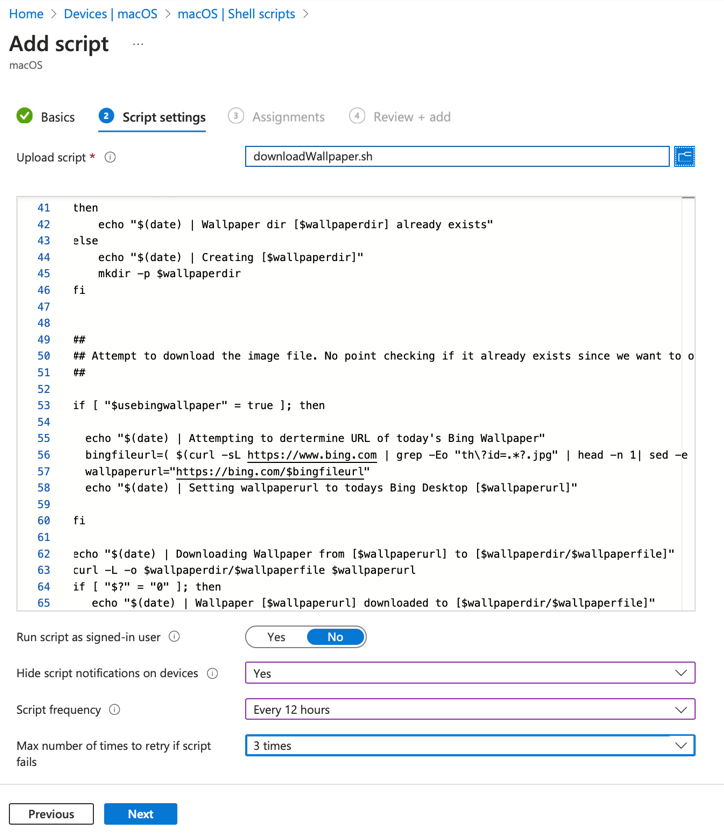
Below: configuring script settings (run as user, notifications, and frequency).
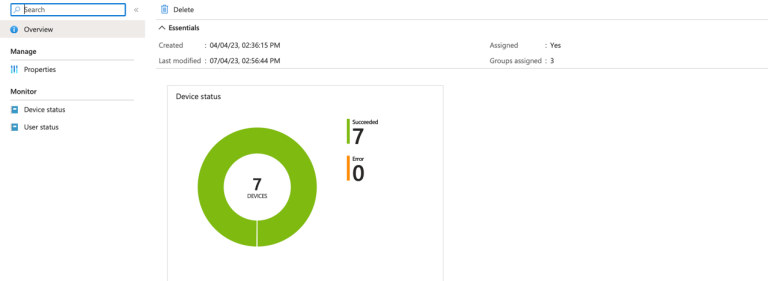
The following screenshot shows assigning the script to groups and completing the wizard.
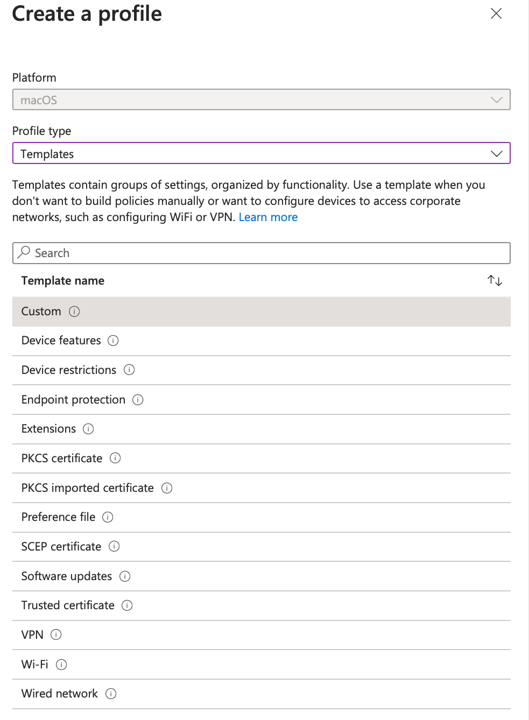
Step 2: Deploy the Wallpaper Profile
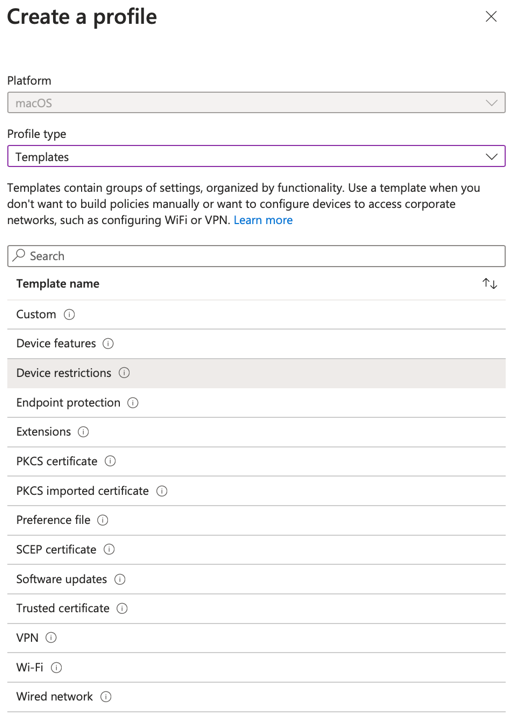
Next, deploy the profile so macOS actually uses the downloaded file as the desktop background. Go to Devices → macOS → Configuration profiles and click Create profile. Under Create profile, pick Templates and then Custom. Enter a name and description (e.g. “Company wallpaper for macOS”), click Next, and on the configuration step upload the wallpaper.mobileconfig file. Assign the profile to the same (or a matching) group of Macs, review, and create. Once the profile applies, the desktop wallpaper will switch to your image.
The screenshot below shows creating a new configuration profile under Devices → macOS → Configuration.
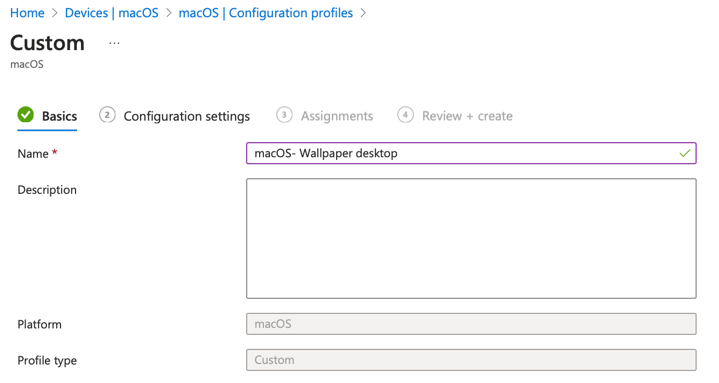
Below: selecting the Custom template when creating the profile.
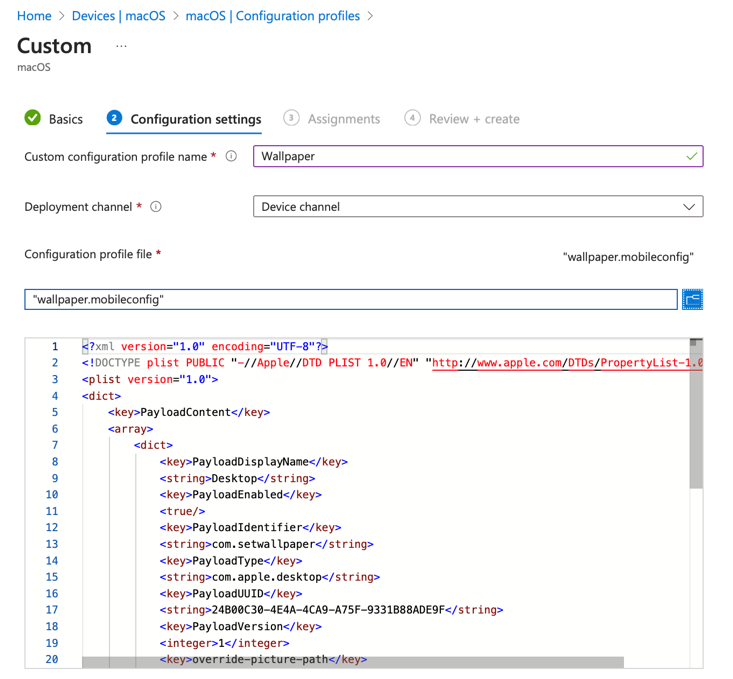
The following screenshot shows entering a name and description and uploading the mobileconfig file.
Below: assigning the wallpaper profile to groups and completing the deployment.
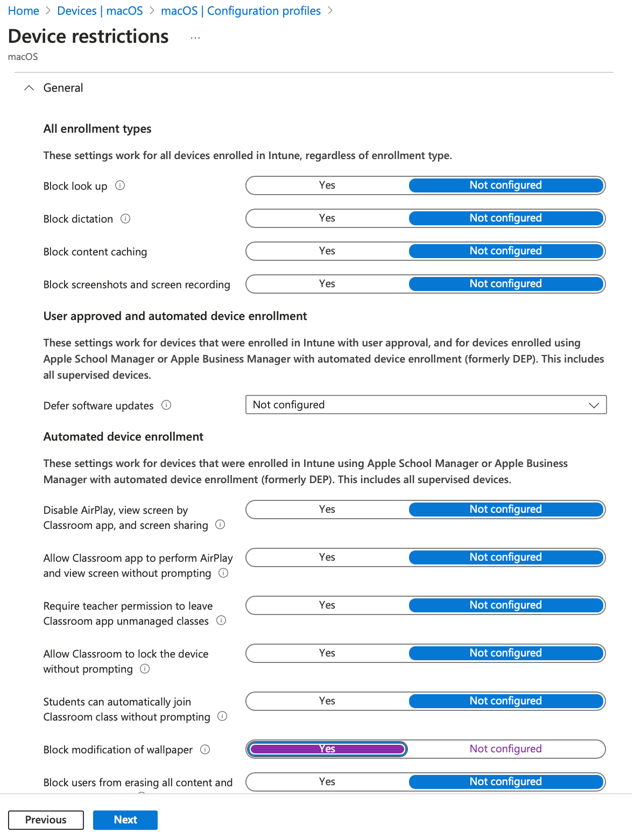
Optional: Prevent Users From Changing the Wallpaper
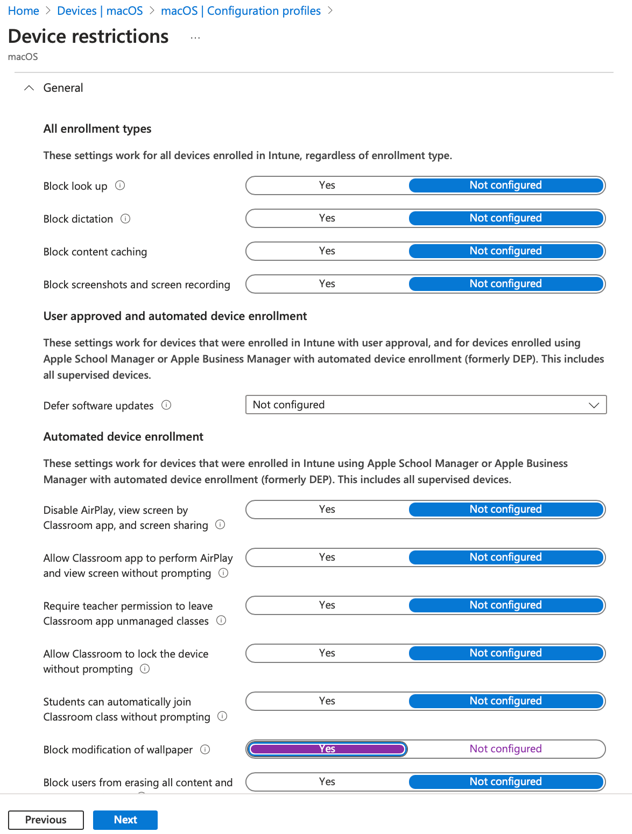
This option applies only to supervised macOS devices (enrolled via Apple Business Manager or Apple School Manager). To lock the wallpaper so users can’t change it, create a second configuration profile: choose Templates → Device restrictions. On the General tab, find Block modification of wallpaper and set it to Yes. Assign this profile to your supervised Macs. On non-supervised devices this setting has no effect.
Summary
Setting up wallpaper for Intune-managed macOS devices is a two-step process: a shell script that downloads your image to /Library/Desktop/Wallpaper.jpg, and a Custom configuration profile that applies that file as the desktop picture. Use a publicly reachable URL (e.g. Azure Blob) for the image, customise the script from the Microsoft samples repo, then deploy the script and the mobileconfig to your Mac groups. On supervised devices, add a Device restrictions profile with Block modification of wallpaper = Yes to keep the company look in place.