Kiosks, shared workstations, and locked-down virtual desktops often need web access limited to a short list of approved sites. Instead of blocking URLs one by one, you can block all URLs and then allow only the ones you specify. Microsoft Edge and Google Chrome support URLBlocklist and URLAllowlist policies that Intune can deploy via a Settings catalog profile. For these policies, the allowlist wins over the blocklist: if a URL is on the allowlist, it is allowed even when a block rule would otherwise apply. This guide shows how to build one Intune policy that blocks everything and allows only your chosen URLs.
Block All URLs, Then Allow Exceptions
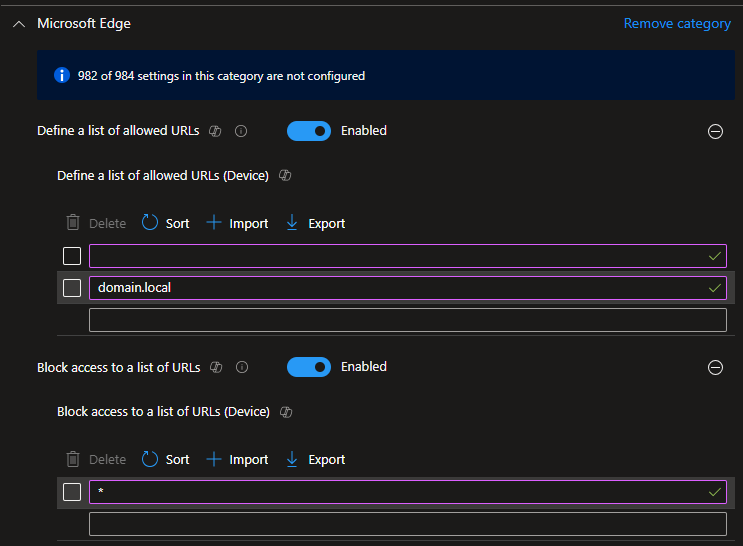
To achieve “allow only these sites,” you first block all URLs by setting the URL blocklist to a single value: *. That blocks all web traffic. Because the allowlist overrides the blocklist, you then add each permitted URL (or pattern) to the URL allowlist. Users can open only those addresses; everything else is blocked. Both settings can live in the same Intune policy.
Create a Settings Catalog Policy
In the Microsoft Intune admin center, go to Devices → Configuration → Policies. Click Create → New policy. Set Platform to Windows 10 and later and Profile type to Settings catalog, then click Create. Give the profile a name (e.g. “Kiosk – Edge and Chrome allowed URLs only”).
Click Add settings. Search for URLBlocklist, open the Microsoft Edge category, and select Block access to a list of URLs (Device). Enable the setting and add one value: *. That configures the blocklist to block all URLs. If you do not need any exceptions, you can save and assign the policy as-is to block all web access. To allow specific URLs, add the allowlist in the same policy (next step).
Click Add settings again. Search for URLAllowlist, open Microsoft Edge, and select Allow access to a list of URLs (Device). Enable it and add the URLs or patterns you want to allow (e.g. https://company.com, https://portal.internal.local). Click Next, configure scope tags if needed, click Next, assign the policy to the device groups that should have this restriction (e.g. kiosk or AVD host devices), then click Create. For device-level behavior, assign to device groups; for user-level behavior, assign to user groups. In Azure Virtual Desktop, device-based restrictions are typically assigned to a device group containing the session hosts.
How Allowlist Entries Behave
The allowlist supports patterns, but matching is not always intuitive:
domain.local. Allows any URL that containsdomain.localin the address.*.domain.local. Does not behave as “all URLs ending with domain.local”; matching may not cover all subdomains as expected. Preferdomain.localif you need the whole domain.www.domain.com. Allows only that exact URL. Subdomains are not included. If the user dropswwwand goes todomain.com, the page can be blocked.domain.com. Allows any URL containingdomain.com, including subdomains.
Test critical URLs after deployment. You can inspect the resulting allowlist in the registry at HKLM\SOFTWARE\Policies\Microsoft\Edge\URLAllowlist (and the corresponding Chrome policy key if you use Chrome with the same policy).
Summary
To restrict browsing to a set of allowed URLs: create a Windows Settings catalog policy in Intune, add the Microsoft Edge setting “Block access to a list of URLs” with value *, add “Allow access to a list of URLs” with your permitted URLs or patterns, then assign the policy to the right device (or user) groups. The allowlist overrides the blocklist, so only listed URLs are accessible. Use the allowlist behavior notes above when choosing patterns, and assign to device groups when the policy must apply per device (e.g. kiosks or AVD hosts).