Devices that are only managed by Microsoft Intune. Without Configuration Manager. Have long lacked a built-in way to do full remote support. Teams and Quick Assist can show the screen and share control, but the helper cannot run elevated actions (e.g. restart a service, change system settings). That forces many organisations to use co-management with Config Manager for remote control, or third-party tools. Microsoft Remote Help fills that gap: it is the native remote support solution for Intune and supports View screen, Take full control, and Elevation so the helper can run admin tasks on the user’s device. It was announced at Microsoft Ignite and has moved from preview to generally available. This post walks through enabling the connector, configuring roles, deploying the client, and using a session. Including elevation. For requirements (licensing, network, prerequisites), see Microsoft’s Remote Help documentation.
Turn On the Remote Help Connector
In the Microsoft Intune admin center, go to Tenant administration → Connectors and tokens. Open the Remote help connector and turn it On. You can optionally allow Remote Help for unenrolled devices; many organisations leave this off until they understand the implications. Save. The connector must be enabled before helpers and requestors can use Remote Help.
Below: the Microsoft Ignite announcement of Remote Help.
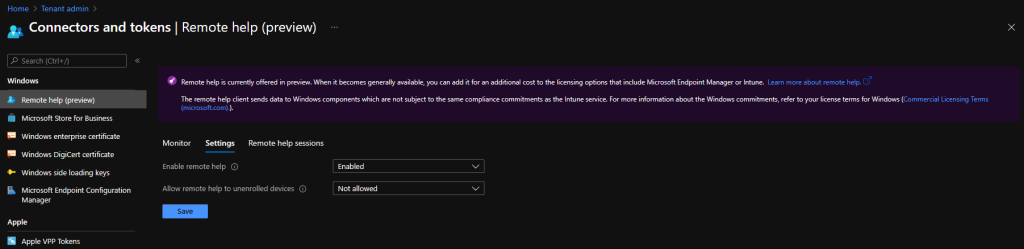
The screenshot shows the Remote Help connector under Tenant administration → Connectors and tokens.
Below: turning the Remote Help connector On.
Roles and Permissions
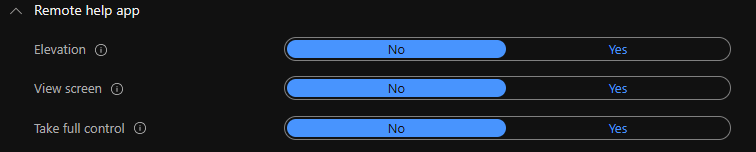
Remote Help uses three permissions: View screen, Take full control, and Elevation. The Intune Administrator and Help Desk Operator built-in roles have all three by default. For finer control. E.g. trainers with view-only, or just-in-time elevation. Create a custom Intune role and grant only the permissions you need. Configure roles under Tenant administration → Roles → All roles (or create a custom role and assign the Remote Help permissions).
The screenshot below shows Remote Help RBAC permissions (View screen, Full control, Elevation).
Below: custom Intune RBAC roles configured for Remote Help.
Deploy the Remote Help Client
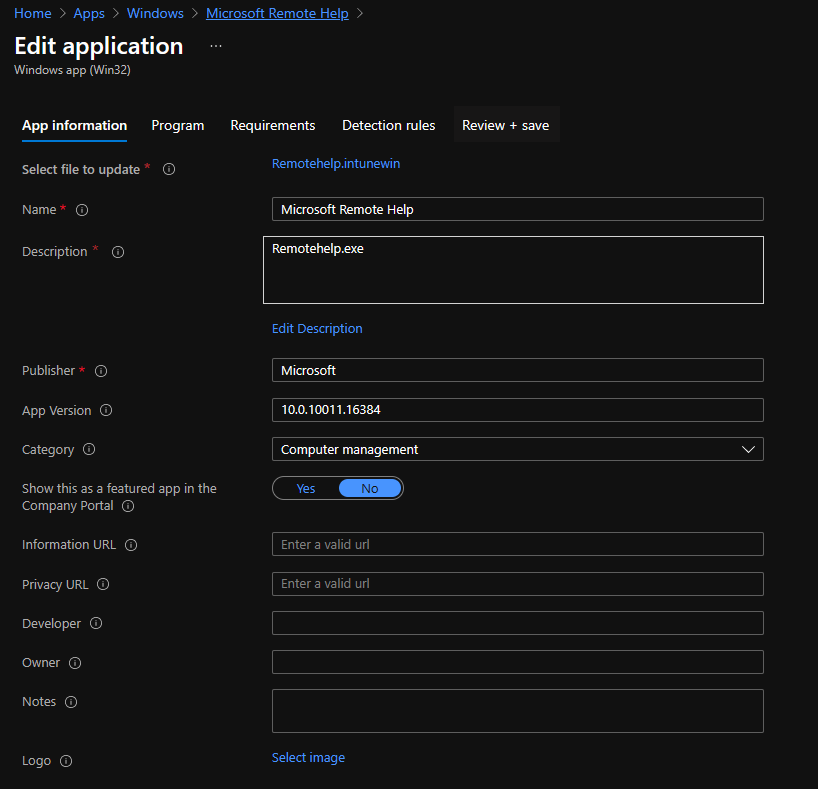
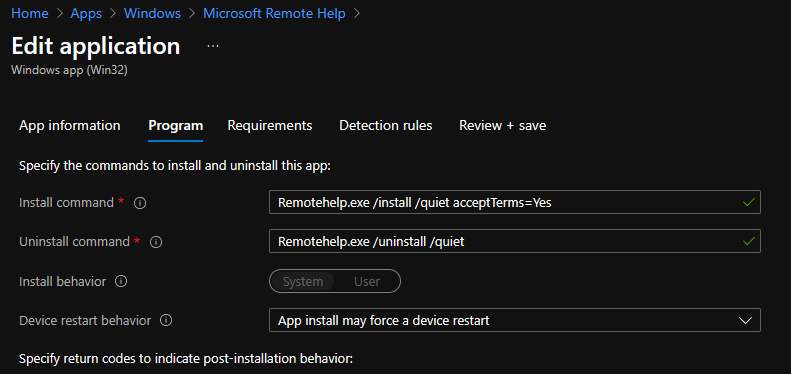
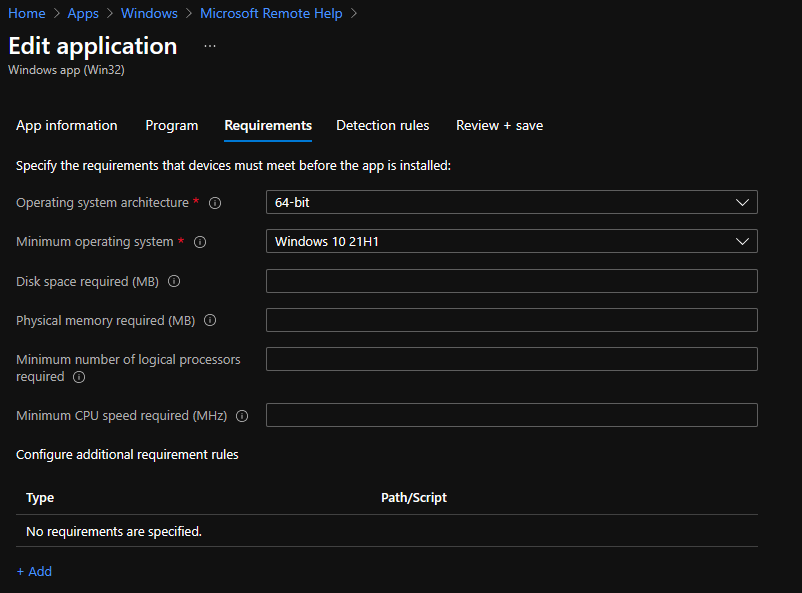
The Remote Help app (Remotehelp.exe) must be installed on devices that will request help and on devices that will provide help. Download the latest installer from Microsoft (search for “Remote Help download” or the official docs). Package it as a Win32 app using the Microsoft Win32 Content Prep Tool: create a folder with Remotehelp.exe, run the tool to produce an .intunewin file, then add the app in Intune. Use install command: Remotehelp.exe /install /quiet acceptTerms=Yes and uninstall: Remotehelp.exe /uninstall /quiet. Set a detection rule (e.g. file %ProgramFiles%\Remote help\RemoteHelp.exe, version equals the version you deploy). Set requirements (e.g. Windows 10/11, architecture). Assign the app to the groups that need to give or receive help. Update the detection rule when you deploy a newer version.
The screenshot below shows Win32 app requirements for the Remote Help client.
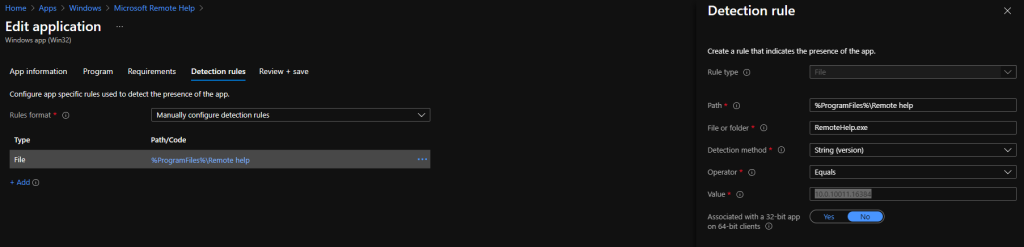
Below: the detection rule used to confirm Remote Help is installed.

The following screenshot shows app assignment for Remote Help.
Starting a Remote Help Session
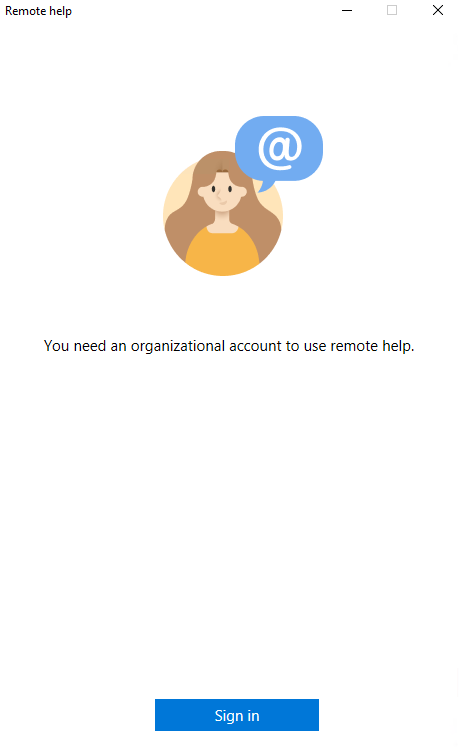
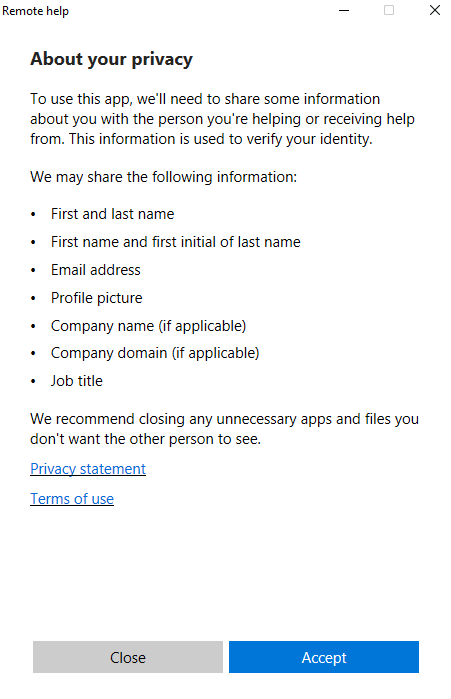
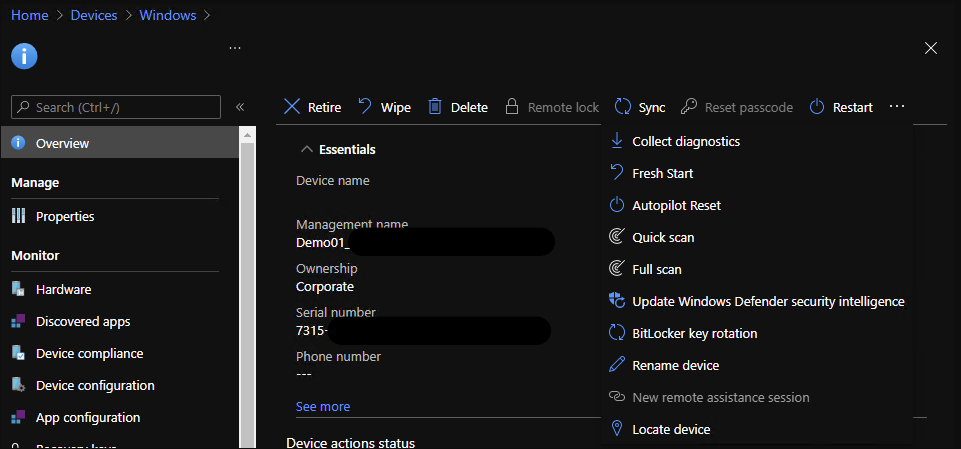
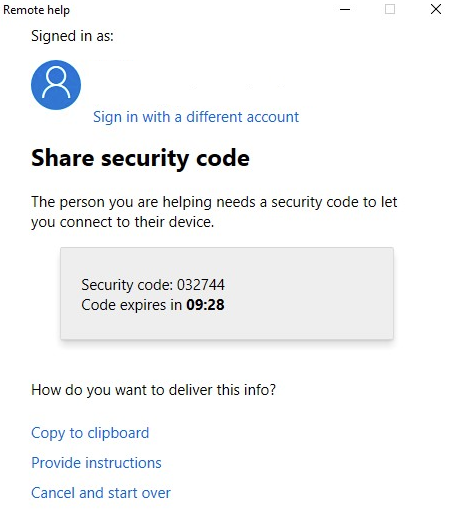
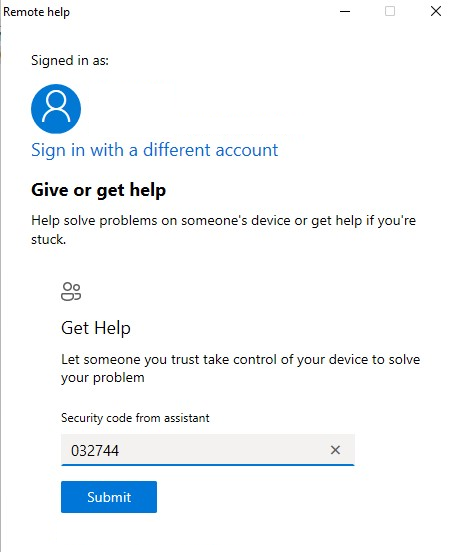
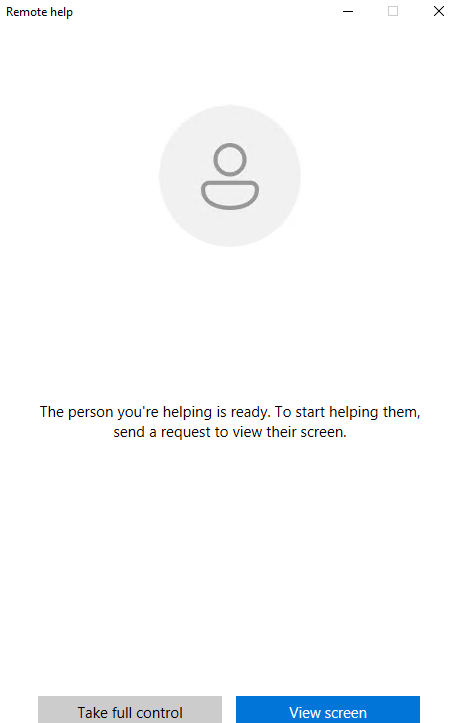
On the requestor device (the user who needs help), open the Remote Help app and sign in with their work account. Accept the privacy information. The app then shows that it is ready for a helper to connect. On the provider device (the support person), in the Intune admin center go to Devices → find the requestor’s device → New remote assistance session (or open the Remote Help app and follow the flow). The provider gets a six-digit security code valid for about 10 minutes. The requestor enters that code in the Remote Help app and submits. The provider chooses View screen or Take full control (depending on their role). The requestor must allow the connection. Once connected, the provider can see the screen and, with full control, interact with it. If “New remote assistance session” is greyed out in the portal, the provider can still start a session by opening the Remote Help app and using the code flow.
Below: the Remote Help app on the requestor’s device.
The screenshot shows signing in to Remote Help.
Below: privacy information and Accept.
The following screenshot shows Remote Help ready for the provider to connect.
Below: starting a new remote assistance session from Endpoint Manager.
The screenshot shows obtaining a security code on the provider device.
Below: the security code generated (valid for about 10 minutes).
The following screenshot shows entering the security code on the requestor device.
Below: choosing the Take full control option.
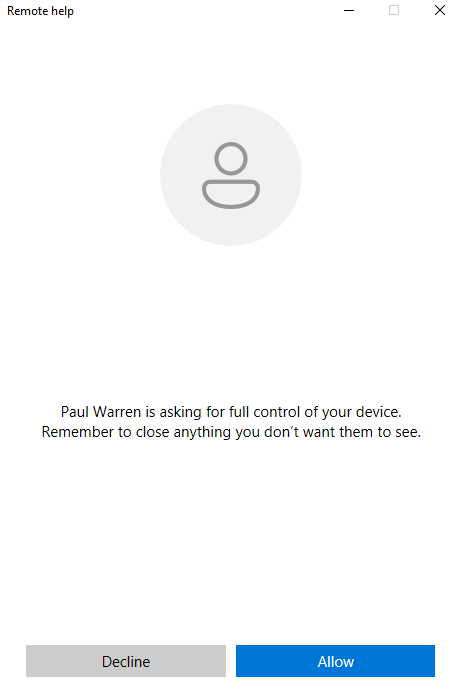
The screenshot shows the requestor allowing the connection.
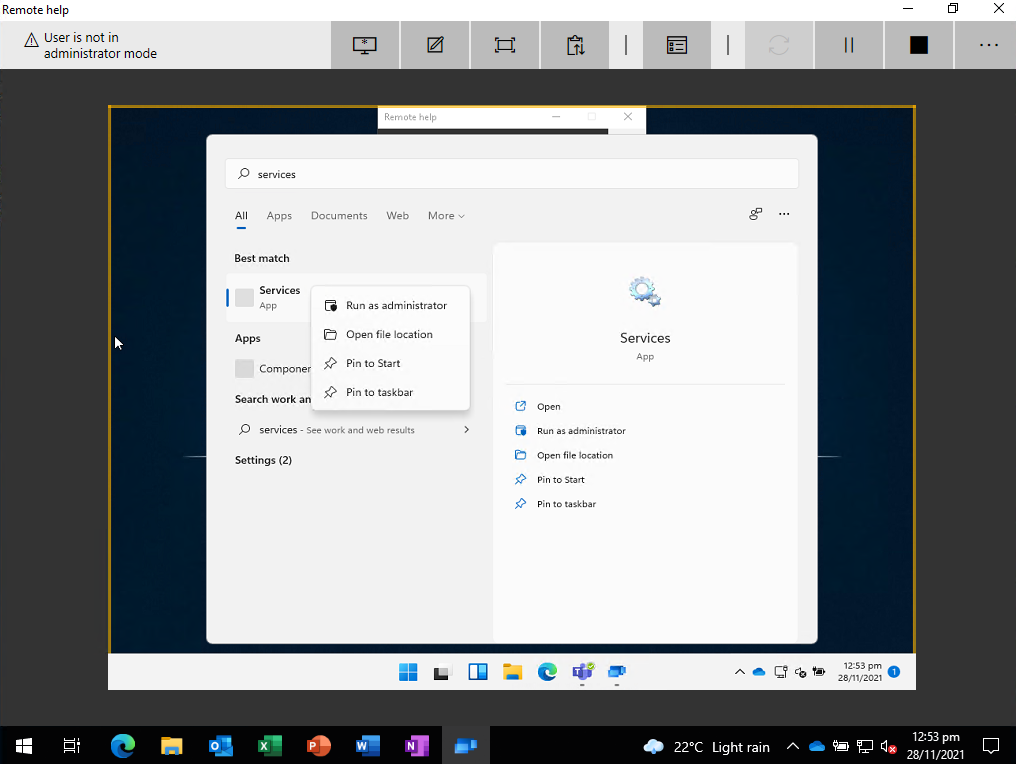
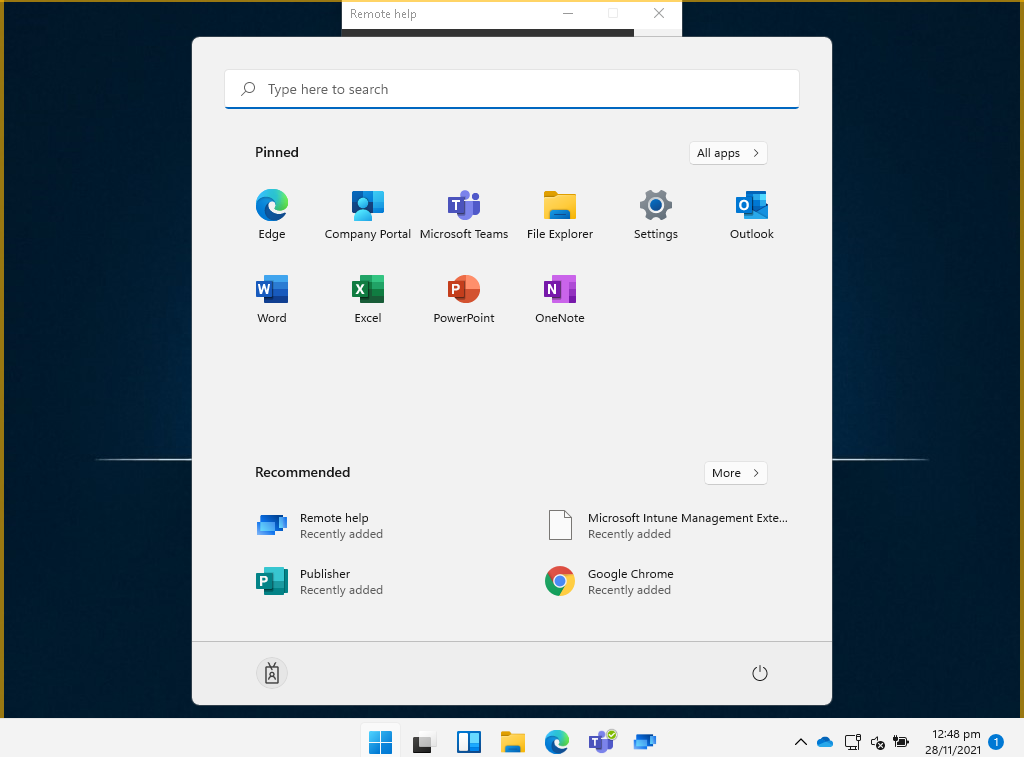
Below: the requestor’s view during an active session.
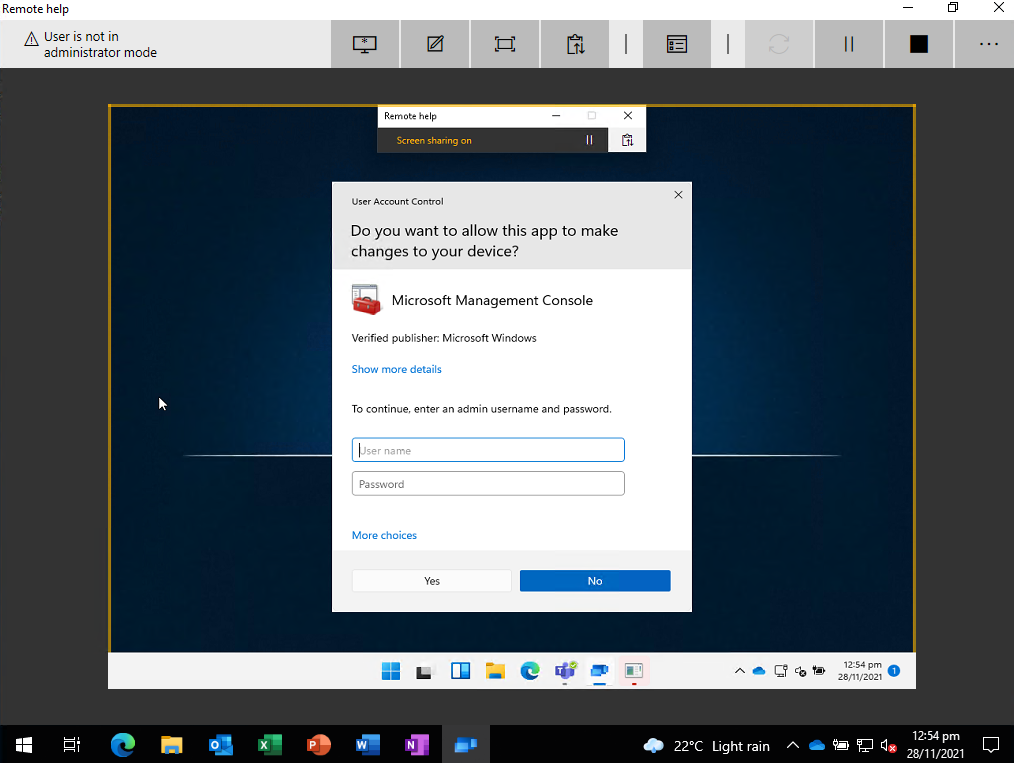
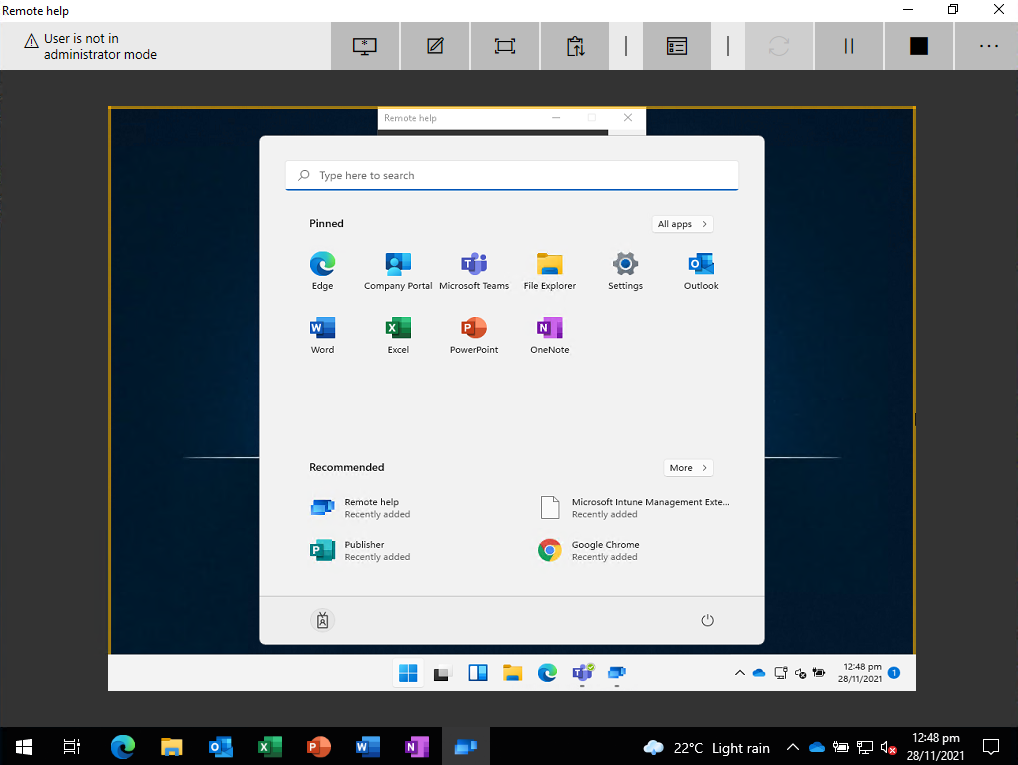
The following screenshot shows the provider’s view during the session.
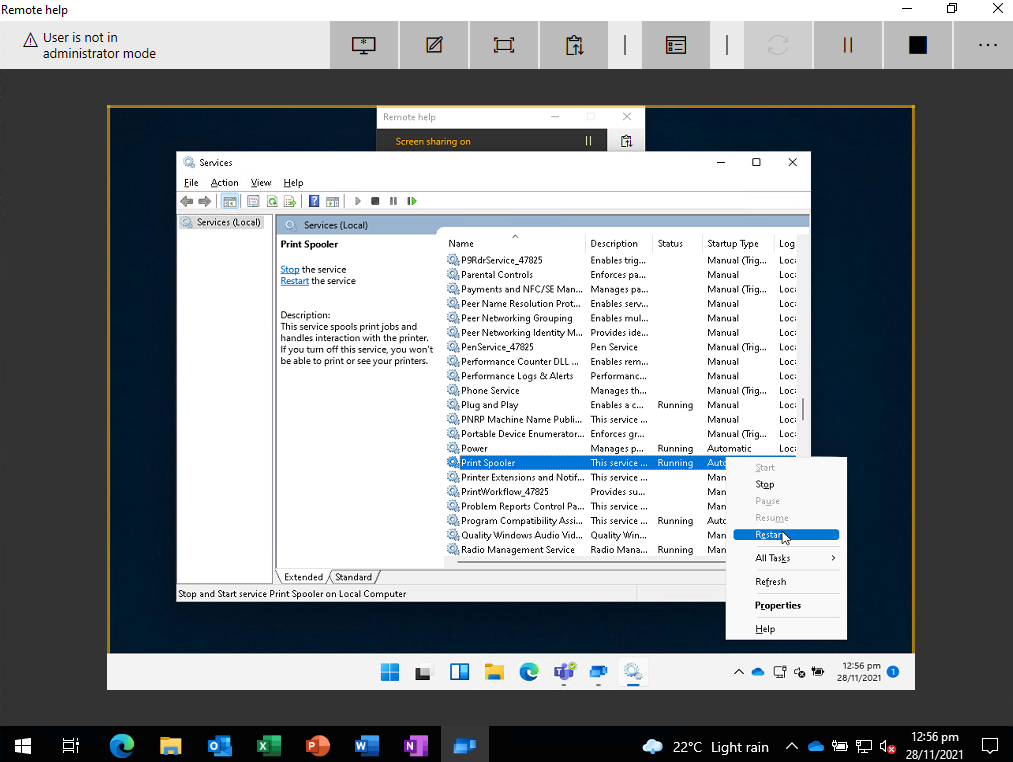
Elevation: Running Admin Tasks
Where Remote Help differs from Teams or Quick Assist is Elevation. If the provider has the Elevation permission, they can start processes with administrator rights on the requestor’s device. E.g. open Services as administrator, restart a service, or run an elevated command. The provider runs the elevated action from their session; the requestor does not have to enter credentials. When a session that used elevation ends, the requestor is signed off (by design). Ensure the requestor saves work before the helper ends an elevated session. You can confirm behaviour in the Microsoft documentation.
Below: the Services console without elevation (normal user context).
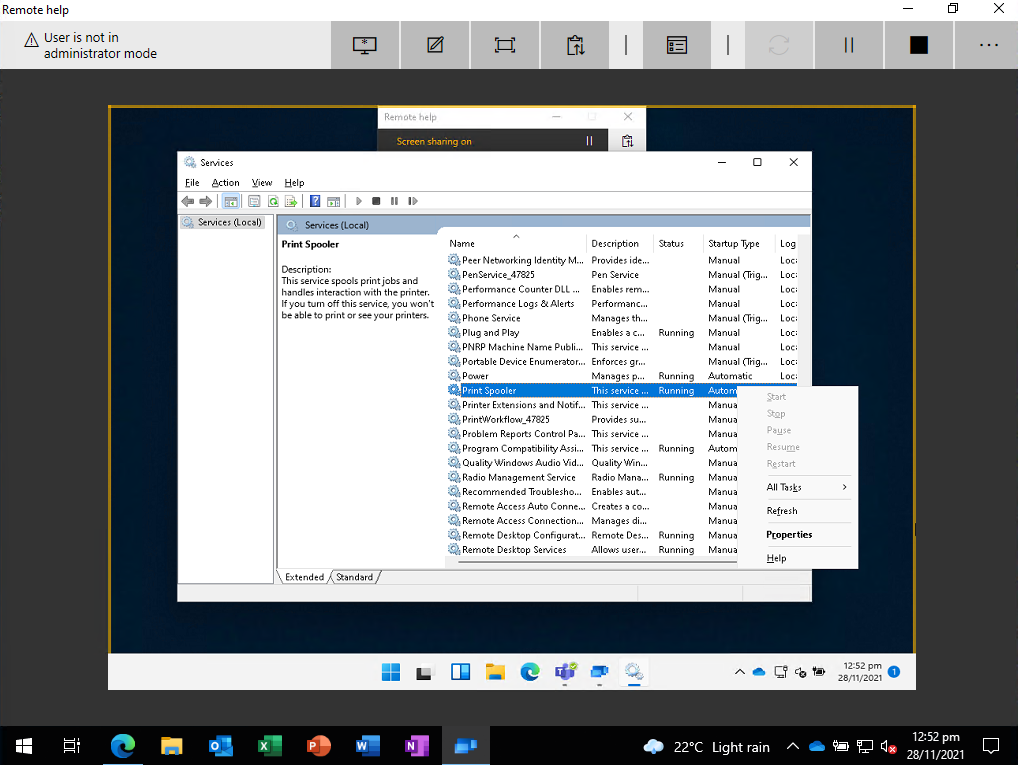
The following screenshot shows opening Services as Administrator using Remote Help elevation.
Reporting
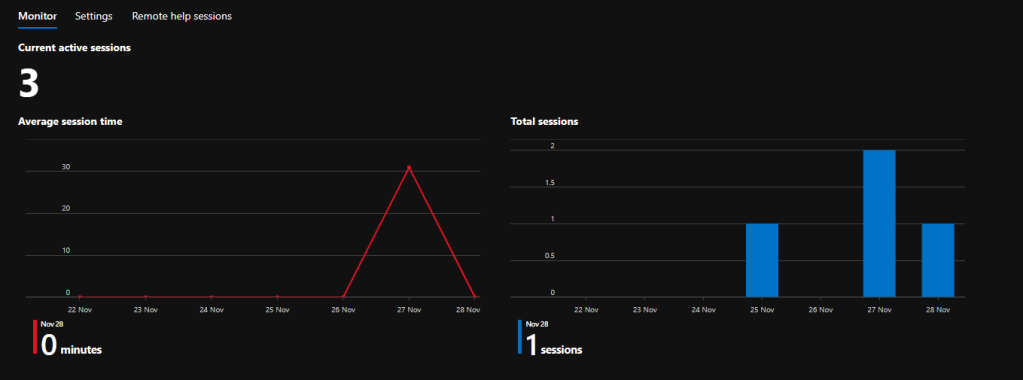
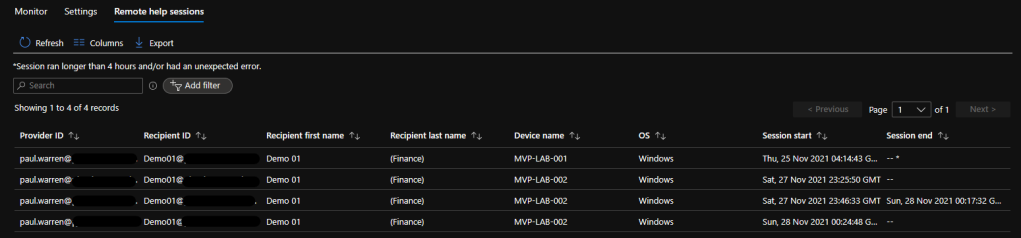
On the Remote help connector page in Tenant administration, open the Monitor tab to see usage and session information. The Remote help sessions view gives more detail on sessions. Use these to audit and troubleshoot Remote Help usage.
Summary
To use Microsoft Remote Help with Intune: (1) In Tenant administration → Connectors and tokens, enable the Remote help connector; optionally allow unenrolled devices. (2) Configure RBAC: built-in Intune Administrator and Help Desk Operator have View screen, Take full control, and Elevation; use custom roles for view-only or JIT elevation. (3) Deploy the Remote Help client (Remotehelp.exe) as a Win32 app to all devices that will request or provide help; use /install /quiet acceptTerms=Yes and a file/version detection rule. (4) To start a session: requestor opens Remote Help and signs in; provider gets a six-digit code (from the device in Intune or in the app) and requestor enters it; provider chooses View or Full control; requestor allows. (5) With Elevation permission, the provider can run elevated tasks; ending an elevated session signs off the requestor. Check licensing and docs for current requirements and reporting.