Microsoft is retiring the original Secure Boot certificates introduced in 2011; they expire throughout 2026. Every Windows device that uses Secure Boot depends on these certificates, so IT must prepare managed fleets in advance. Secure Boot checks that boot components are signed and trusted before the OS starts; that trust is based on certificates in the device’s UEFI firmware. When the 2011 certificates expire, devices that have not transitioned to the new 2023 certificate chain may stop validating newer Secure Boot components, miss security updates, or in some cases fail to boot. This post explains why the update matters, how to configure devices to receive the new certificates via Microsoft Intune (Settings catalog or registry), how to monitor rollout with scripts, and how to handle exceptions and troubleshooting.
Why the Certificate Update Matters
If devices do not receive the new Secure Boot certificates before the 2026 expiration, you can run into:
- Blocked security updates. After the expiration window (e.g. from June 2026), devices may be unable to install Secure Boot–related updates, leaving boot components exposed.
- Third-party trust. Software and drivers signed with the 2023 chain will not be trusted on devices that still only have the old certificates.
- Windows Boot Manager. After October 2026, fixes for Windows Boot Manager may not apply to devices that have not transitioned.
- Future compatibility. New Windows versions and security features may assume the new chain; devices on the old chain can hit compatibility or boot issues.
Microsoft delivers the new certificates through Windows Update (and in some cases via OEM firmware). Devices must be opted in to receive them. In Intune-managed environments you can control that opt-in via policy instead of manual registry edits.
Configuring Secure Boot Certificate Updates in Intune
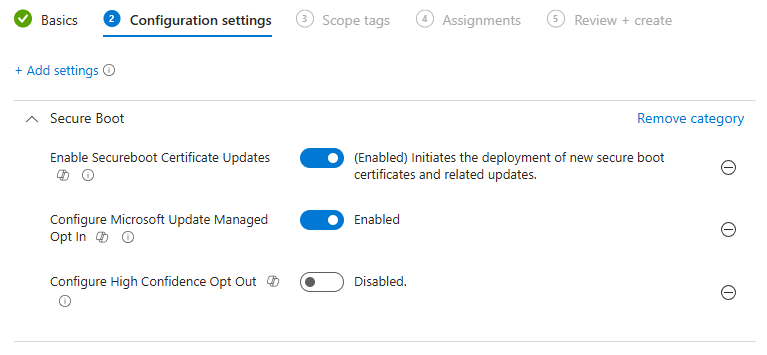
Intune’s Settings catalog includes Secure Boot certificate update controls. In the Microsoft Intune admin center, go to Devices → Windows → Configuration profiles and click Create → New policy. Choose Windows 10 and later and Settings catalog. On Basics, set a name (e.g. “Secure Boot certificate update 2026”) and optional description. On Configuration settings, click Add settings and search for Secure Boot. Add and configure:
- Enable Secure Boot Certificate Updates. Set to Enabled so the device can receive updated Secure Boot certificates via Windows Update.
- Configure Microsoft Update Managed Opt In. Set to Enabled so Microsoft controls when the certificate update is offered (recommended for most environments).
- Configure High Confidence Opt Out. Set to Disabled. Use opt-out only for specific exception devices that have been validated; do not enable it broadly or those devices will not get the required update.
Assign the profile to all Windows devices that use Secure Boot, and use exclusions only for devices you have explicitly approved as exceptions. Create the profile so devices receive the configuration and become eligible for the certificate update through Windows Update.
Registry Fallback
For devices not managed by Intune, or as a fallback when policy is not applied, you can set the opt-in in the registry. Under HKLM:\SYSTEM\CurrentControlSet\Control\SecureBoot\, create or set the value MicrosoftUpdateManagedOptIn (DWORD) to 1. Example in PowerShell:
$Path = "HKLM:\SYSTEM\CurrentControlSet\Control\SecureBoot\"
$Name = "MicrosoftUpdateManagedOptIn"
$Value = 1
if (!(Test-Path $Path)) { New-Item -Path $Path -Force | Out-Null }
Set-ItemProperty -Path $Path -Name $Name -Value $Value -Type DWORD
After this value is set, the device is eligible to receive the certificate update during normal Windows Update cycles; Microsoft controls the exact timing.
Monitoring Certificate Update Status
You can use detection or remediation scripts in Intune to see which devices have received the new certificate. A simple check is to read the Secure Boot UEFI db (database) and look for the 2023 CA. Example:
try {
    $db = Get-SecureBootUEFI -Name db
    $dbString = [System.Text.Encoding]::ASCII.GetString($db.Bytes)
    if ($dbString -match 'Windows UEFI CA 2023') {
        Write-Output "Compliant: Windows UEFI CA 2023 present."
        exit 0
    } else {
        Write-Output "Non-Compliant: Windows UEFI CA 2023 not found."
        exit 1
    }
} catch {
    Write-Output "Error: Unable to read Secure Boot UEFI database."
    exit 1
}
For richer visibility, check registry under HKLM:\SYSTEM\CurrentControlSet\Control\SecureBoot\Servicing: UEFICA2023Status (e.g. “Updated” when done), WindowsUEFICA2023Capable (2 = capable, 1 = not yet, 0 = not capable), and UEFICA2023Error (0 or null = no error). If the certificate is present in the UEFI db, the device is compliant. If Status is “Updated” and Capable is 2 but the cert is not yet in the db, the update may be pending a reboot. If Status is empty and Capable is 2, the device is opted in and waiting for the update. If Capable is 1 or 0, the device may need a firmware update or may not support the new chain. If Error is non-zero, investigate manually. Use these checks in a Proactive Remediation detection script or a custom report to track rollout.
Deployment and Exception Handling
Deploy the opt-in policy early so Windows Update has time to distribute the certificates before the 2026 deadlines. Prefer the Settings catalog over registry for auditability and consistency. Pilot on a small group to confirm compatibility with your hardware. Use Configure High Confidence Opt Out only for devices that have been explicitly validated as exceptions (e.g. legacy or special-purpose systems that cannot take the update); do not enable opt-out as a general “safety” measure or those devices will miss required updates. Some older hardware may need a firmware update from the OEM before it can accept the new certificates; check with the manufacturer and plan for replacement if no firmware is available.
Troubleshooting
If a device is opted in but has not received the update after a long period: confirm Secure Boot is enabled in UEFI, that Windows Update is working and the device has recent quality updates, and review UEFICA2023Error for codes. If firmware blocks the update, install the latest OEM firmware or document the device as an exception. Rely on Microsoft-managed opt-in for most devices so rollout timing is controlled by Microsoft and compatibility risk is reduced.
Summary
To prepare Intune devices for the 2026 Secure Boot certificate update: create a Settings catalog profile (Windows 10 and later), search for Secure Boot, and enable Enable Secure Boot Certificate Updates and Configure Microsoft Update Managed Opt In; leave Configure High Confidence Opt Out disabled except for validated exception devices. Assign the profile to all Windows devices with Secure Boot. For non-Intune or fallback, set HKLM:\SYSTEM\CurrentControlSet\Control\SecureBoot\MicrosoftUpdateManagedOptIn = 1. Use scripts to monitor the UEFI db and Servicing registry values so you can see which devices have the new certificate and which need attention. Deploy the policy early, pilot first, and use opt-out only for documented exceptions so your fleet transitions to the new certificate chain before the expiration deadline.





