The Apple MDM Push certificate (APNs certificate) that links Microsoft Intune to Apple’s push service is valid for one year. If it expires before you upload a new one, Intune can no longer communicate with your iOS, iPadOS, or macOS devices. Enrollment stops and existing devices may stop receiving policies and commands. Renewing the certificate before expiry keeps management working. This guide walks through the three-part process: download a new CSR from Intune, get a renewed certificate from Apple using the same Apple ID, then upload the new certificate to Intune.
Why Renew Before Expiry
Once the push certificate expires, Apple no longer accepts requests from your MDM server. New devices cannot enroll, and already-enrolled devices may not receive lock, wipe, or policy updates until a valid certificate is in place. Renewing a few weeks before the expiration date gives you time to fix any issues and avoids a gap in management.
Get a New CSR from Intune
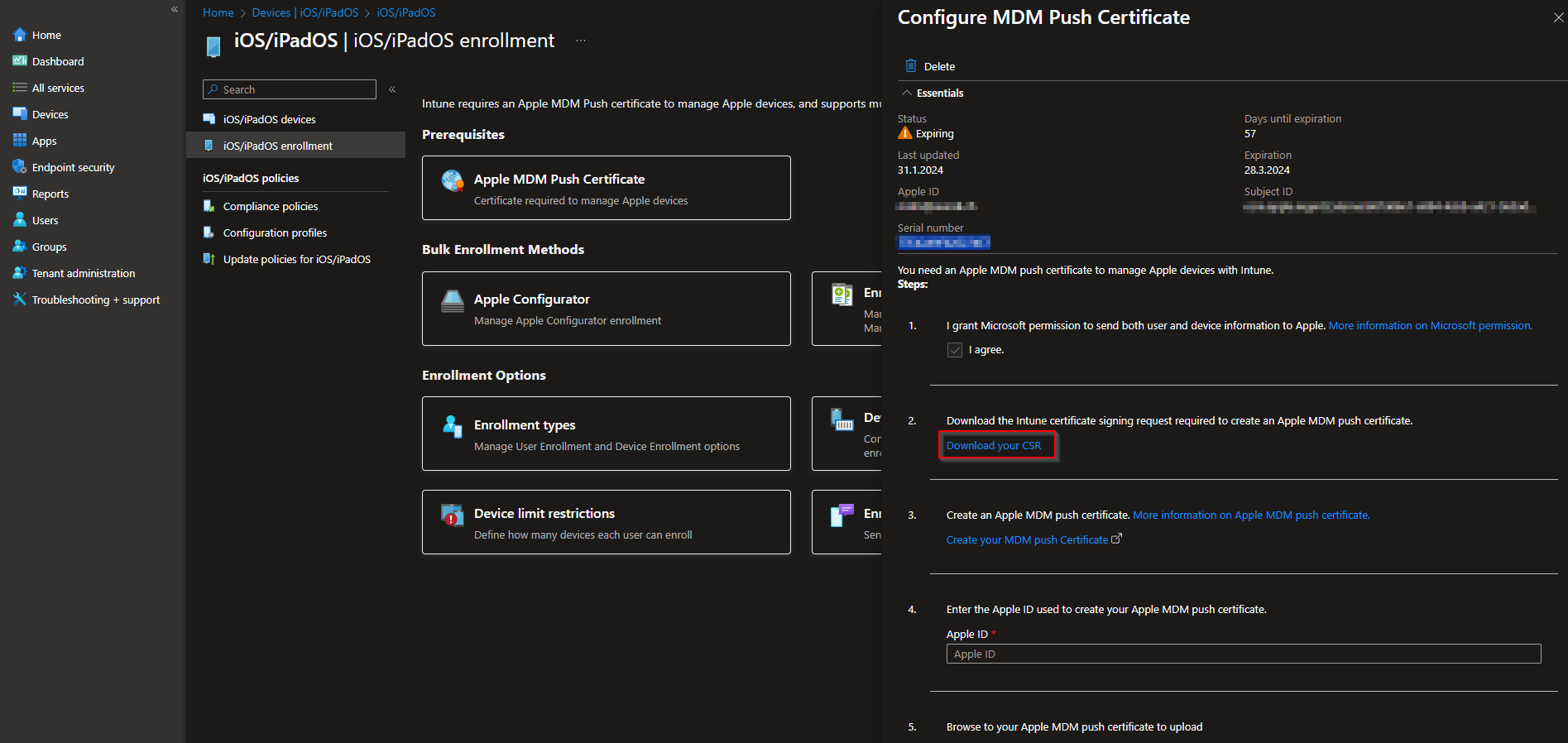
Intune needs a fresh Certificate Signing Request (CSR) for each renewal. In the Microsoft Intune admin center, go to Devices → iOS / iPadOS → iOS / iPadOS enrollment → Apple MDM Push certificate. Click Download your CSR and save the file (e.g. IntuneMDMRequest.csr) to your computer. You will upload this file in the Apple portal in the next step.
Renew the Certificate in the Apple Portal
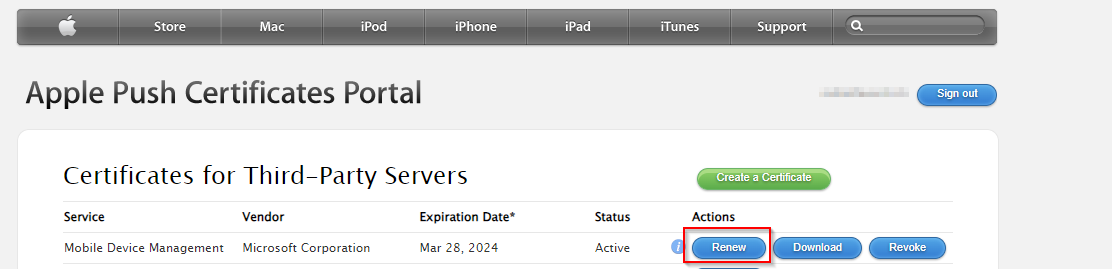
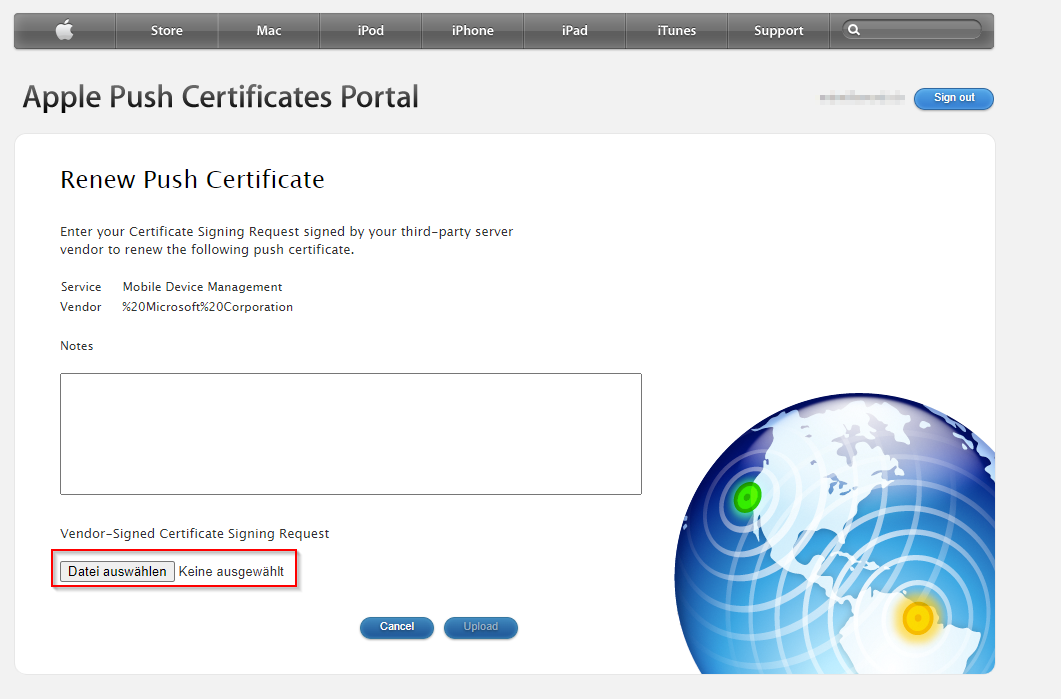
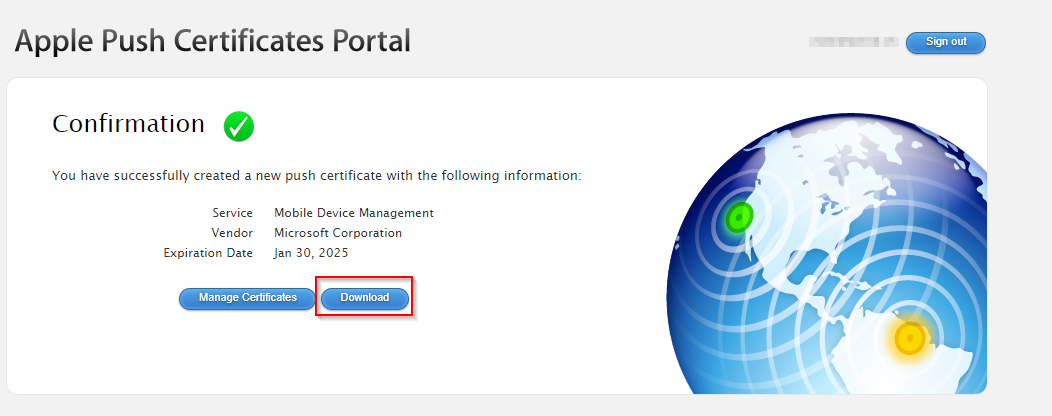
Sign in to identity.apple.com/pushcert with the same Apple ID you used when you first created the push certificate. You will see your existing certificate and its expiration date. Select the certificate and click Renew (or the equivalent option). When prompted, upload the CSR file you downloaded from Intune. After Apple processes it, you will see a confirmation and a Download link for the renewed certificate. Download the file. It will be in PEM format. And save it to a known location. You will upload this file to Intune in the next step.
Upload the New Certificate to Intune
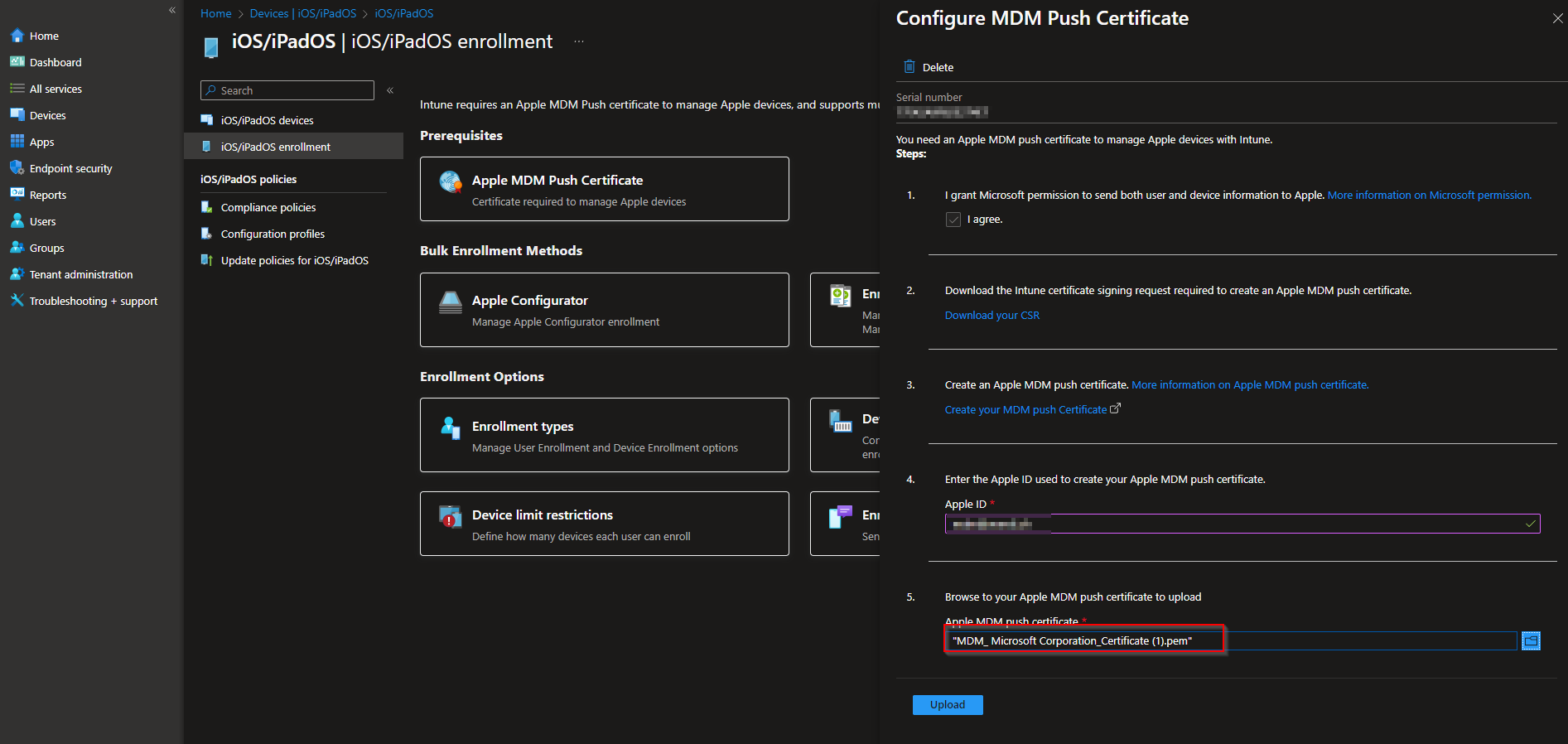
Back in the Intune admin center, go to Devices → iOS / iPadOS → iOS / iPadOS enrollment → Apple MDM Push certificate. Click Upload your APNs certificate. Select the PEM file you downloaded from Apple, enter the Apple ID you used to renew the certificate, and click Upload. Intune will validate and store the new certificate. The portal will show the new expiration date and confirm that Apple device management can continue.
Set a Reminder for Next Year
Because the certificate is valid for one year, set a calendar reminder (e.g. 30–60 days before the expiration date shown in Intune) to repeat this process. Use the same Apple ID each time so the certificate chain stays consistent. For official steps and troubleshooting, see Renew Apple MDM push certificate on Microsoft Learn.
Summary
To renew the Apple MDM Push certificate for Microsoft Intune: download a new CSR from Devices → iOS / iPadOS → iOS / iPadOS enrollment → Apple MDM Push certificate; sign in at identity.apple.com/pushcert with the same Apple ID, renew the certificate, upload the CSR, and download the PEM file; then in Intune upload the PEM and enter the Apple ID. Renew before expiry and set an annual reminder so iOS, iPadOS, and macOS management continues without interruption.





