Windows ships with many built-in (provisioned) apps that some organizations don’t want on corporate devices. Removing them manually on each PC is impractical. Microsoft Intune can run a PowerShell script on enrolled Windows devices to uninstall selected preinstalled apps using Get-AppxPackage and Remove-AppxPackage.
This guide walks through writing a script that removes a set of provisioned apps by name, then deploying that script via Intune’s PowerShell scripts feature. You can tailor the app list to match your environment.
What You’ll Do
- Create a PowerShell script that removes chosen preinstalled (Appx) packages by name.
- Add the script in Intune under Devices → Windows → PowerShell scripts, configure execution options, and assign it to a group.
Step 1: Create the PowerShell Script
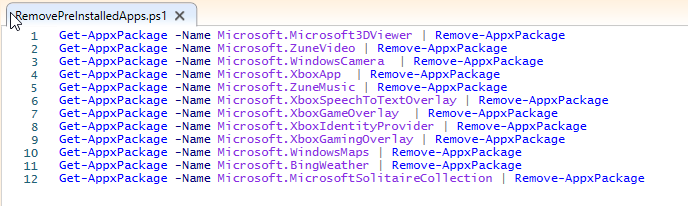
Open PowerShell ISE or any text editor. The script will use Get-AppxPackage -Name <PackageName> | Remove-AppxPackage for each app you want to remove. Use the Package full name or the short name (e.g. Microsoft.Microsoft3DViewer). Add one line per app; if the package isn’t present, the command is skipped. Example script that removes several common provisioned apps:
Get-AppxPackage -Name Microsoft.Microsoft3DViewer -ErrorAction SilentlyContinue | Remove-AppxPackage
Get-AppxPackage -Name Microsoft.ZuneVideo -ErrorAction SilentlyContinue | Remove-AppxPackage
Get-AppxPackage -Name Microsoft.WindowsCamera -ErrorAction SilentlyContinue | Remove-AppxPackage
Get-AppxPackage -Name Microsoft.XboxApp -ErrorAction SilentlyContinue | Remove-AppxPackage
Get-AppxPackage -Name Microsoft.ZuneMusic -ErrorAction SilentlyContinue | Remove-AppxPackage
Get-AppxPackage -Name Microsoft.XboxSpeechToTextOverlay -ErrorAction SilentlyContinue | Remove-AppxPackage
Get-AppxPackage -Name Microsoft.XboxGameOverlay -ErrorAction SilentlyContinue | Remove-AppxPackage
Get-AppxPackage -Name Microsoft.XboxIdentityProvider -ErrorAction SilentlyContinue | Remove-AppxPackage
Get-AppxPackage -Name Microsoft.XboxGamingOverlay -ErrorAction SilentlyContinue | Remove-AppxPackage
Get-AppxPackage -Name Microsoft.WindowsMaps -ErrorAction SilentlyContinue | Remove-AppxPackage
Get-AppxPackage -Name Microsoft.BingWeather -ErrorAction SilentlyContinue | Remove-AppxPackage
Get-AppxPackage -Name Microsoft.MicrosoftSolitaireCollection -ErrorAction SilentlyContinue | Remove-AppxPackage
-ErrorAction SilentlyContinue avoids errors when a package isn’t installed. Save the file as a .ps1 script (e.g. RemovePreInstalledApps.ps1).
To find other package names on a reference PC, run PowerShell as Administrator and use: Get-AppxPackage -AllUsers | Select Name. Copy the Name value (e.g. Microsoft.PackageName) into your script for each app you want to remove.
Step 2: Deploy the Script in Intune
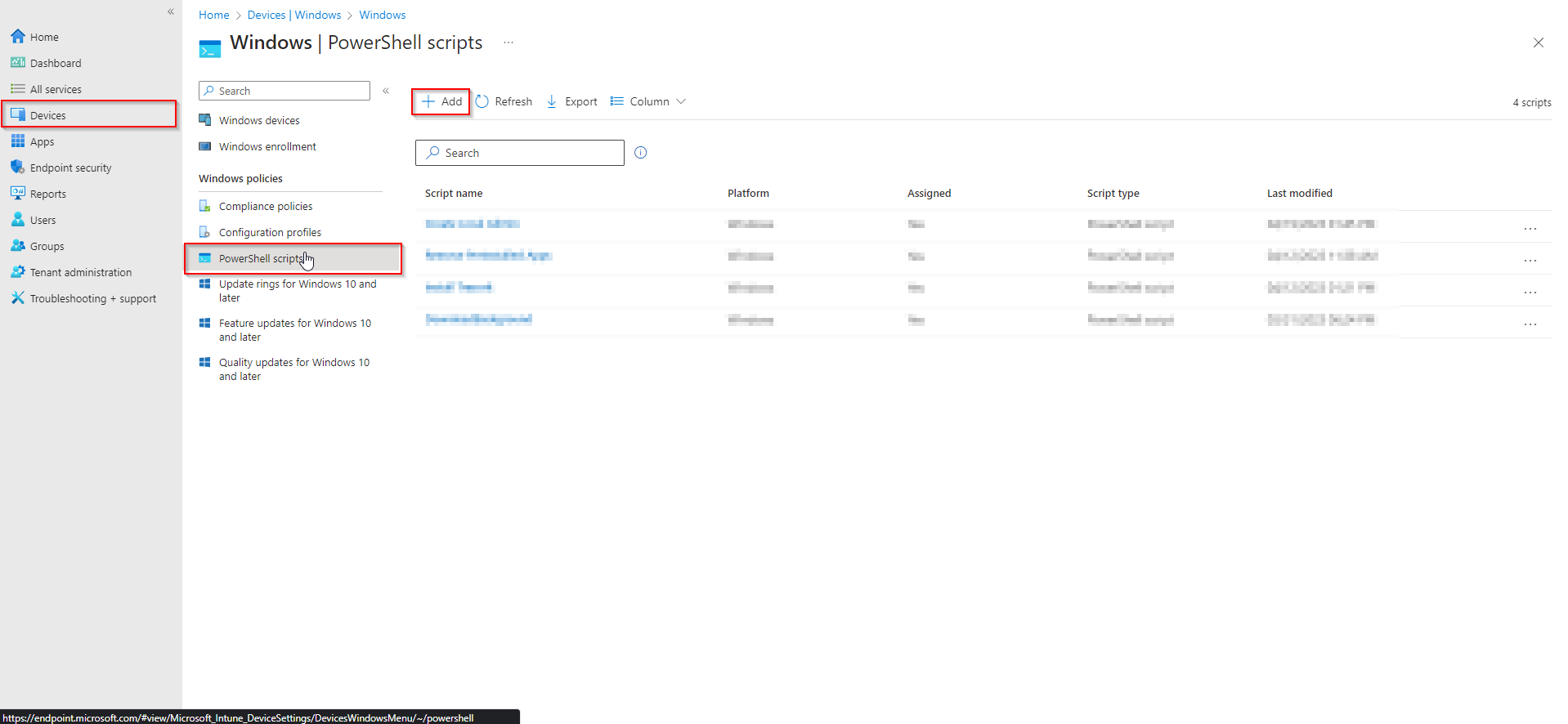
In the Microsoft Endpoint Manager admin center, go to Devices → Windows → PowerShell scripts. Click Add.
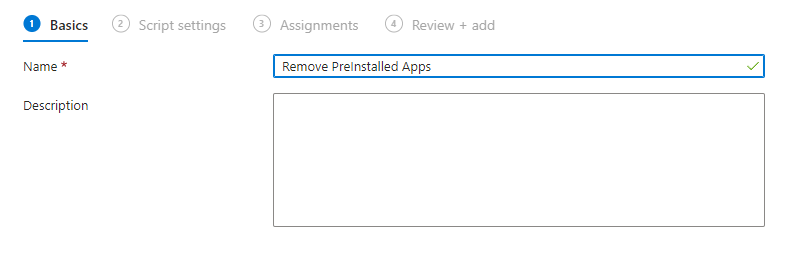
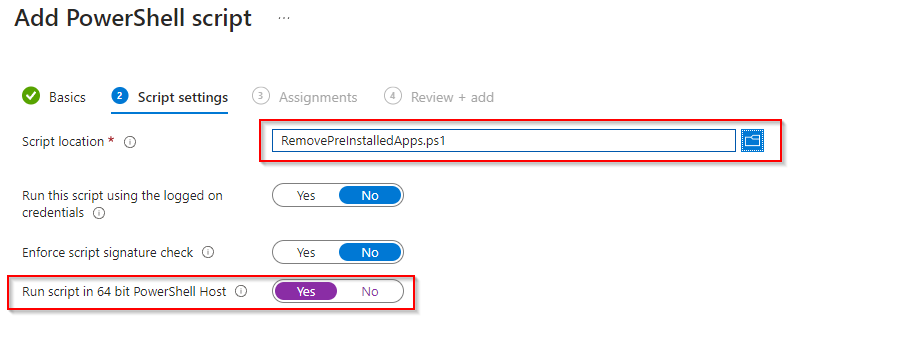
On Basics, give the script a name (e.g. Remove PreInstalled Apps) and click Next. On the script upload page, upload the .ps1 file you created. Set:
- Run this script using the logged on credentials: No (use system context so removal applies to all users)
- Enforce script signature check: No (unless you sign your scripts)
- Run script in 64 bit PowerShell Host: Yes
Click Next.
On Assignments, add the groups that should run this script (e.g. All Devices or a pilot group). Click Next, review the summary, and click Add.
Intune will run the script on assigned devices. Removal runs in system context, so provisioned apps are removed for all users. New users on the same device will not get those apps if they were only provisioned (not installed per user).
Wrap-up
You’ve removed preinstalled apps with Intune by creating a PowerShell script that calls Remove-AppxPackage for each app name, then deploying it via Devices → Windows → PowerShell scripts. Use Get-AppxPackage -AllUsers | Select Name on a reference PC to discover more package names. For full cmdlet details, see Microsoft documentation for Get-AppxPackage.





