When a managed device goes missing, you need a way to see where it is. Microsoft Intune offers a Locate device remote action so you can request the device’s location and view it on a map from the Intune admin center. On some platforms you can also trigger a lost-device sound or view the last known location when the device is offline.
This post explains which platforms support device location, what to enable first (such as Windows location services), and how to run the Locate device action and use the map.
Platform Support
Locate device is available on:
- Android Enterprise . Dedicated, fully managed, and corporate-owned work profile devices. Google Play Services 20.06.16 or later and Location services must be on. For corporate-owned work profile on Android 12+, the user must grant the Intune app location permission (Settings → Apps → Intune (Work tab) → Permissions → Location → Allow all the time).
- iOS/iPadOS 9.3 and later . Device must be supervised and in lost mode.
- Windows 10 . Specific builds: 20H2 (10.0.19042.789)+, 2004 (10.0.19041.789)+, 1909 (10.0.18363.1350)+, or 1809 (10.0.17763.1728)+.
- Windows 11 . Supported.
Lost device sound alert (where available) is supported on iOS/iPadOS 9.3+ (supervised, lost mode) and on Android Enterprise dedicated, corporate-owned work profile, and fully managed devices with the Intune app 2202.01 or later.
Device location is not supported on Android device administrator, Android Enterprise personally-owned work profile, macOS, Windows Holographic for Business, or Windows Phone.
Windows: Enable Location First
On Windows, location must be allowed for the locate action to work. You can enable it during Out-of-Box Experience (OOBE) or via a privacy policy such as Privacy → LetAppsAccessLocation. Ensure the device can report location before you rely on Locate device.
How to Locate a Device
In the Microsoft Intune admin center, go to Devices → All devices. Find the device you want to locate (it must be a supported platform and managed by Intune). Open the device, then use the … menu and choose Locate device.
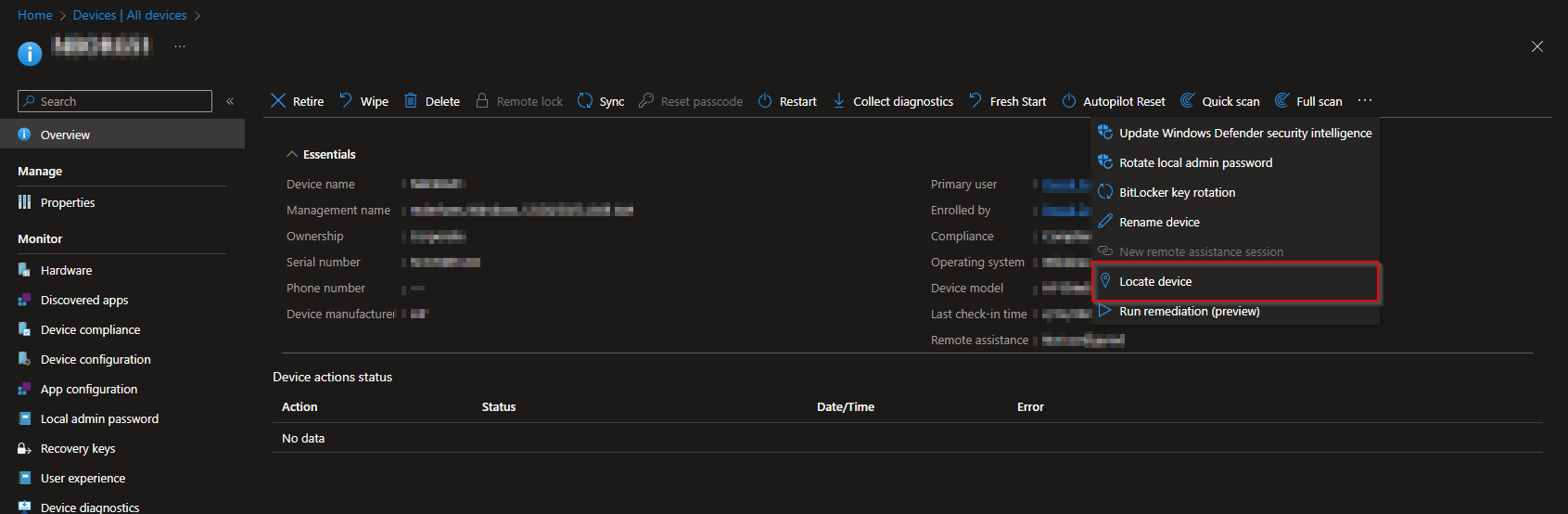
Intune sends the locate request to the device. When the device reports back, the location appears in the Locate device experience and is shown on a map.
You can switch the map view (e.g. Road, Aerial, or Bird’s eye where available) using the controls on the map.
Conclusion
You can locate a lost or stolen device from the Intune admin center by using the Locate device remote action on supported Android Enterprise, iOS/iPadOS, and Windows devices. Ensure location is enabled (e.g. on Windows via OOBE or privacy policy), then run the action from the device’s menu and use the map to view the reported location.





