Rolling out Zoom on company Windows PCs is straightforward when you use Microsoft Intune. This walkthrough covers getting the right installer from Zoom, then adding and assigning it in Intune so devices receive the Zoom Desktop Client automatically.
Overview
You will:
- Obtain the Windows 64-bit MSI installer from Zoom’s support site (not the standard executable from the main Zoom page).
- Add the app in Intune as a Line-of-business (LOB) app and upload the MSI.
- Assign the app to users or devices so it installs on target machines.
No extra packaging tools are required. Intune accepts the MSI directly for LOB deployment.
Step 1: Get the Zoom MSI Installer
Use Zoom’s official MSI download page so you get the correct package for silent, managed deployment. Avoid the standard .exe installer from the main Zoom homepage.
Open Zoom’s desktop client download article in your browser: Zoom desktop client for Meetings (64-bit) – MSI installer.
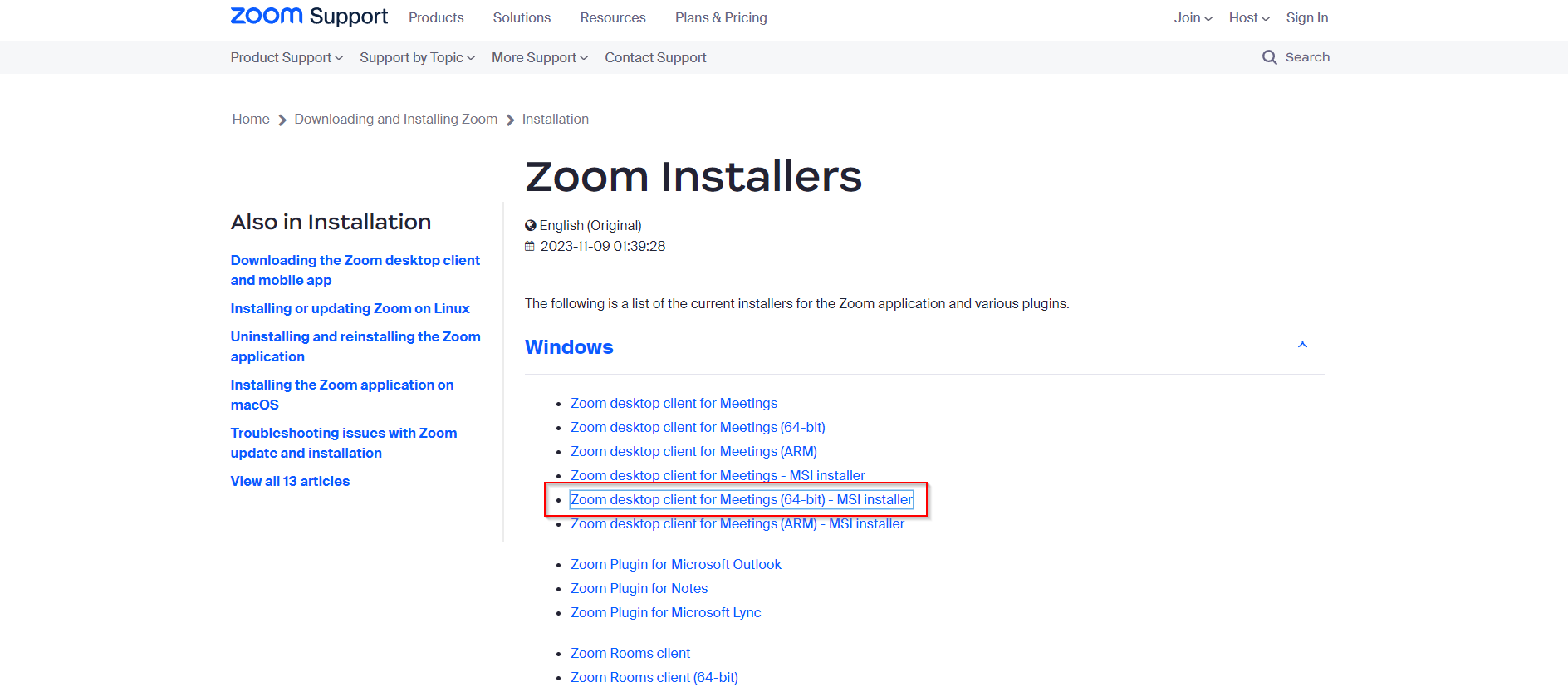
In the Windows section, select the link for Zoom desktop client for Meetings (64-bit) – MSI installer (or use the download control on that page).

Save the file to your computer. You should see an .msi file in your downloads folder. The exact filename may vary by Zoom version.
Keep this MSI handy. You’ll upload it in the next step.
Step 2: Add and Assign the App in Intune
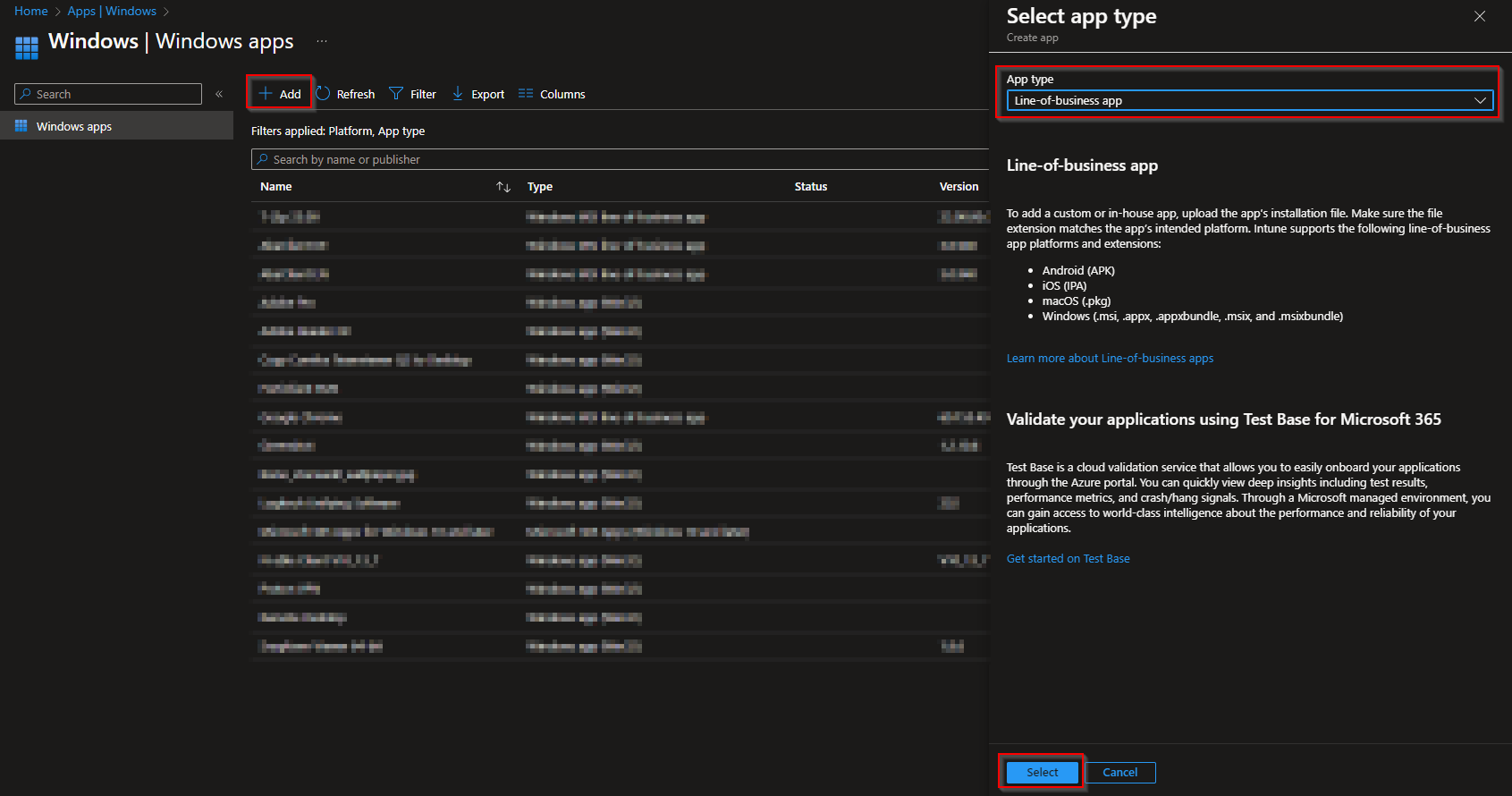
In the Microsoft Intune admin center, go to Apps → Windows → Add. When prompted for app type, choose Line-of-business app, then Select.
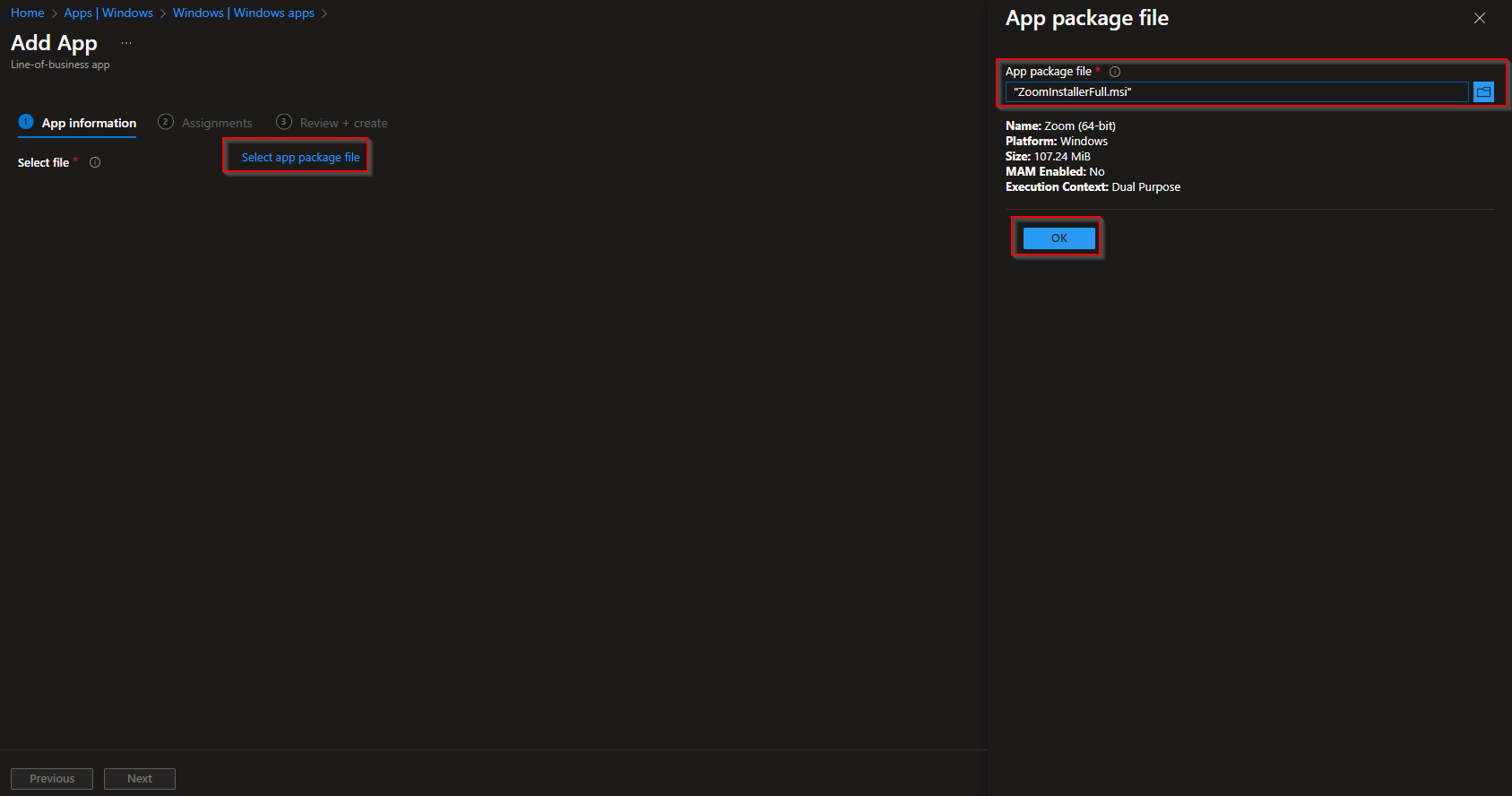
Under Select app package file, click to choose the file and upload the Zoom MSI from your downloads folder. Click OK when the upload finishes.

On the app details screen you can adjust name, description, and other properties. Set the Publisher (e.g. Zoom Video Communications). Leave other defaults if they suit your needs, then click Next.

On Assignments, choose who gets the app: add one or more groups or select All Users or All Devices. Click Next.
Review the summary on Review + create, then click Create. Intune will sync the app to assigned devices and install the Zoom Desktop Client according to your assignment and sync schedule.
Wrap-up
You can deploy the Zoom Desktop Client to Intune-managed Windows devices by downloading the 64-bit MSI from Zoom’s support site, adding it in Intune as a Line-of-business app, and assigning it to the right users or devices. This gives you a consistent, managed rollout of Zoom across your organization.





