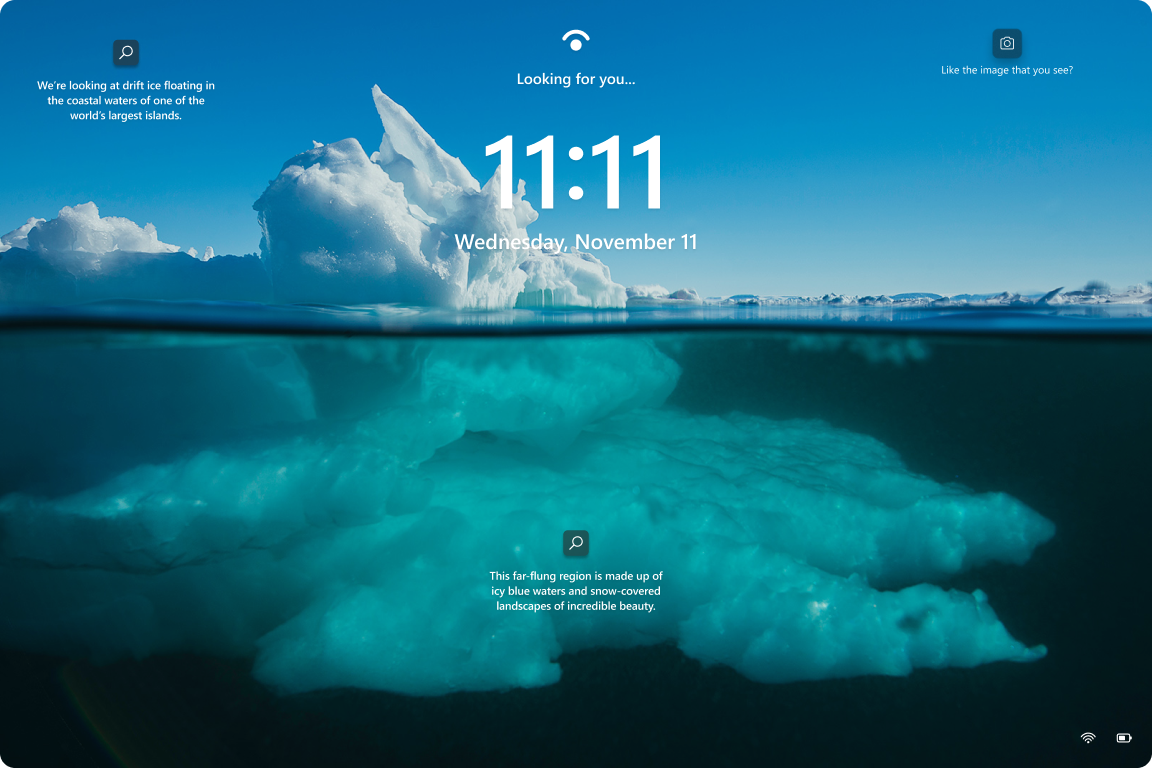
Windows Spotlight shows rotating images (often from Bing) on the lock screen and can show them on the desktop. It also adds interactive elements. Short descriptions, like/dislike, and sometimes tips or app suggestions. In managed environments you may want to turn it off so the lock screen and desktop stay consistent or so users do not see changing content. You can disable Windows Spotlight with a Settings catalog configuration profile in Microsoft Intune by setting Allow Windows Spotlight (User) to Disabled. You can also disable only specific Spotlight options if you prefer. This post explains what Spotlight does, then walks through creating the profile and assigning it to your devices.
What Windows Spotlight Does
Windows Spotlight delivers a rotating set of images to the lock screen (and optionally the desktop). The images change daily or on a schedule and often come from Bing. Users can see brief info about the image and give feedback (like/dislike). Spotlight can also show tips, suggestions, or promotions for apps and services. Disabling it stops the rotating imagery and related content so you can rely on a static lock screen or picture instead.
Disable Spotlight with a Settings Catalog Profile
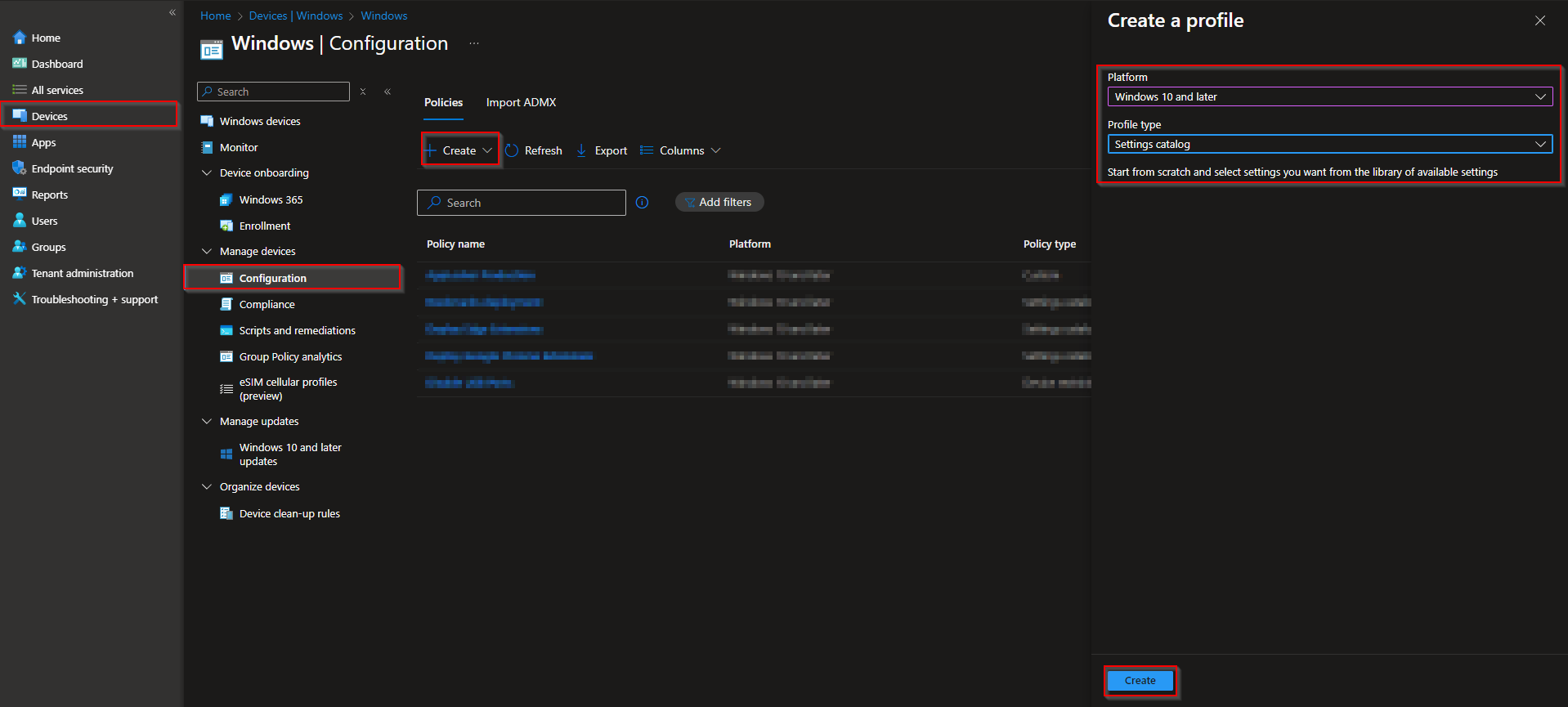
In the Microsoft Intune admin center, go to Devices → Windows → Configuration profiles and click Create → New policy. Choose Windows 10 and later and Settings catalog, then click Create.
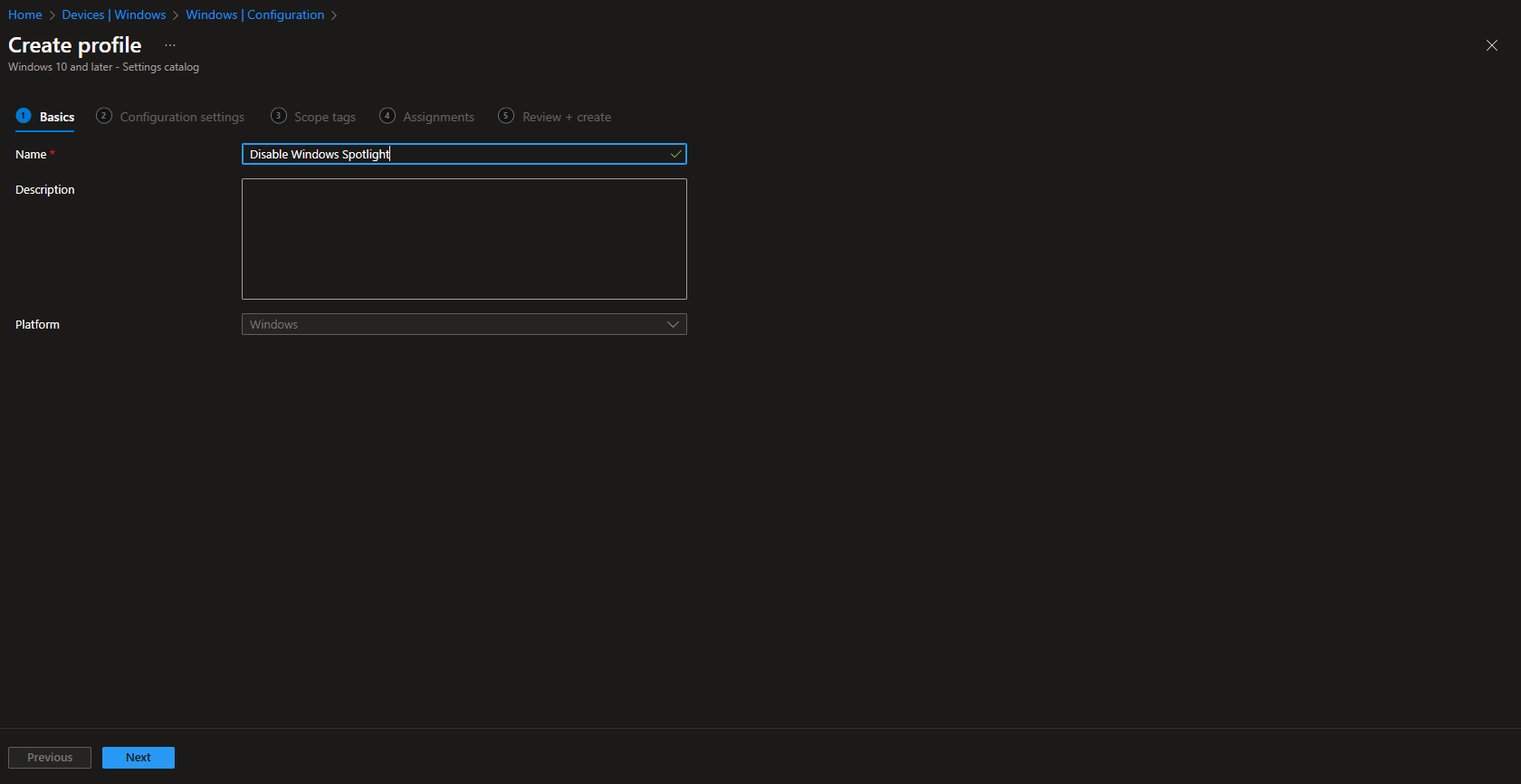
On Basics, set a name (e.g. “Disable Windows Spotlight”) and an optional description, then click Next.
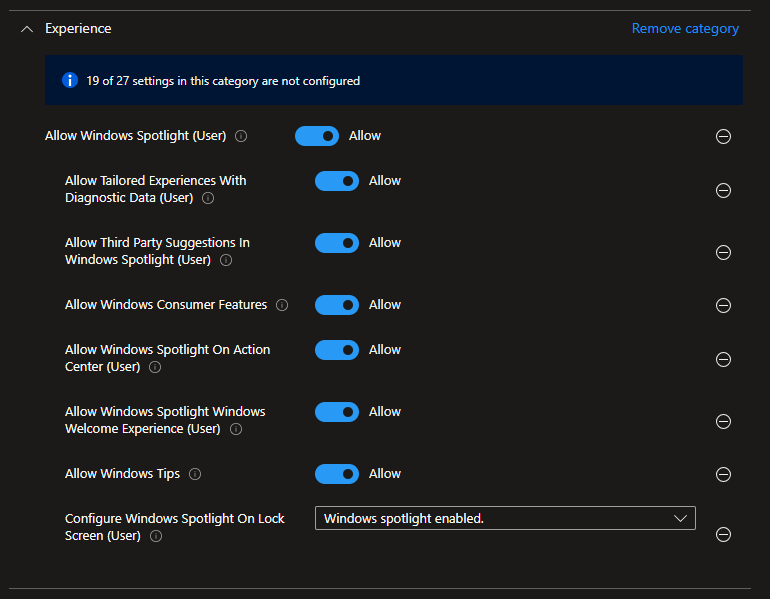
On Configuration settings, click Add settings. Search for Windows Spotlight, open the Experience category, and add Allow Windows Spotlight (User). Set it to Disabled so Spotlight is turned off for the user. Save the configuration and click Next.
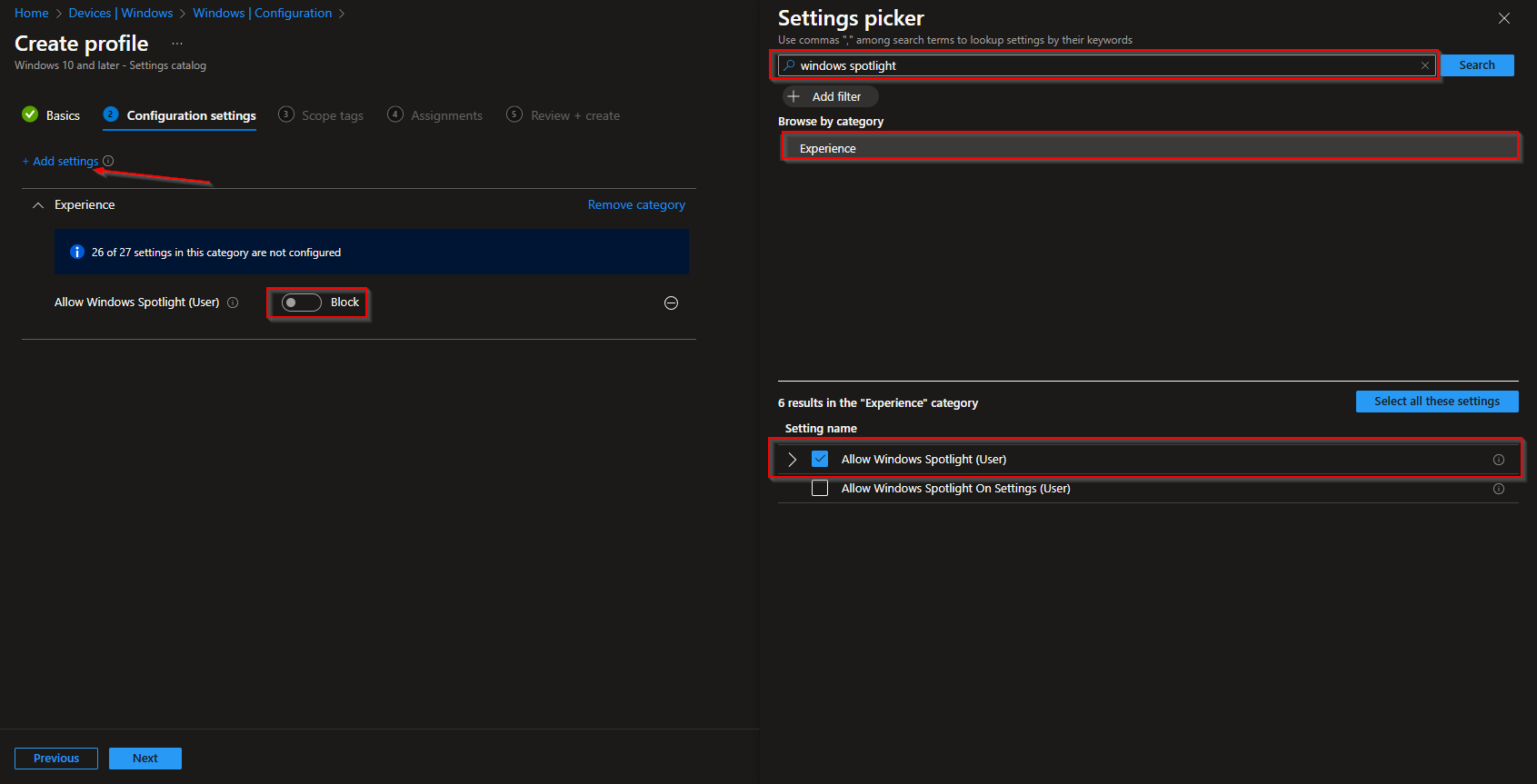
If you want to leave Spotlight on but disable only certain parts of it (e.g. lock screen background, tips, or suggestions), you can add the other Windows Spotlight–related settings in the same profile and set only those to Disabled. That way you keep some Spotlight behavior while blocking the options you do not want.
On Scope tags, add scope tags if your tenant uses them, then click Next. On Assignments, assign the profile to the user or device groups that should have Spotlight disabled (e.g. All Users, All Devices, or specific groups). Click Next, review the summary, then click Create. Once the profile is applied, those devices will have Windows Spotlight disabled (or only the options you disabled).
Summary
To disable Windows Spotlight with Microsoft Intune: create a Settings catalog profile (Windows 10 and later) under Devices → Windows → Configuration profiles. Search for Windows Spotlight, add Allow Windows Spotlight (User) from the Experience category, and set it to Disabled. Optionally add and disable only specific Spotlight settings if you want partial control. Assign the profile to the desired user or device groups and create the profile. Devices that receive the profile will no longer use Windows Spotlight (or only the parts you left enabled).





