Controlling which app opens for file types and protocols (e.g. .htm, mailto, https) keeps the experience consistent and reduces support calls. Microsoft Intune can push a single default app configuration to many Windows 10/11 devices using an exported XML file and a custom configuration profile.
This guide walks through exporting default app associations from a reference PC, encoding the XML for Intune, and deploying it via a custom OMA-URI profile. After the profile applies, devices get your chosen defaults (e.g. Chrome for web, Outlook for mail) without manual configuration.
What You’ll Do
- Export default app associations from a reference Windows PC to an XML file.
- Encode the XML as Base64 for use in Intune.
- Create a custom configuration profile in Intune with the encoded value and assign it to users or devices.
Step 1: Export Default App Associations from a Reference PC
On a Windows 10 or 11 machine, set the default apps the way you want (e.g. Chrome for browser, Outlook for mail). Use Settings → Apps → Default apps to configure each file type and protocol. This machine is your “reference”; its defaults will be applied to all targeted devices.
Open PowerShell as Administrator and run:
Dism /Online /Export-DefaultAppAssociations:"C:\temp\exportdefaultapps.xml"Replace C:\temp\exportdefaultapps.xml with your desired path. The command writes the current default associations to that XML file.
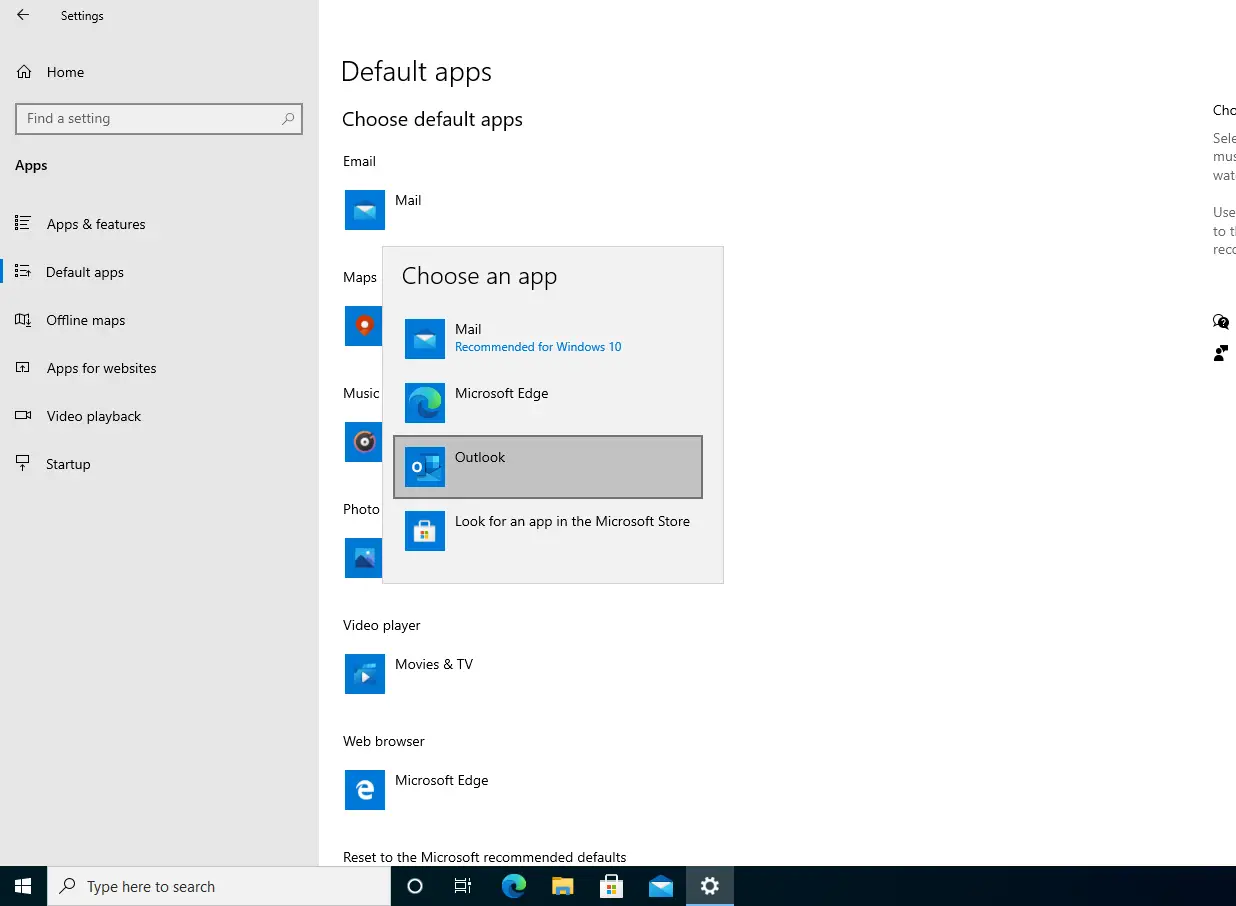
Open the XML file in a text editor, copy the entire contents, and keep it for the next step. You can edit the file later if you need to add or change associations before encoding.
Step 2: Encode the XML as Base64
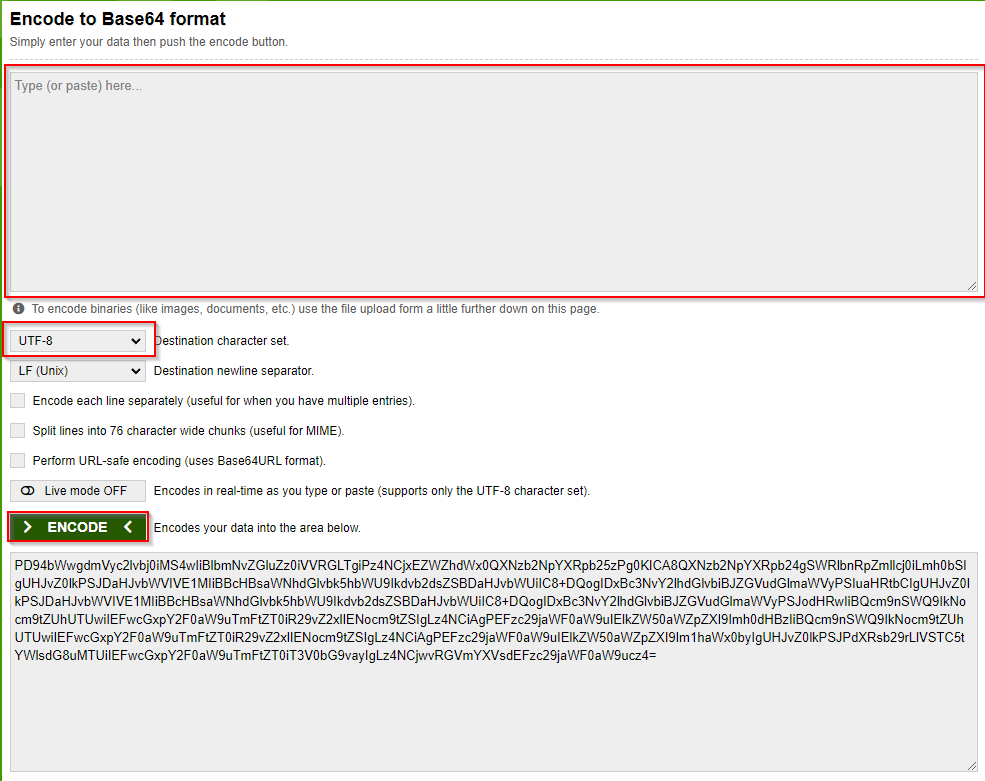
Intune’s custom profile expects the default associations payload as a Base64-encoded string. Use an online encoder such as base64encode.org (or any Base64 encoder that supports UTF-8). Paste the copied XML into the encoder, ensure UTF-8 is selected, then encode. Copy and save the resulting Base64 string; you’ll paste it into the Intune profile in the next step.
Step 3: Create a Custom Configuration Profile in Intune
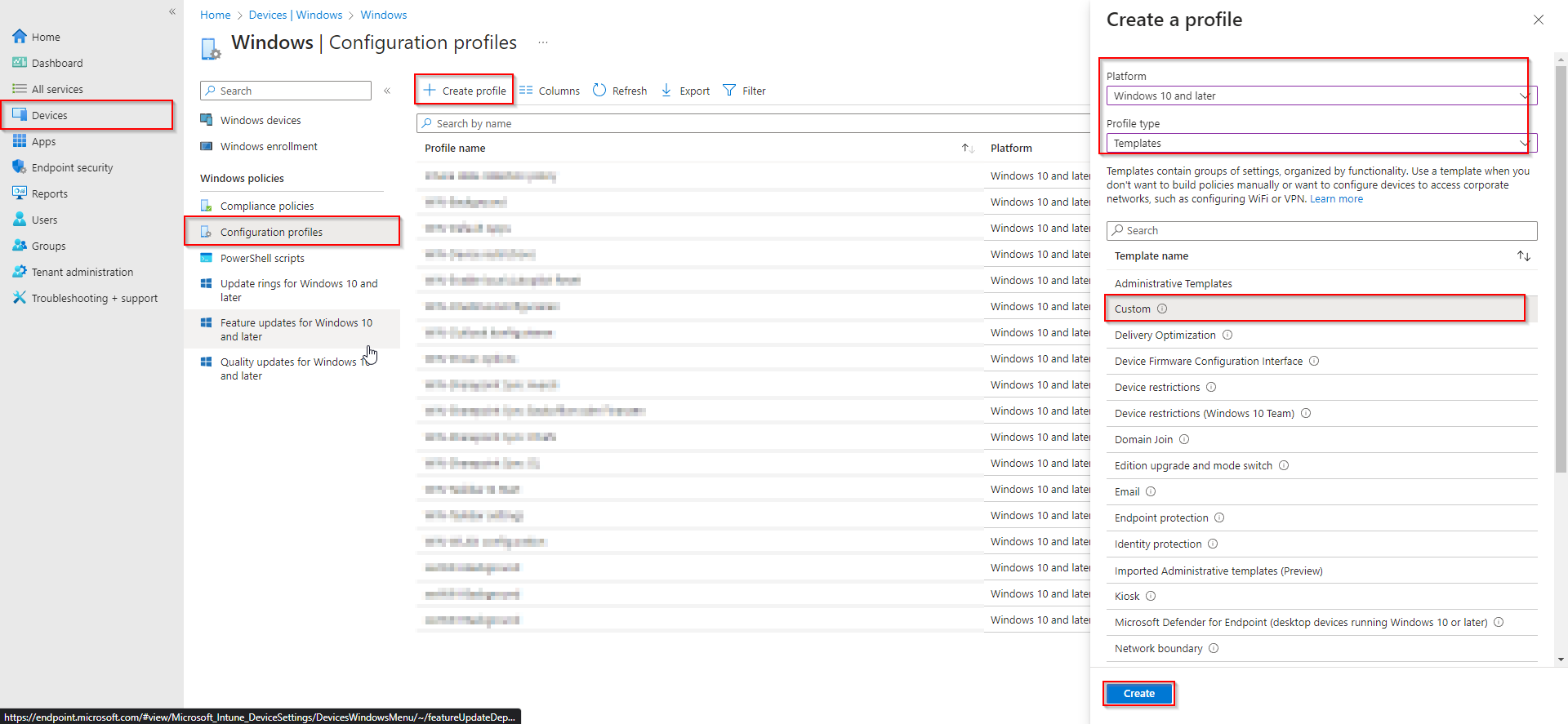
In the Microsoft Endpoint Manager admin center, go to Devices → Windows → Configuration profiles. Click Create → New policy. Choose Windows 10 and later as the platform and Templates as the profile type. Select Custom and click Create.
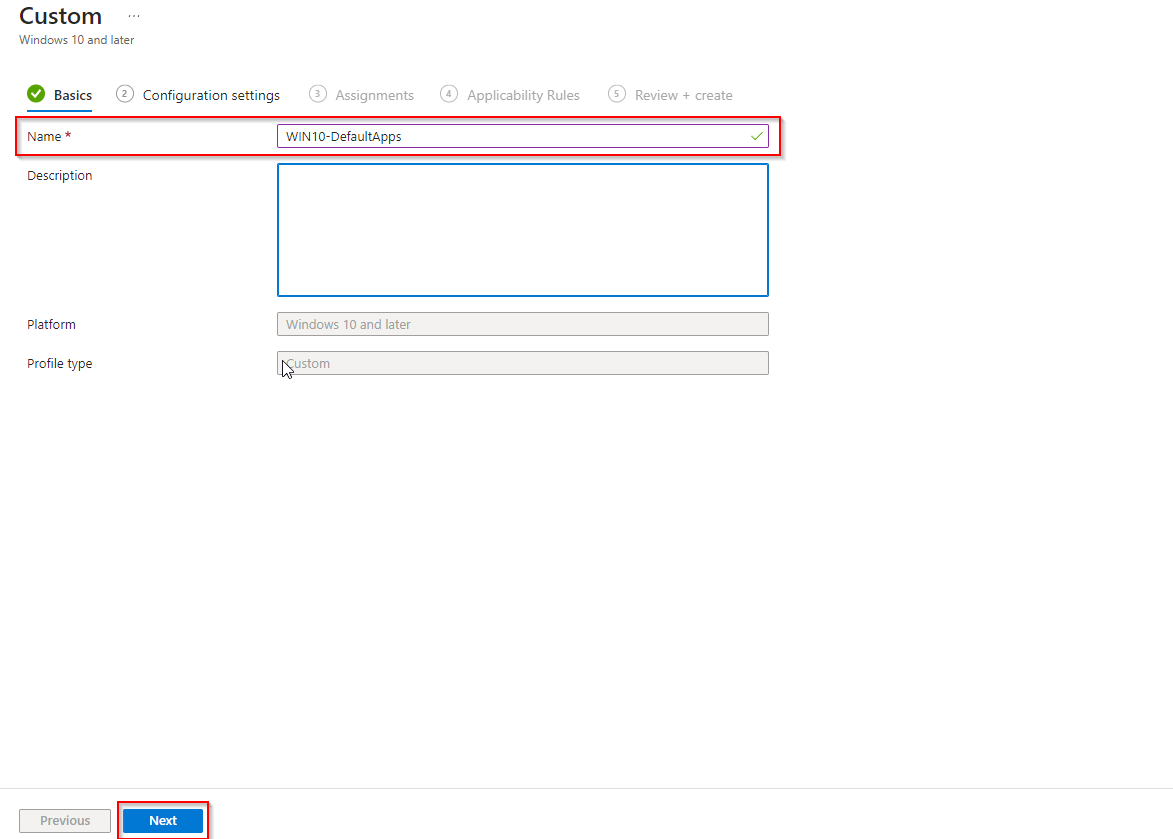
On Basics, give the profile a name (e.g. WIN-DefaultApps) and optionally a description. Click Next.
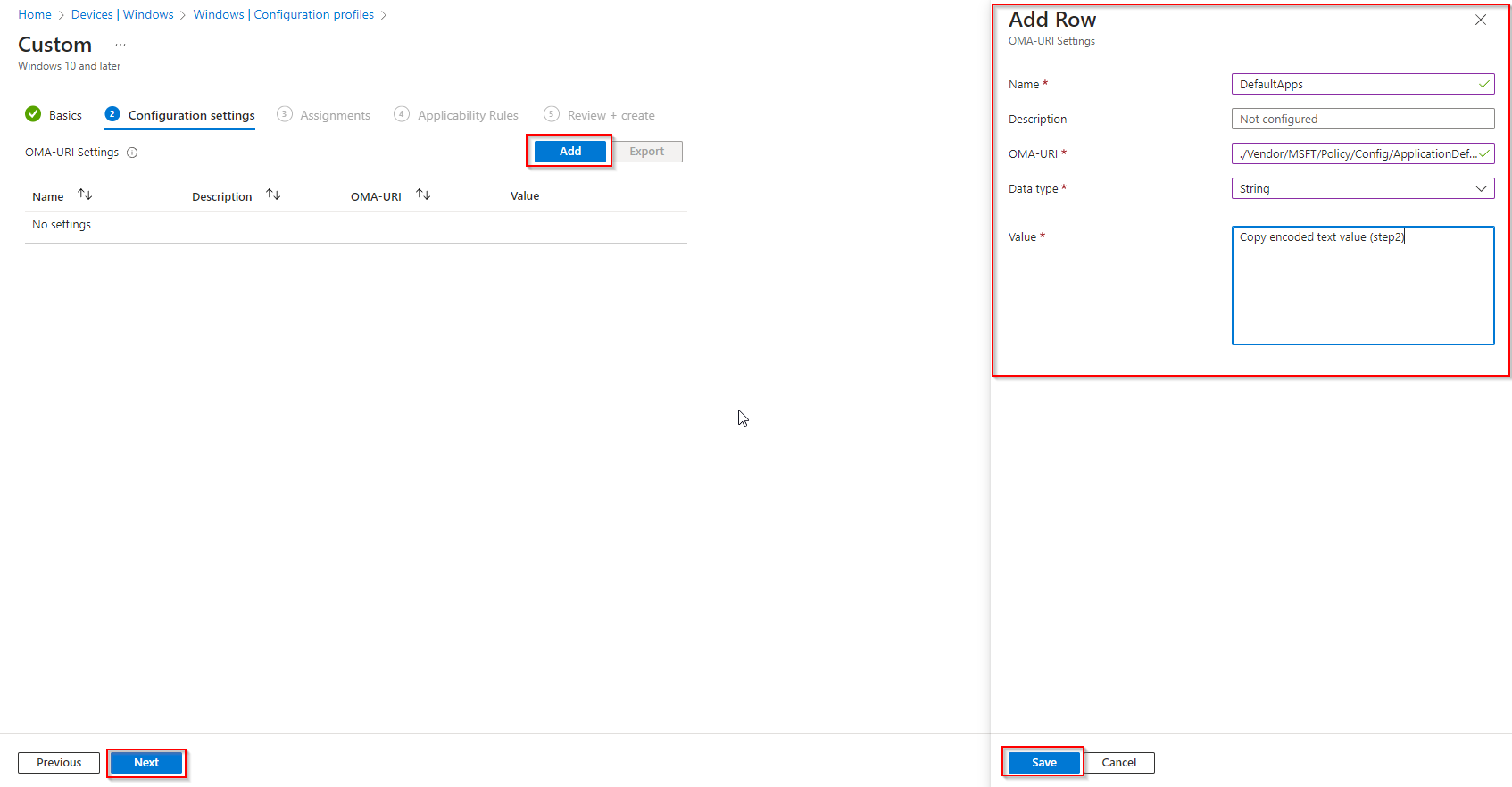
On Configuration settings, click Add. Enter:
- Name: e.g. DefaultApps
- Description: optional
- OMA-URI:
./Vendor/MSFT/Policy/Config/ApplicationDefaults/DefaultAssociationsConfiguration - Data type: String
- Value: paste the Base64-encoded string from Step 2
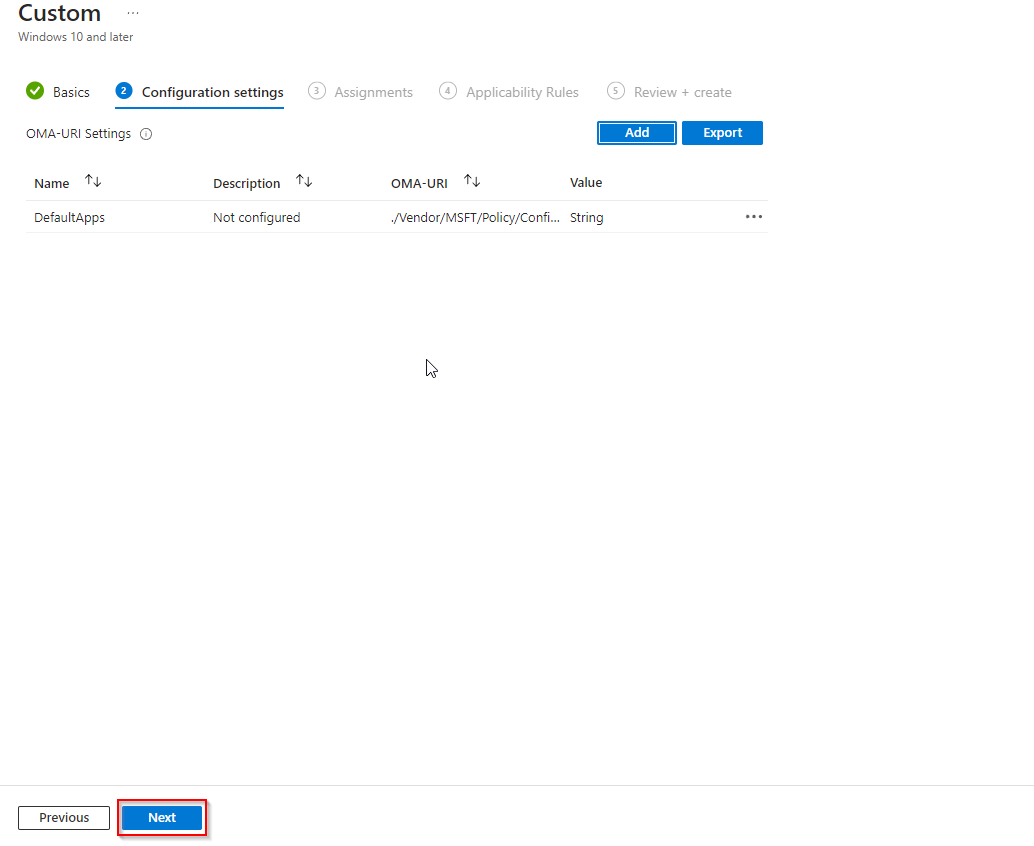
Save the row, then click Next.
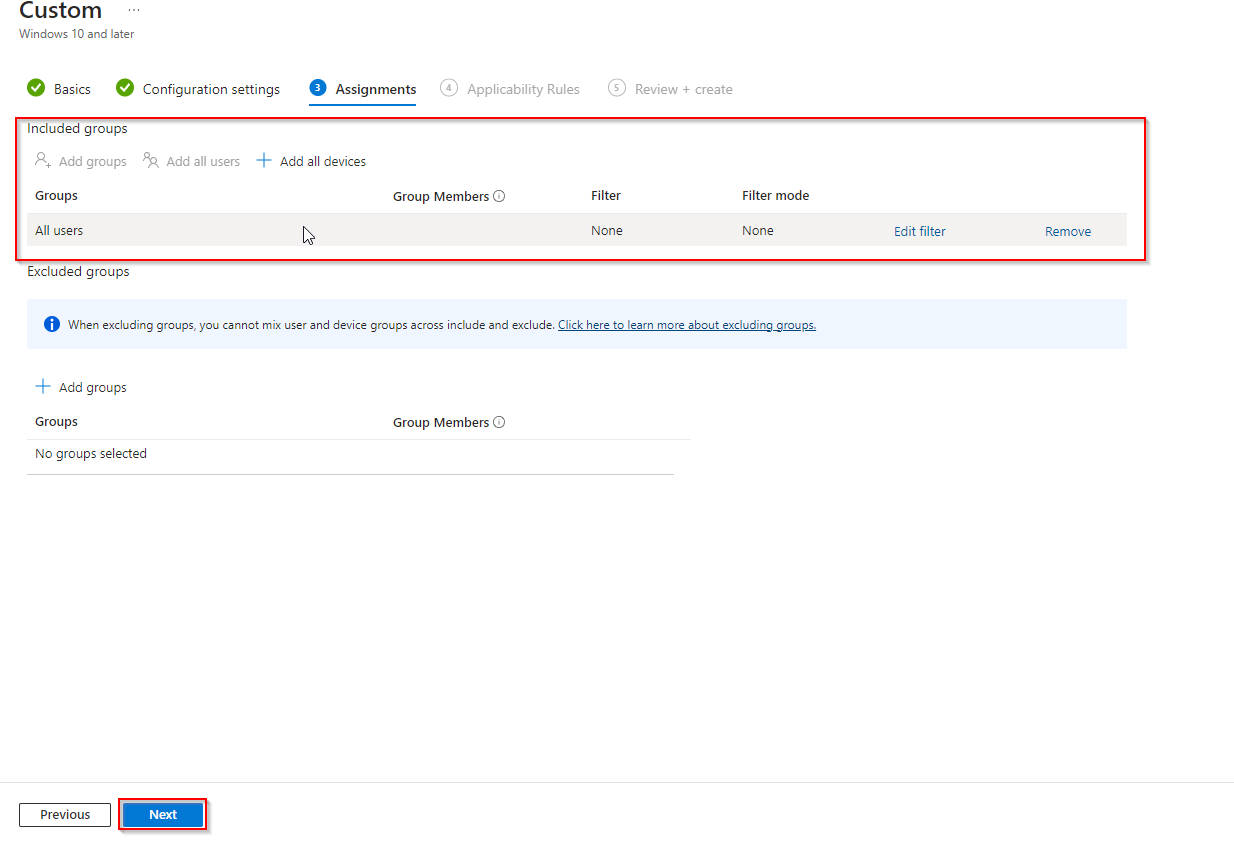
On Assignments, add the groups (or All users / All devices) that should receive this profile. You can skip Applicability rules unless you need OS version targeting. On Review + create, review the summary and click Create.
Once the profile syncs to a device, Windows applies the default associations from your XML. For example, if the XML sets Chrome for .htm, .html, http, and https and Outlook for mailto, those will become the defaults on each targeted device.
Wrap-up
You’ve deployed Windows default apps with Intune by exporting associations from a reference PC, Base64-encoding the XML, and creating a custom configuration profile with the ApplicationDefaults/DefaultAssociationsConfiguration OMA-URI. Assign the profile to the right users or devices and allow time for policy sync; no manual default-app setup is required on each machine.





