Google Chrome is widely used in enterprises. Delivering it through Microsoft Intune as a Line-of-business (LOB) app lets you push the official Chrome Enterprise MSI to Windows devices without packaging it as a Win32 app. Intune uses the MSI for install, detection, and uninstall.
This guide walks through downloading the Chrome Enterprise bundle, extracting the MSI, and adding it as a Windows LOB app in Intune. You can deploy Chrome as required (automatic install) or available (Company Portal).
What You’ll Do
- Download the Chrome Enterprise bundle (64-bit) from Google and extract the MSI.
- Add a Windows Line-of-business app in Intune, upload the MSI, set name and publisher, then assign to users or devices.
Step 1: Download and Extract the Chrome MSI
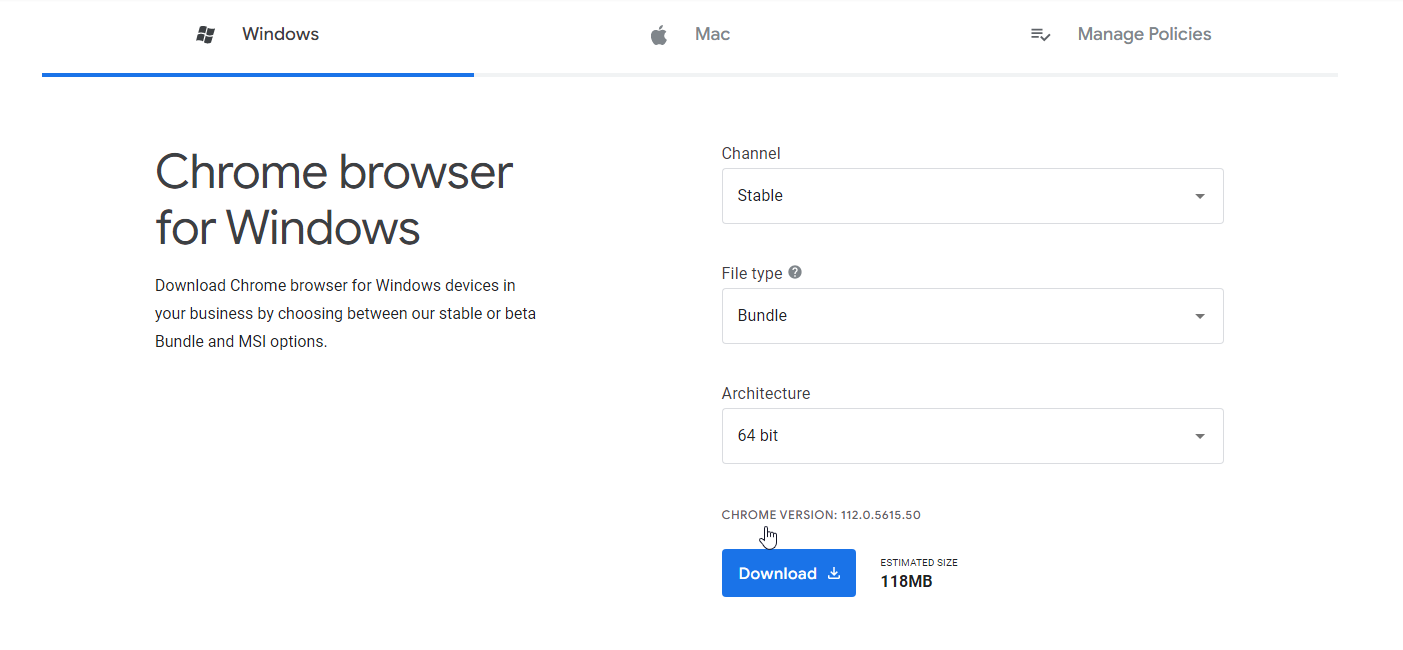
Go to the Chrome Enterprise download page and download the latest 64-bit package for Windows. You’ll get a file such as GoogleChromeEnterpriseBundle64.zip. Extract the ZIP to a folder on your machine.
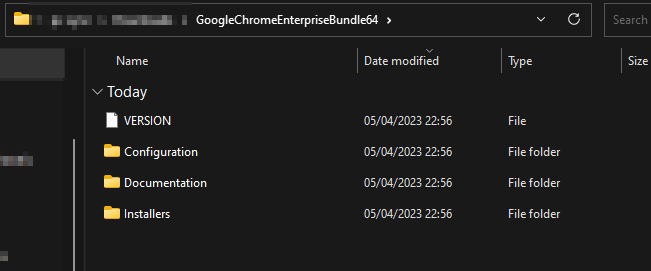
Inside the extracted folder, open GoogleChromeEnterpriseBundle64 → Installers. The installer you need is GoogleChromeStandaloneEnterprise64.msi. Use this file when adding the app in Intune.
Step 2: Add and Deploy Chrome in Intune
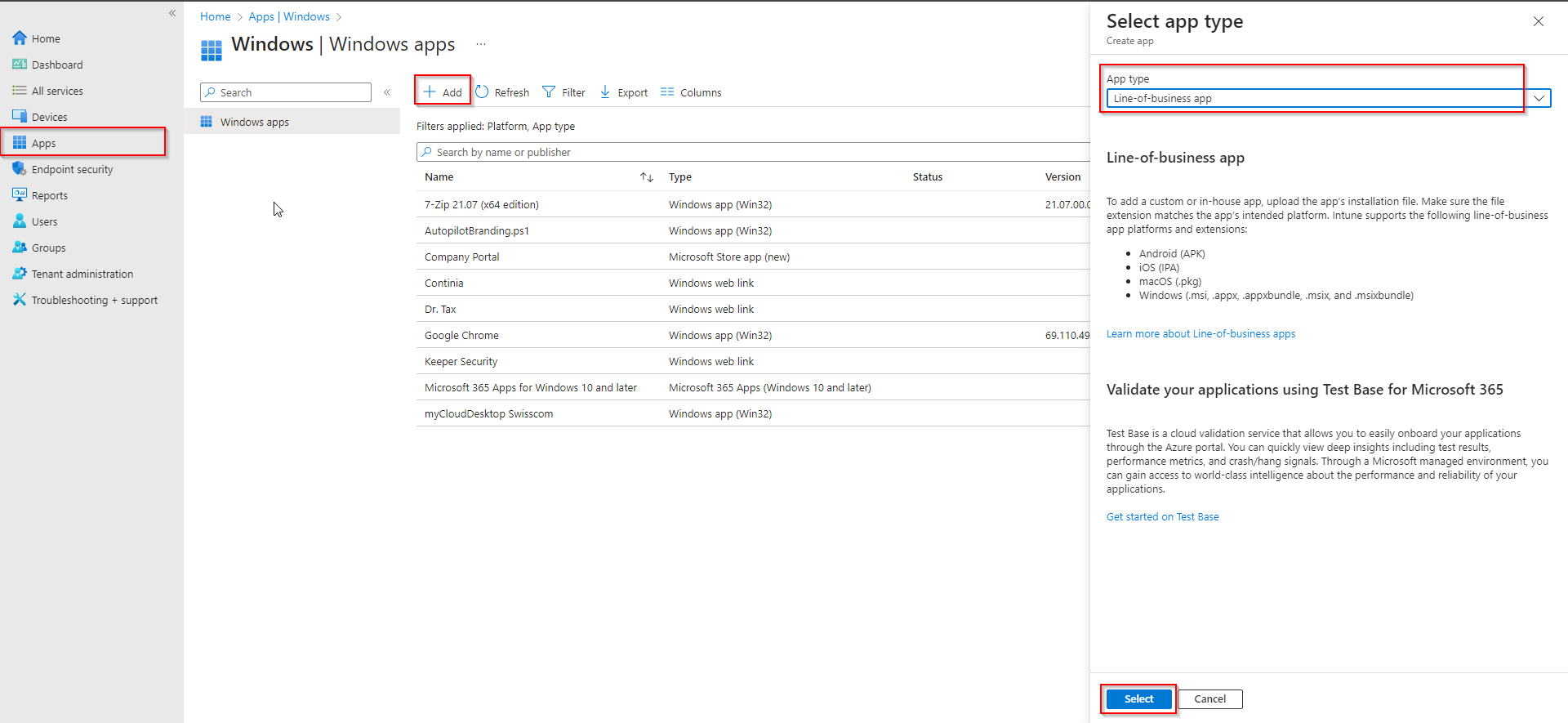
In the Microsoft Endpoint Manager admin center, go to Apps → Windows → Add. Choose Line-of-business app and click Select.
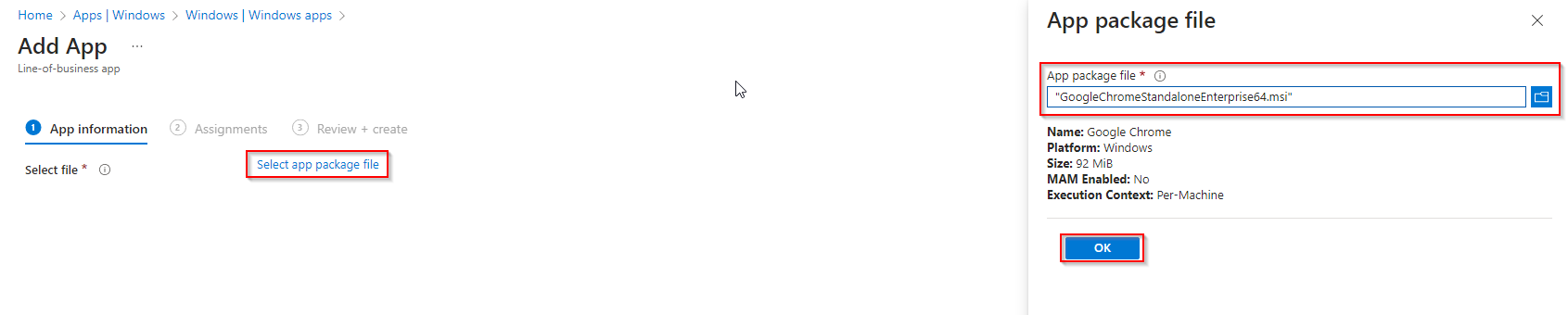
On App package file, click Select app package file, browse to the extracted folder (GoogleChromeEnterpriseBundle64\Installers), and upload GoogleChromeStandaloneEnterprise64.msi. Click OK, then Next.
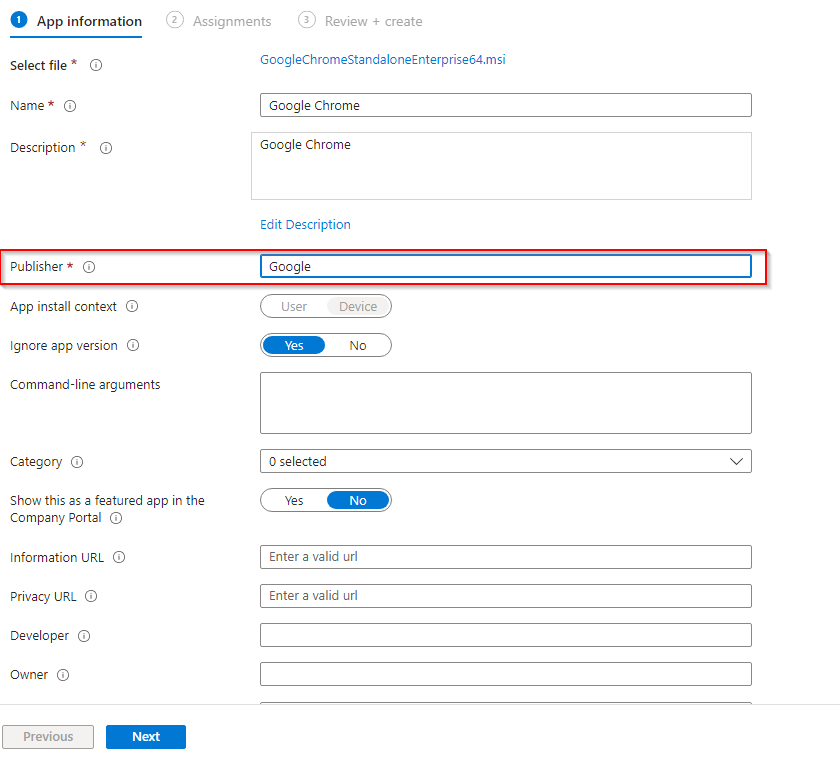
On App information, edit the name and description if you like, and set Publisher (e.g. Google LLC or your organization). Click Next.
On Assignments, add the groups that should receive Chrome. Choose Required to install Chrome automatically on assigned users or devices, or Available for enrolled devices so users can install it from the Company Portal. Click Next.
On Review + create, review the summary and click Create.

Intune will distribute the app to assigned users or devices. For required assignments, Chrome installs automatically; for available, users install it from the Company Portal.
Wrap-up
You’ve deployed Chrome with Intune by downloading the Chrome Enterprise bundle, extracting the 64-bit MSI, and adding it as a Windows Line-of-business app. Use Required for automatic install or Available for self-service from the Company Portal. For future versions, download the new bundle, extract the updated MSI, and add a new app (or update the existing one) in Intune.





