Intune doesn’t include a native “deploy wallpaper” setting. You can still push a corporate desktop background by (1) copying the image to the device with a Win32 app, and (2) setting the desktop wallpaper with a Settings catalog policy that points to that local path. This approach uses only Intune. No Azure Blob Storage or extra services. And works for Windows 10 and 11.
This guide walks through packaging your background image in an .intunewin file, deploying it so the file is placed in C:\Windows\Web\Wallpaper, then creating a configuration profile that sets the Desktop Wallpaper (User) to that path. After both the app and the profile apply, a restart may be needed for the wallpaper to appear.
What You’ll Do
- Package your background image in a Win32 (
.intunewin) app and deploy it so the image is copied toC:\Windows\Web\Wallpaper. - Create a Settings catalog configuration profile that sets Desktop Wallpaper (User) to the same path (e.g.
C:\Windows\Web\Wallpaper\Background-1.png) and assign it to users or devices.
Step 1: Create the Win32 Package
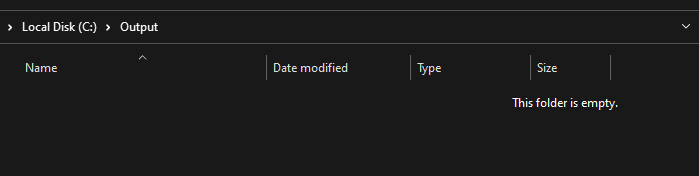
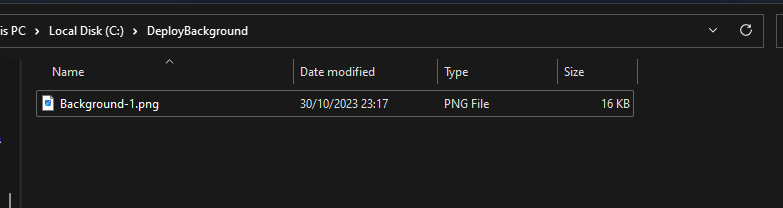
Create a folder on your machine (e.g. C:\DeployBackground) and an output folder (e.g. C:\Output). Copy your background image into C:\DeployBackground and note the filename (e.g. Background-1.png). You’ll use this name in the install command and detection rules later.

Download and run the Microsoft Intune Win32 Content Prep Tool as Administrator. When prompted, enter:
- Source folder:
C:\DeployBackground - Setup file: your image filename (e.g.
Background-1.png) - Output folder:
C:\Output - Catalog folder: No
The tool creates an .intunewin file in the output folder. Use this file when adding the app in Intune.

Step 2: Add and Deploy the Win32 App
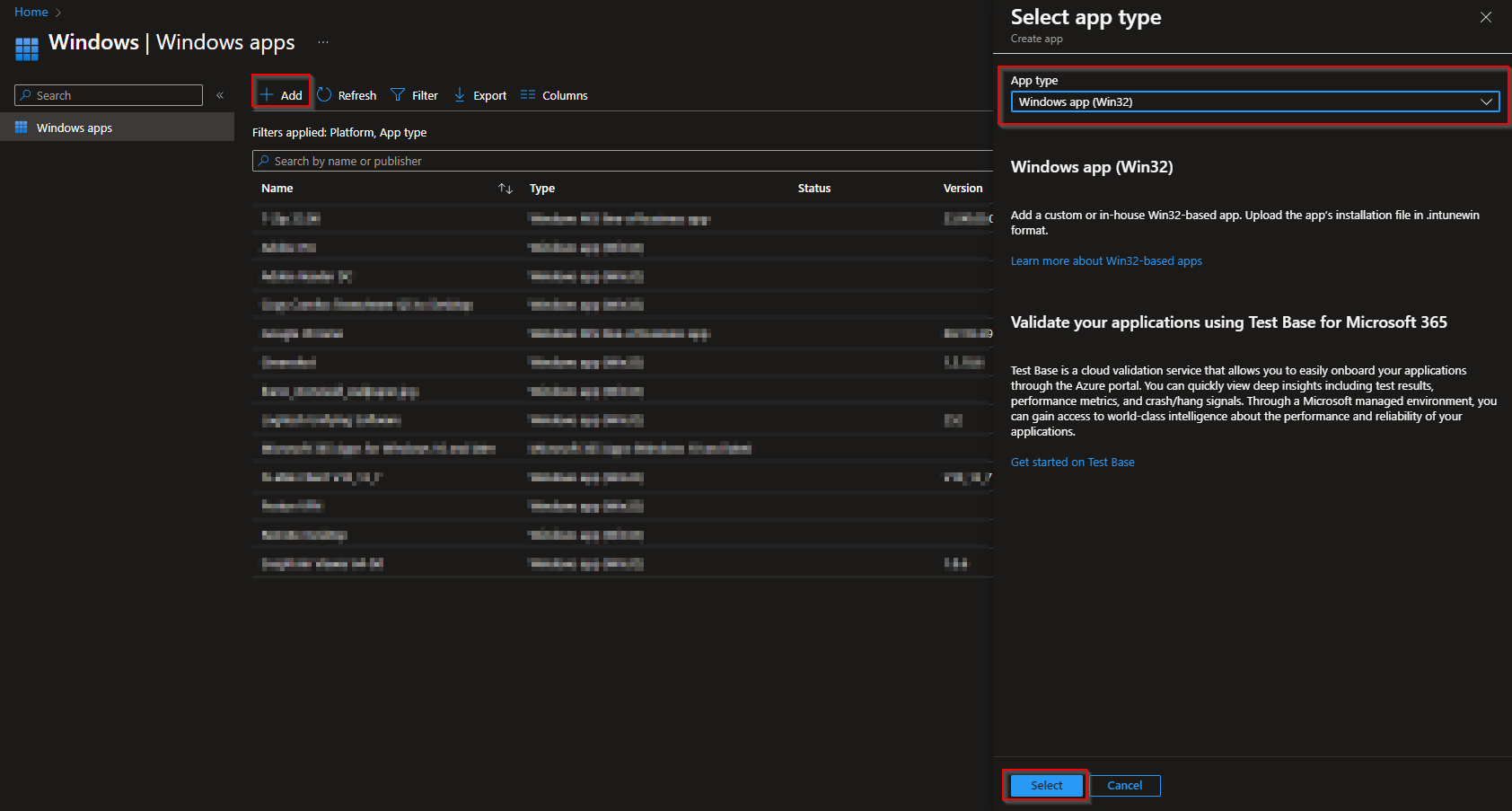
In the Microsoft Intune admin center, go to Apps → Windows → Add. Choose Windows app (Win32) and click Select.

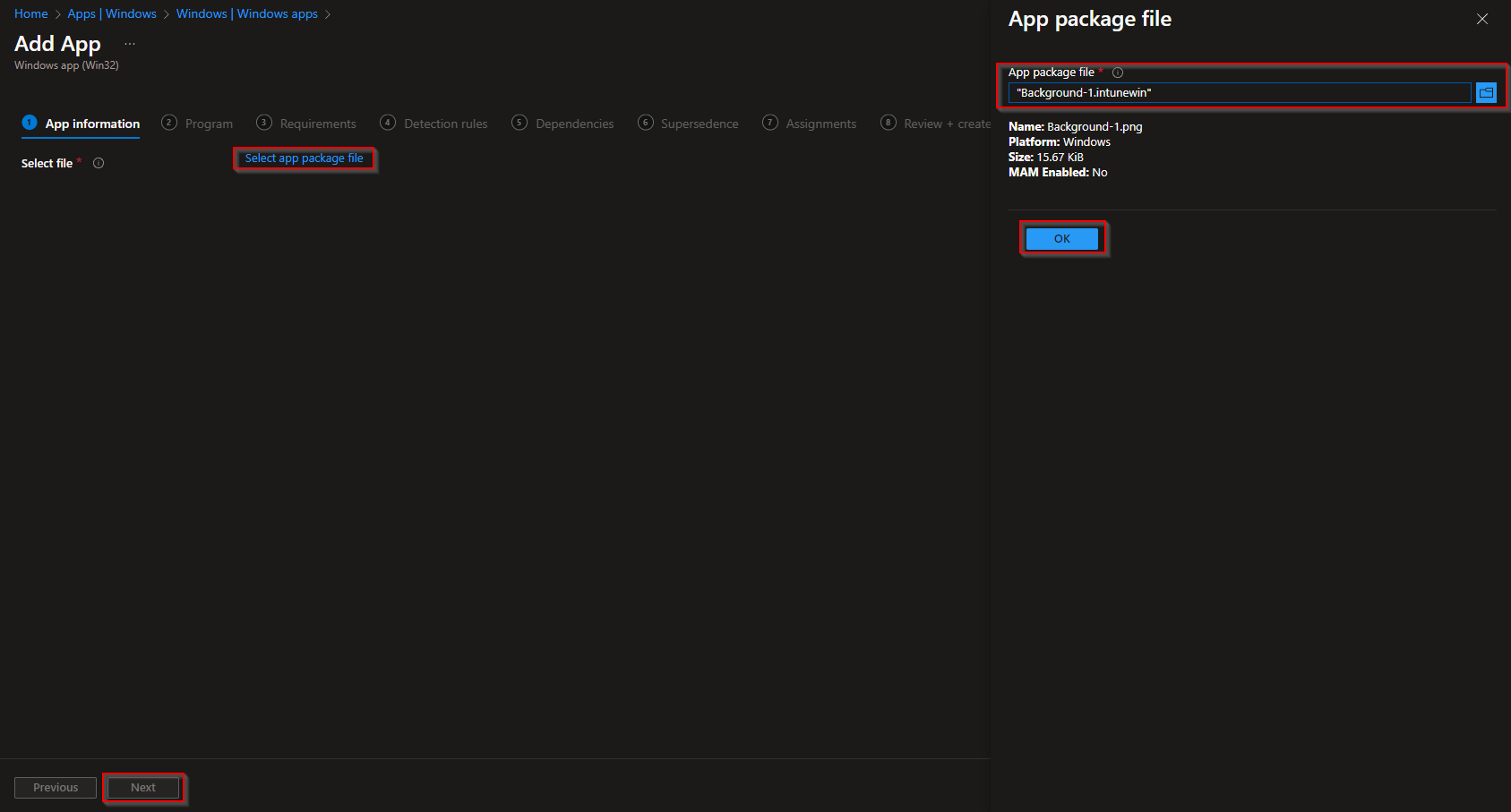
On App package file, upload the .intunewin file from your output folder, then click OK and Next.
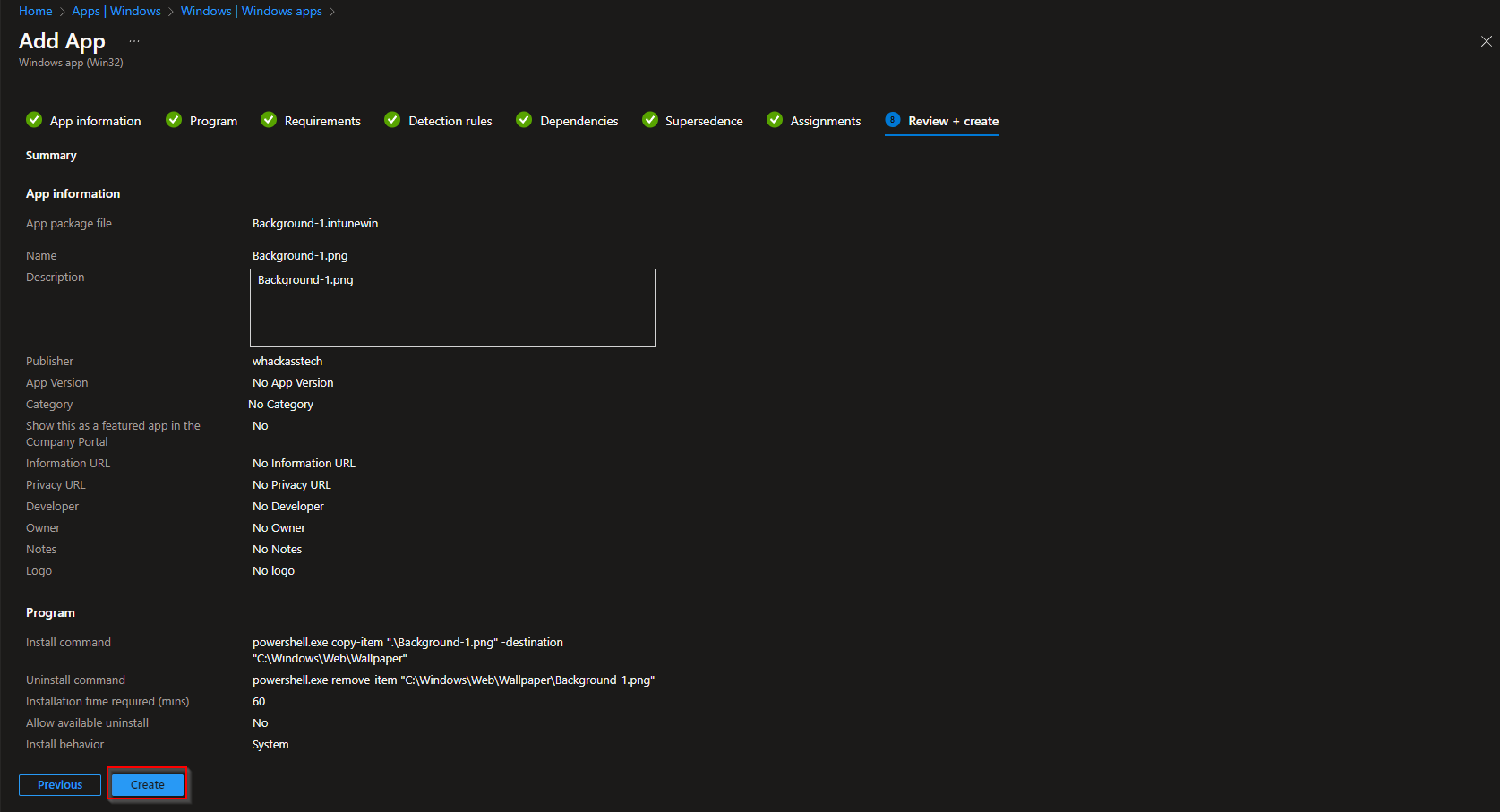
On App information, set name, description, and Publisher. Click Next.
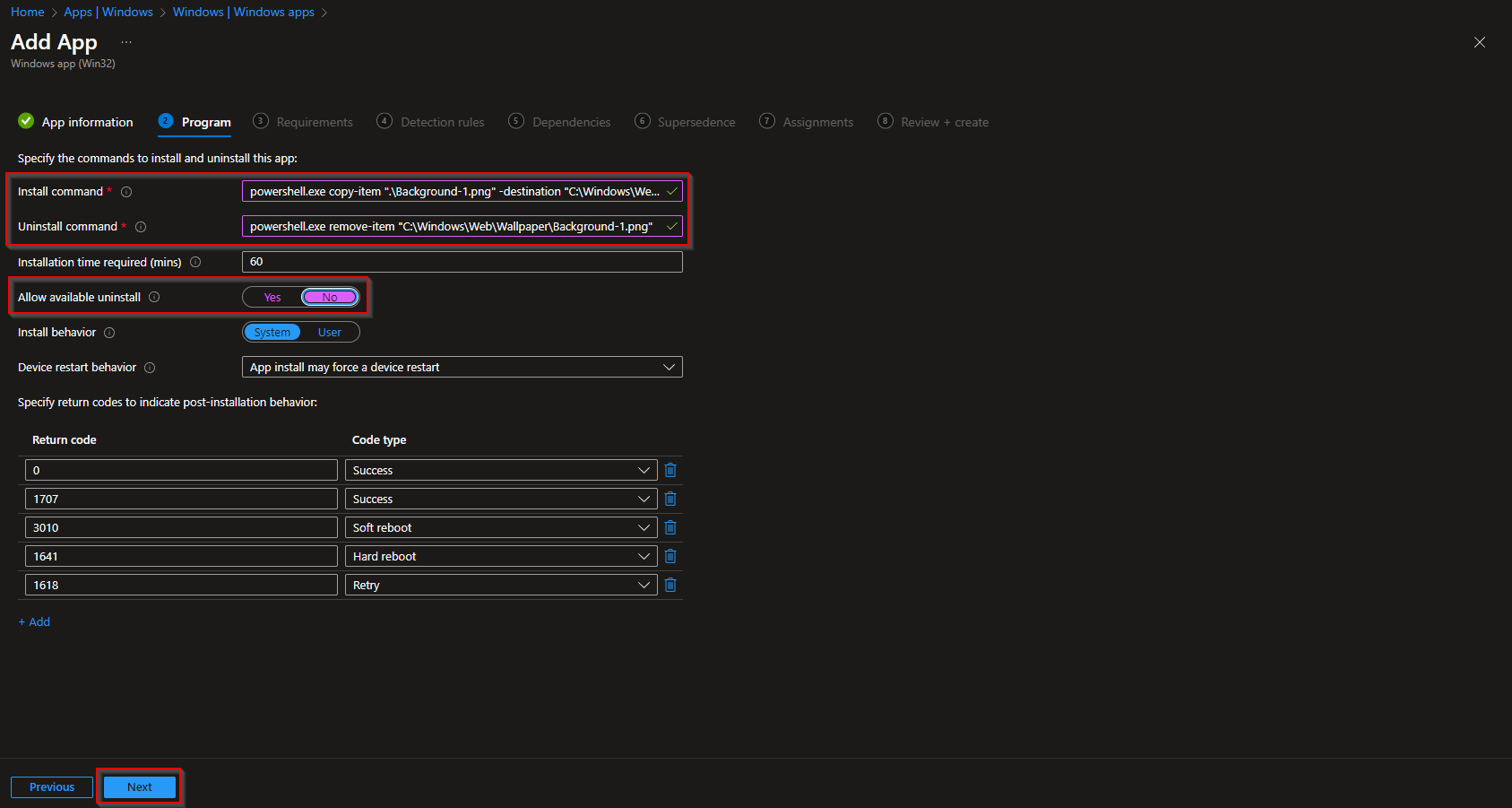
On Program, set:
- Install command:
powershell.exe copy-item ".\Background-1.png" -Destination "C:\Windows\Web\Wallpaper"(replaceBackground-1.pngwith your image name) - Uninstall command:
powershell.exe remove-item "C:\Windows\Web\Wallpaper\Background-1.png"(same filename) - Install behavior: System
- Device restart behavior: No specific action
Click Next. If your image has a different name, use that name in both the install and uninstall commands.
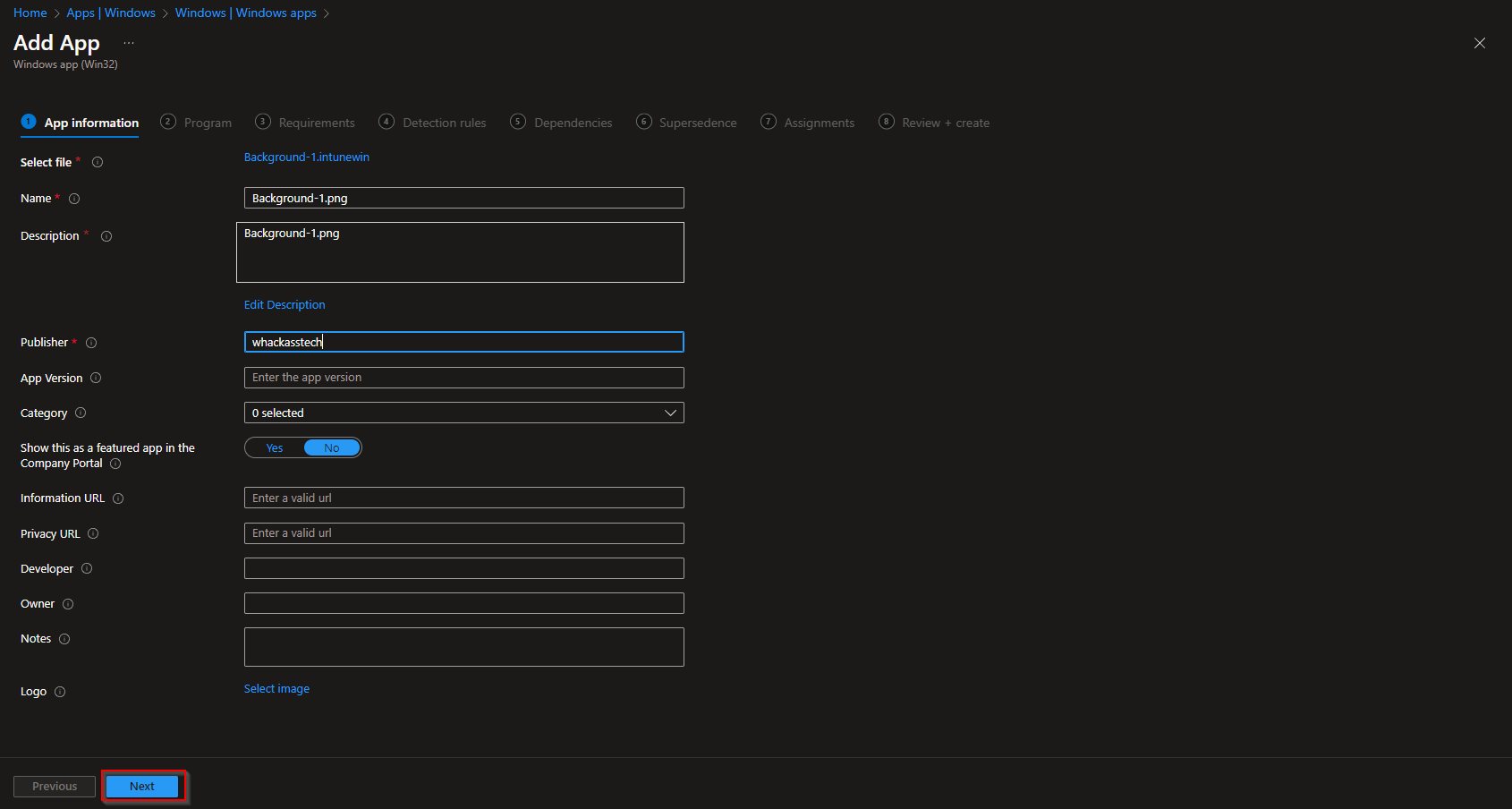
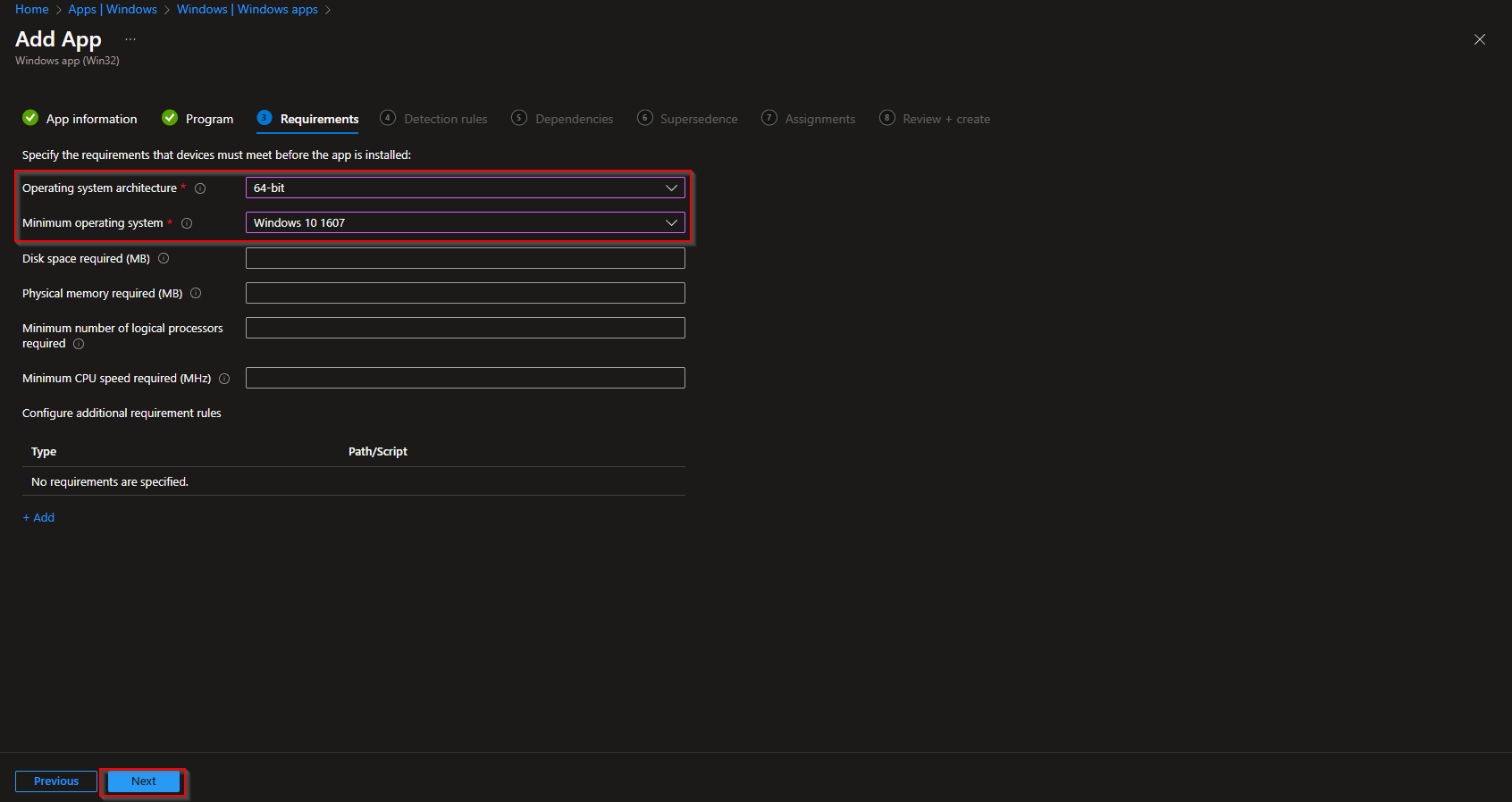
On Requirements, set Operating system architecture to 64-bit and Minimum operating system to Windows 10 1607 (or your minimum). Click Next.
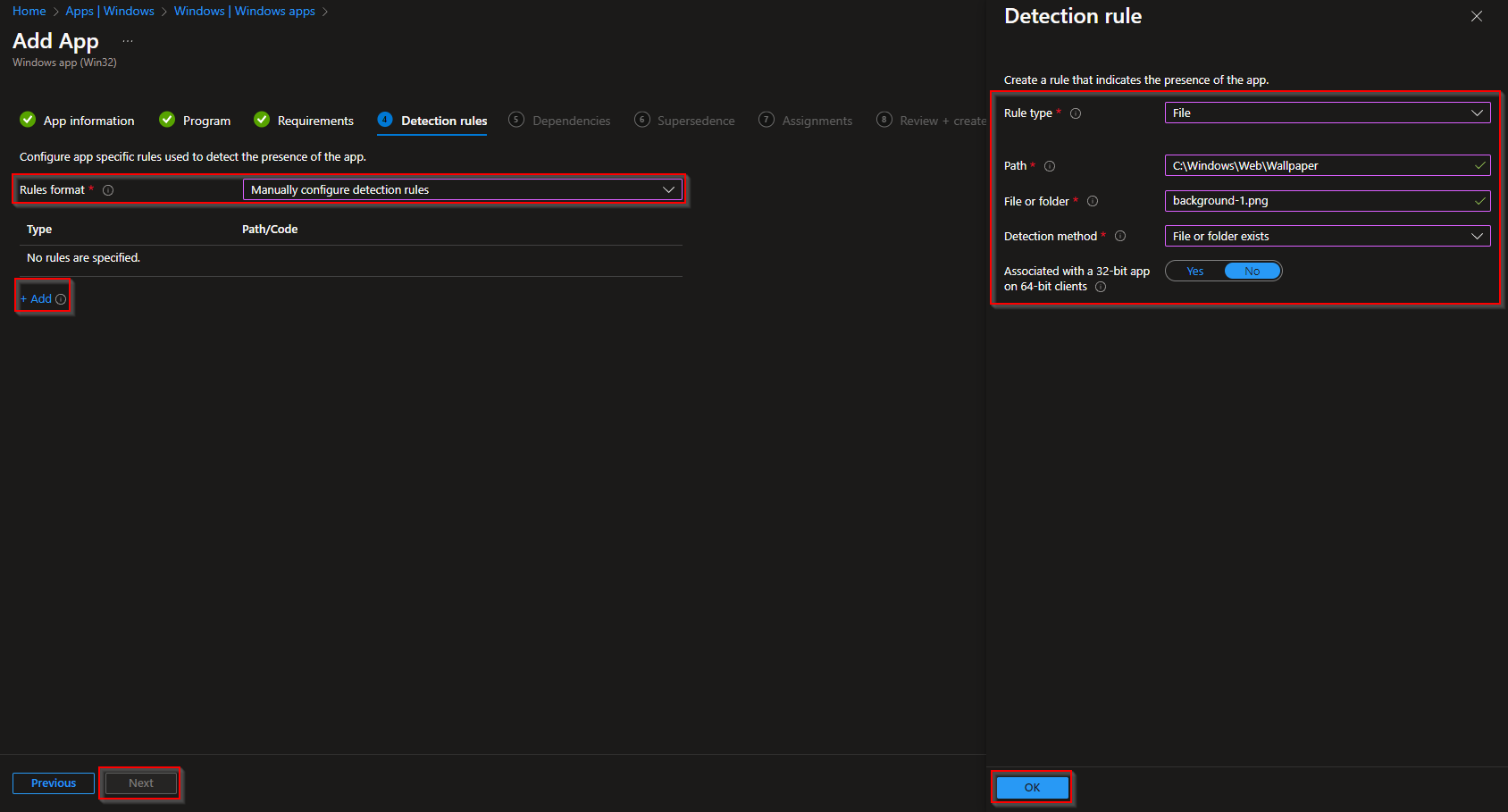
On Detection rules, choose Manually configure detection rules. Click Add, set Rule type to File. Use path C:\Windows\Web\Wallpaper, file or folder Background-1.png (or your image name), detection method File or folder exists. Click OK and Next.
Skip Dependencies and Supersedence unless needed. On Assignments, add the groups (or All Users / All Devices) that should receive the background. Click Next, review the summary, and click Create.
Once the app installs, the image will be present at C:\Windows\Web\Wallpaper\Background-1.png. Next, configure the desktop to use it.
Step 3: Create the Configuration Profile
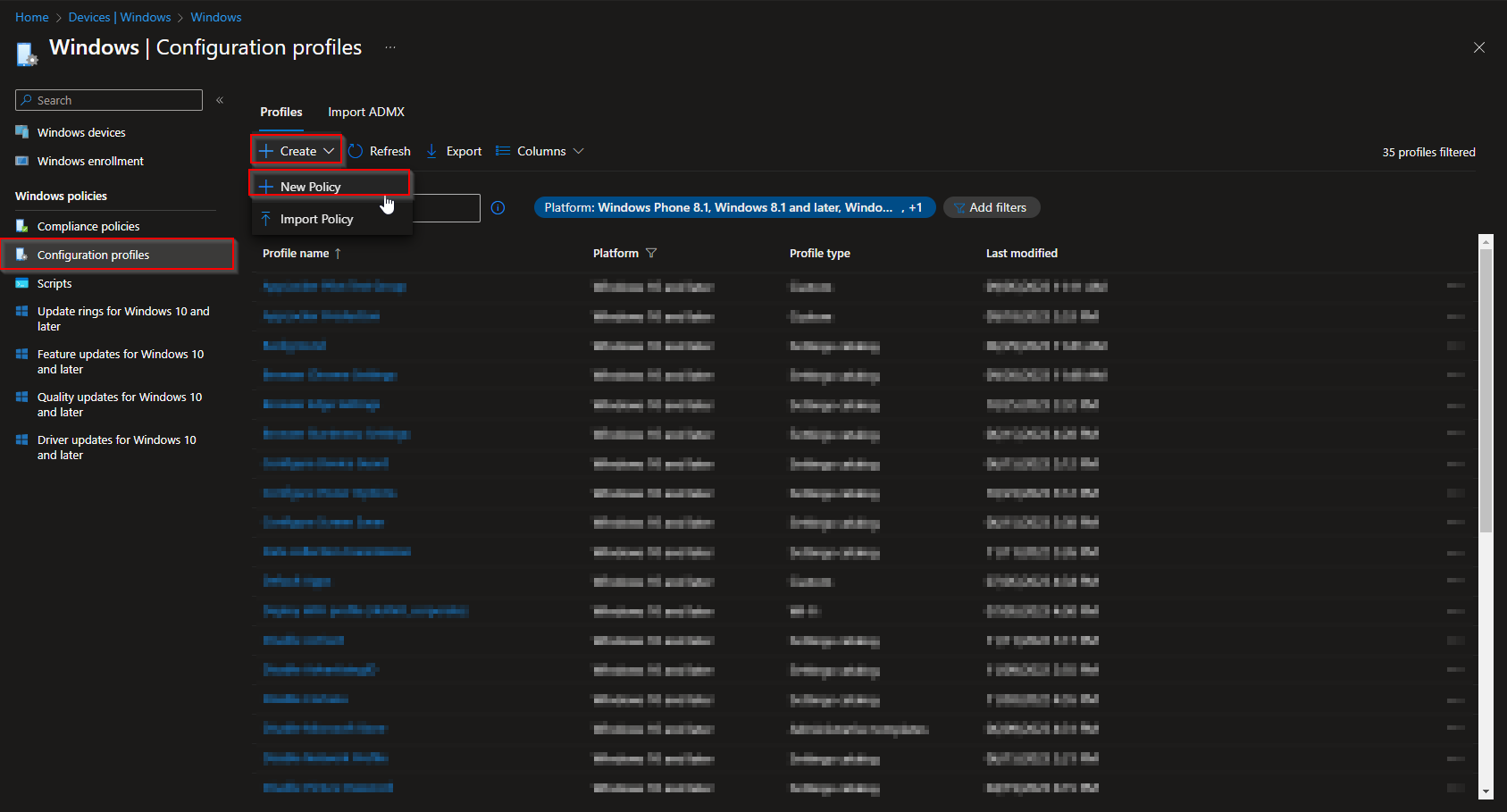
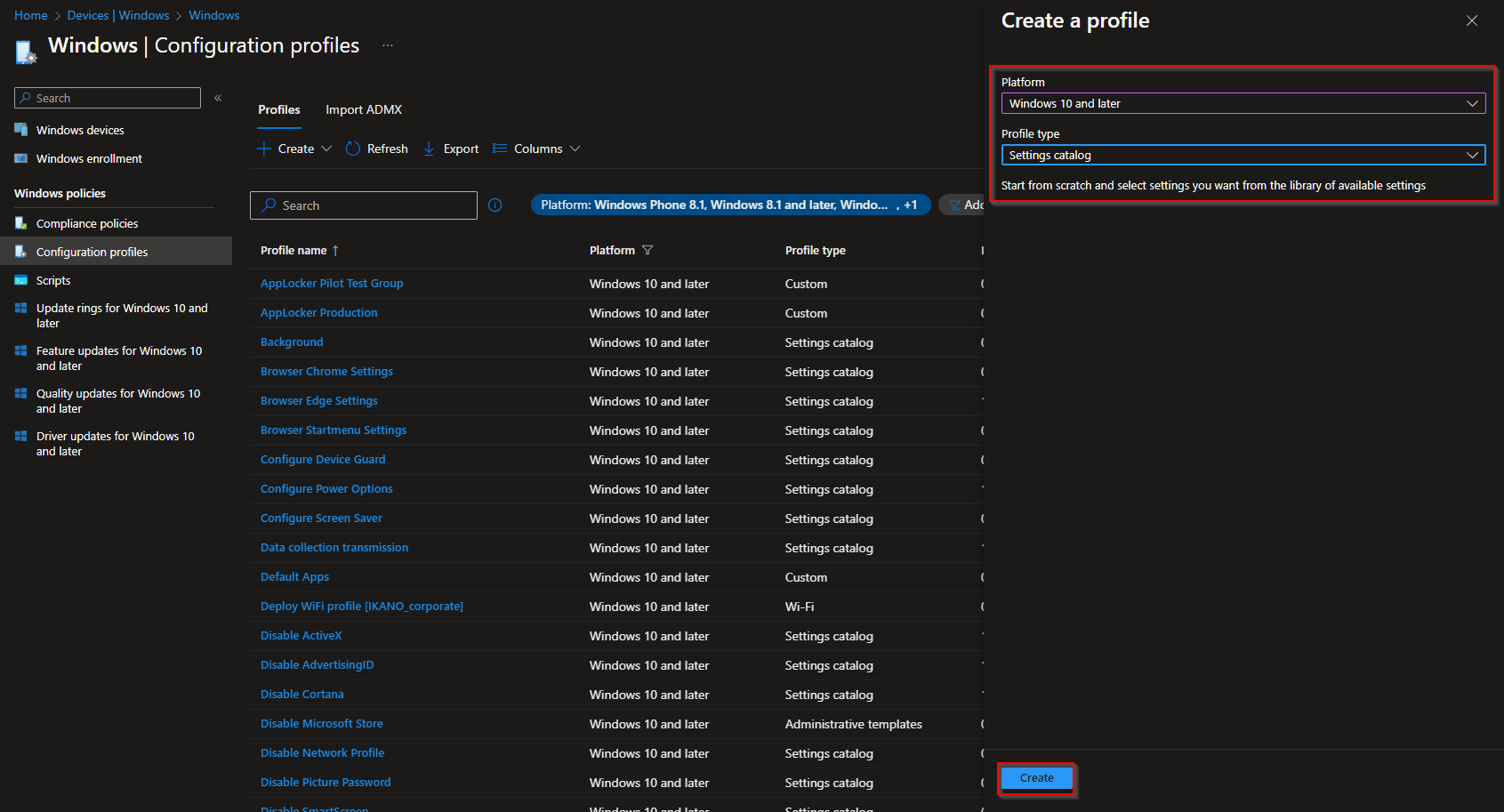
In Intune, go to Devices → Windows → Configuration profiles. Click Create → New policy. Choose Windows 10 and later as the platform and Settings catalog as the profile type. Click Create.
On Basics, give the profile a name (e.g. WIN-Desktop Wallpaper) and click Next.
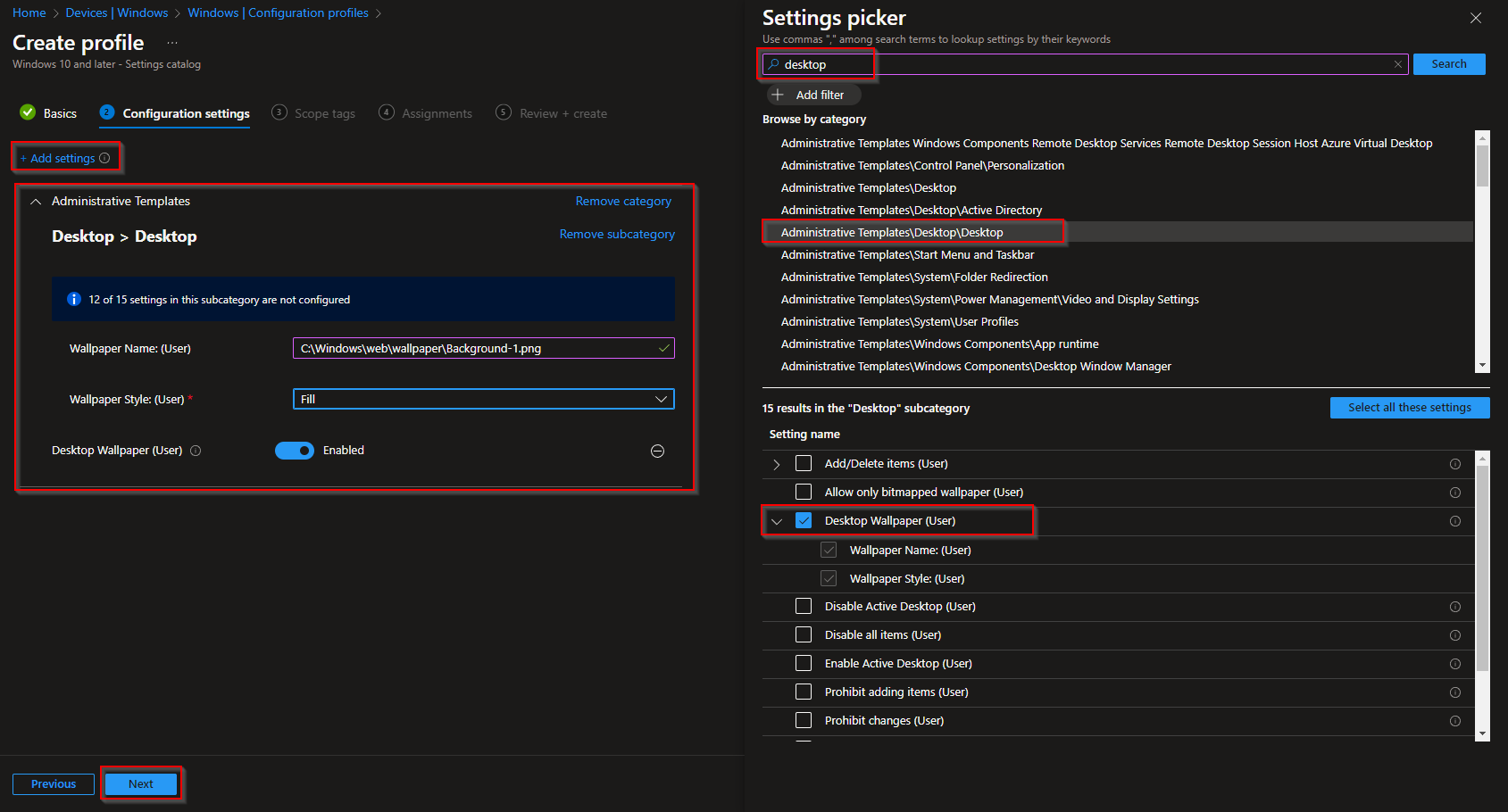
On Configuration settings, click Add settings. Search for Desktop. Expand Administrative Templates → Desktop → Desktop. Enable Desktop Wallpaper (User). Set:
- Wallpaper name:
C:\Windows\Web\Wallpaper\Background-1.png(or your image path and filename) - Wallpaper style: e.g. Fill (or Stretch, Center, etc.)
Click Next.
Add Scope tags if needed, then click Next. On Assignments, add the same users or devices (or a superset) that received the Win32 app. Click Next, review the summary, and click Create.

How It Deploys
The Win32 app copies the background image to C:\Windows\Web\Wallpaper. The configuration profile sets the Desktop Wallpaper (User) to that path. Both must apply; typically deploy the app first so the file exists before the profile references it. After both apply, a device restart (or sign-out/sign-in) may be required for the new wallpaper to show.
Wrap-up
You’ve deployed a custom background with Intune by packaging the image in a Win32 app that copies it to C:\Windows\Web\Wallpaper, then creating a Settings catalog profile that sets Desktop Wallpaper (User) to that path. Use the same image filename in the install command, uninstall command, detection rule, and wallpaper path. Assign both the app and the profile to the right users or devices; allow time for sync and, if needed, a restart for the wallpaper to appear.





