Shared or weak local administrator passwords across devices increase risk: if one machine is compromised, the same password can be reused elsewhere. Microsoft’s Local Administrator Password Solution (LAPS) manages local admin passwords by assigning a unique, strong password per device, rotating it on a schedule, and backing it up to Azure AD or Active Directory so authorized admins can retrieve it when needed.
This guide walks through enabling Microsoft Entra LAPS in the Entra portal, optionally creating a dedicated local admin account (if you don’t use the built-in Administrator), and creating a LAPS policy in Intune Endpoint security to control backup target, rotation, and password rules.
What Is LAPS?
LAPS (Local Administrator Password Solution) is a Microsoft capability that lets organizations manage local administrator account passwords on Windows devices. Instead of a single shared password, each device gets its own strong password. LAPS rotates that password on a configurable schedule and stores it in a central place. Azure AD for cloud-only or hybrid, or Active Directory for hybrid. So only authorized users can read it. That reduces the impact of one compromised device and helps meet security and compliance requirements.
What You’ll Configure
- Enable Microsoft Entra LAPS in Entra ID device settings.
- Optionally create a custom local administrator account on devices (if you don’t use the default Administrator).
- A Local admin password solution (Windows LAPS) policy in Intune Endpoint security: backup directory, password age, account name, complexity, and length.
Step 1: Enable Microsoft Entra LAPS
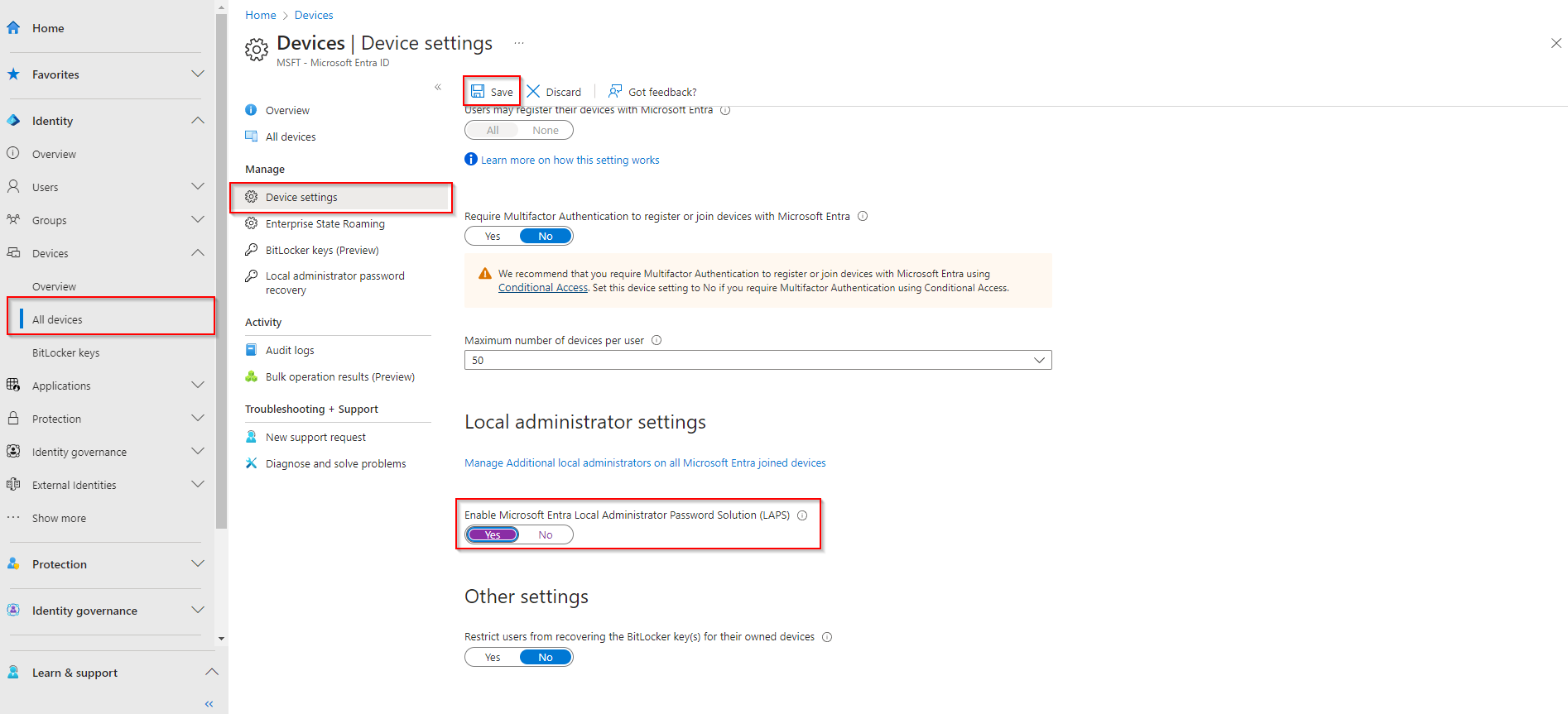
LAPS is controlled in the Entra (Azure AD) portal, not in Intune. In Microsoft Entra admin center, go to Identity → Devices → Overview → Device settings. Scroll to Local administrator settings and enable Microsoft Entra LAPS. Save if required. Without this, LAPS policies in Intune cannot store passwords in Azure AD.
Step 2: Prepare the Local Administrator Account
LAPS can manage the built-in Administrator account or a custom local account. Using the default Administrator is possible but often discouraged; many organizations create a dedicated local admin (e.g. corp-admin) and manage that with LAPS instead.
If you use the built-in Administrator, no extra step is needed. The account already exists. If you use a custom account, create it on each device before or when deploying LAPS (e.g. via a script, Group Policy, or Intune). The account name you create must match the Administrator account name you enter in the LAPS policy in Step 3. For creating a local admin with Intune, see a dedicated guide such as How to create a Local Admin with Microsoft Intune.
Step 3: Create the LAPS Policy in Intune
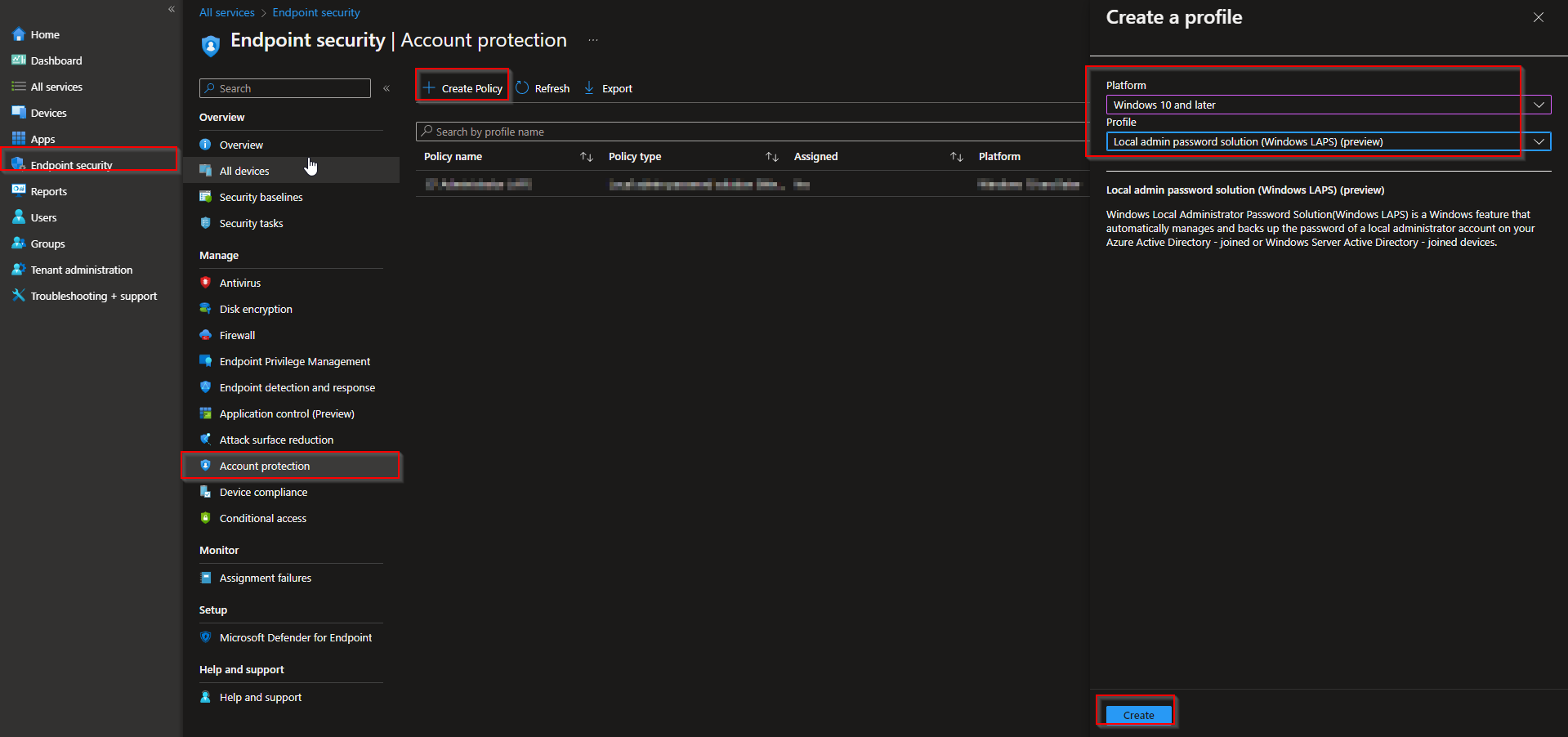
In the Microsoft Endpoint Manager admin center, go to Endpoint security → Account protection. Click Create policy. Choose Windows 10 and later as the platform and Local admin password solution (Windows LAPS) as the profile type. Click Create.
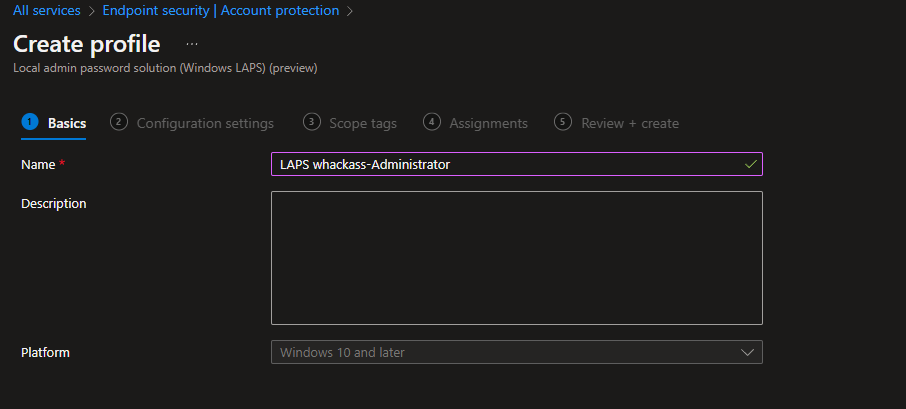
On Basics, give the policy a name (e.g. WIN-LAPS-AzureAD) and click Next.
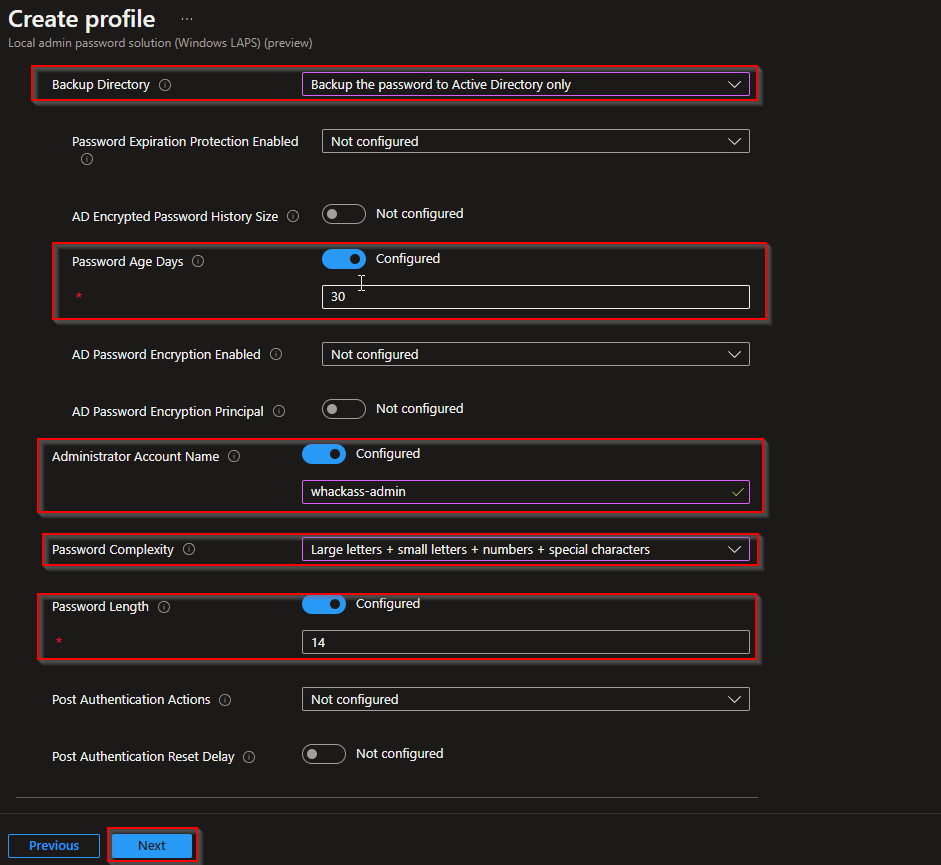
On the configuration page, set:
- Backup directory: For cloud-only or hybrid with Azure AD, choose Backup the password to Azure AD only. For hybrid with on-premises AD, you can choose Backup the password to Active Directory only or Azure AD. Using Azure AD is typical for Intune-managed devices.
- Password age (days): How often the password rotates (e.g. 30 days).
- Administrator account name: The exact name of the local account LAPS will manage (e.g.
Administratoror your custom name such ascorp-admin). Must match the account created on the device. - Password complexity: e.g. Large letters + small letters + numbers + special characters.
- Password length: Minimum length (e.g. 14 or 16).
Click Next.
Add Scope tags if needed, then click Next. On Assignments, add the groups that should receive this policy (e.g. All Devices or a pilot group). Click Next, review the summary, and click Create.
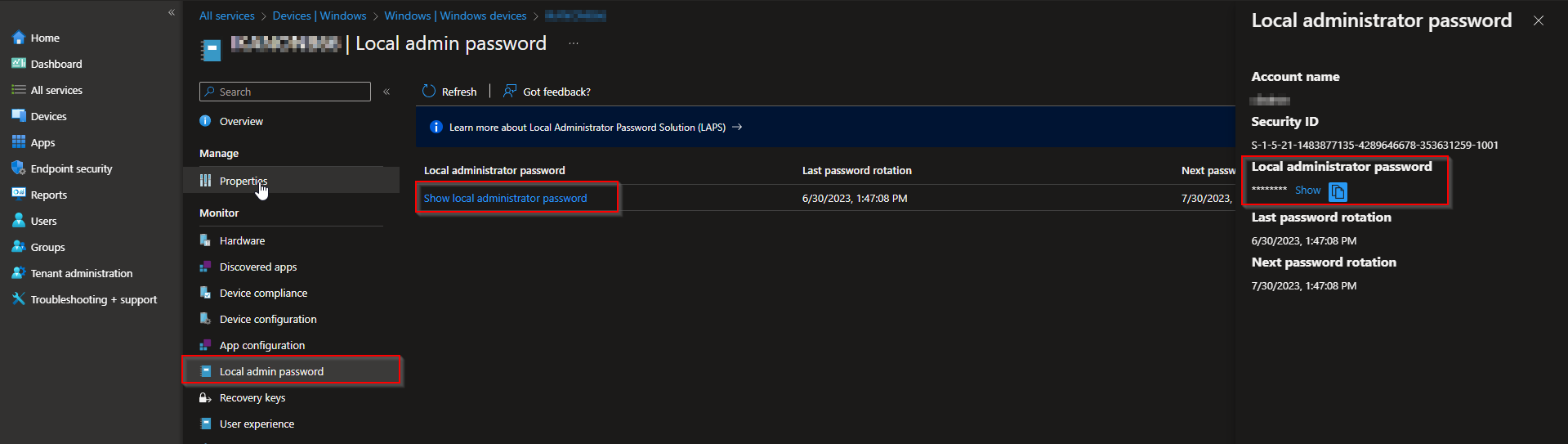
After the policy applies, LAPS will set and rotate the password for the specified local admin account and back it up to the chosen directory. On new devices, ensure the local admin account exists (or use the built-in Administrator); then the policy will manage it.
To view the current local admin password for a device, go to Devices → select the device → Local admin password. Only users with the appropriate permissions can read the password.
Wrap-up
You’ve configured LAPS with Intune by enabling Microsoft Entra LAPS in Entra device settings, preparing the local administrator account (built-in or custom), and creating a Local admin password solution policy in Endpoint security with backup target, password age, account name, and complexity. Assign the policy to the right devices and use the device’s Local admin password blade to retrieve passwords when needed. For full options and behavior, see Microsoft documentation for Windows LAPS.





