Full-disk encryption helps protect data if a device is lost or stolen. Microsoft Intune can enforce BitLocker on Windows 10/11 devices from a single policy: OS drive, fixed data drives, and optionally removable drives, with recovery keys backed up to Azure AD.
This guide walks through creating a BitLocker disk encryption policy in Endpoint security, configuring base, fixed, OS, and removable drive settings, assigning the policy, and checking encryption status in the Encryption report.
What You’ll Configure
- A BitLocker disk encryption policy under Endpoint security in Intune.
- Settings for full-disk encryption, recovery backup to Azure AD, TPM requirements, and encryption methods (e.g. AES 256-bit XTS).
- Assignments to users or devices, then monitoring via the Encryption report.
Step 1: Create a BitLocker Policy
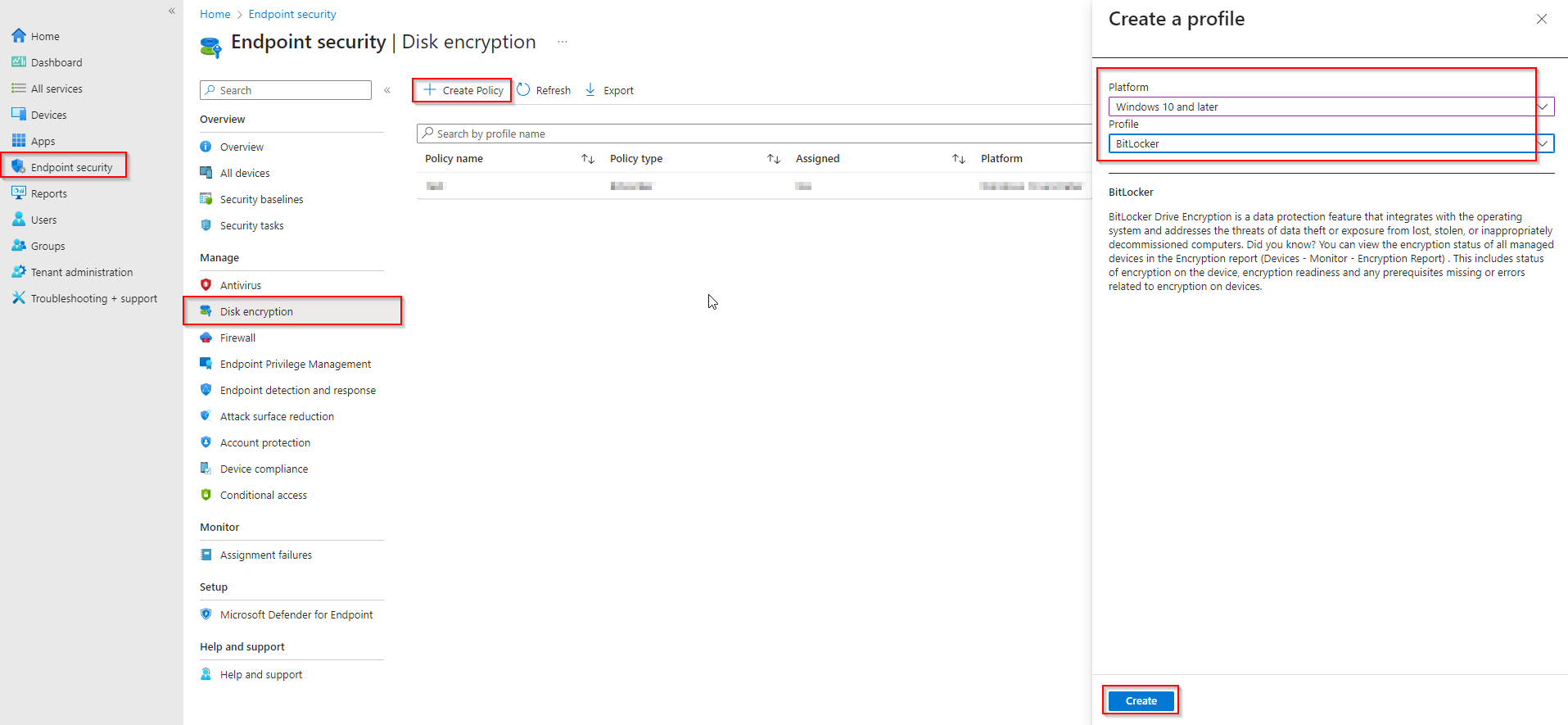
In the Microsoft Endpoint Manager admin center, go to Endpoint security → Disk encryption. Click Create policy. Choose Windows 10 and later as the platform and BitLocker as the profile type, then click Create.
Step 2: Basics
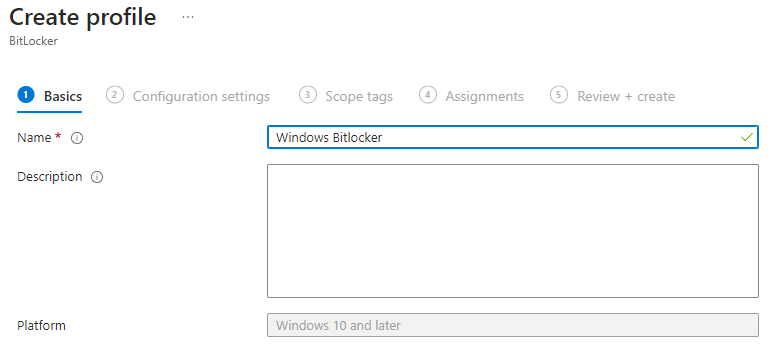
On Basics, give the policy a name (e.g. WIN-BitLocker-OS-and-Fixed) and click Next.
Step 3: Configure BitLocker Settings
On the configuration page you’ll see several groups. Set values according to your security requirements.
Base settings
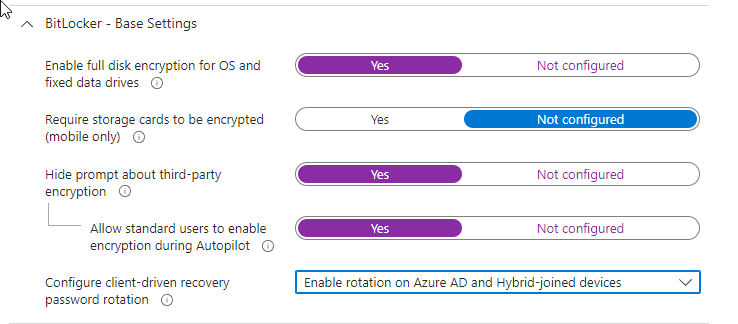
Enable full disk encryption for OS and fixed data drives. Optionally allow standard users to enable encryption during Autopilot and enable client-driven recovery password rotation on Azure AD–joined (and hybrid-joined) devices. You can hide the third-party encryption prompt if you use only BitLocker.
Fixed drive settings
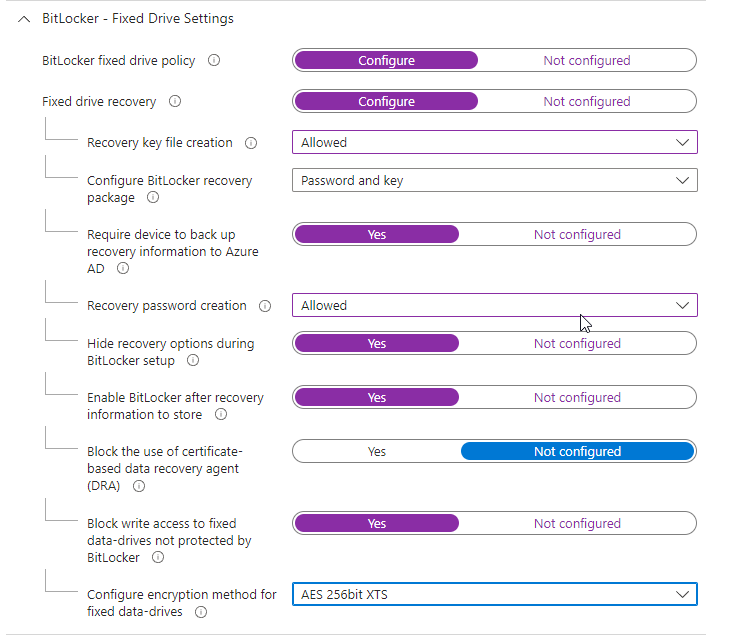
Configure the fixed drive policy: require backup of recovery information to Azure AD, allow recovery key/password creation, and optionally block write access to fixed drives that aren’t protected by BitLocker. Set the encryption method to AES 256-bit XTS for fixed data drives.
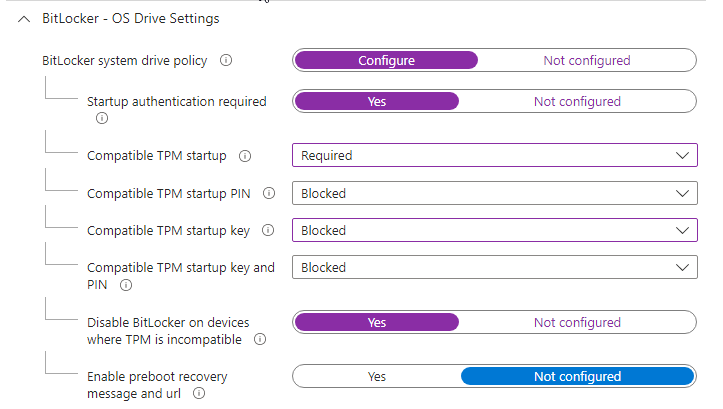
OS drive settings
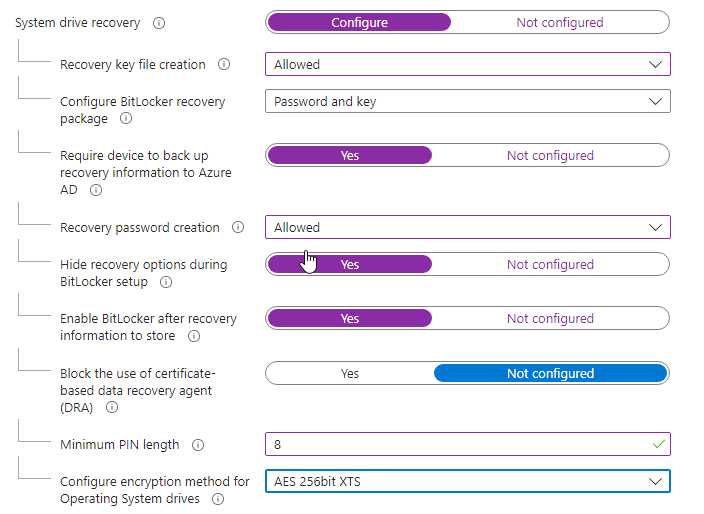
Configure the OS drive policy: require startup authentication, set Compatible TPM startup to Required, and disable BitLocker on devices where TPM is incompatible. Require backup of recovery information to Azure AD and set the OS drive encryption method to AES 256-bit XTS. Adjust TPM startup key/PIN options and minimum PIN length if you use startup PINs.
Removable drive settings
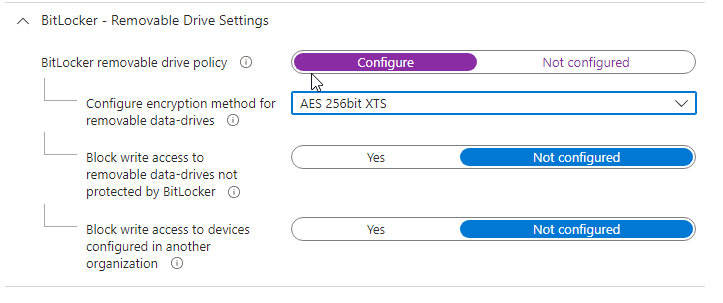
If you manage removable drives, configure the removable drive policy and set the encryption method (e.g. AES 256-bit XTS). Optionally block write access to removable drives not protected by BitLocker or from another organization.
Click Next. Add scope tags if needed, then click Next again.
Step 4: Assign and Create
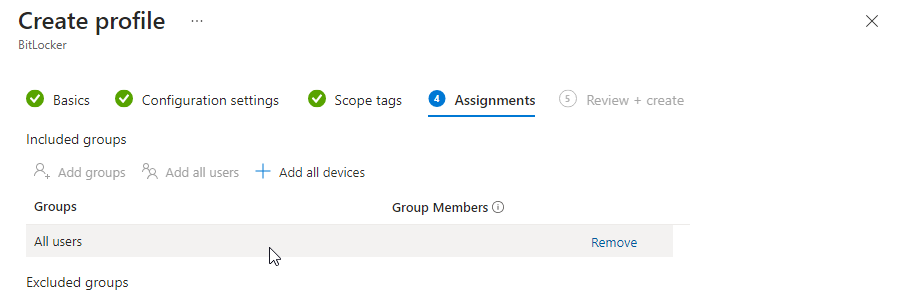
On Assignments, add the groups that should receive this policy (e.g. All Users, All Devices, or a pilot group). Click Next, review the summary, and click Create.
Once the policy applies, BitLocker will encrypt the OS and fixed drives according to your settings. Recovery keys are stored in Azure AD when you require backup of recovery information.
Step 5: Monitor BitLocker Encryption Status
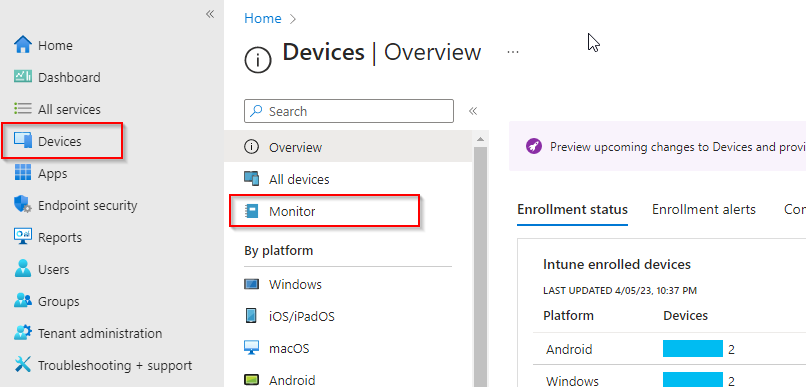
To see which devices are encrypted, go to Devices → Monitor → Encryption report. The report lists managed devices with high-level encryption status. Select a device to see more detail (e.g. device encryption status). Use this to confirm policy rollout and troubleshoot devices that haven’t encrypted.
Wrap-up
You’ve configured BitLocker with Intune by creating a disk encryption policy under Endpoint security, setting base, fixed, OS, and removable drive options, and assigning the policy to users or devices. Recovery keys are backed up to Azure AD when required. Use the Encryption report under Devices → Monitor to track compliance. For full details and options, see Microsoft documentation on BitLocker.





