Devices that have cellular capability can use mobile data instead of. Or in addition to. Wi‑Fi. For managed Windows PCs and tablets, you may want to allow cellular data for field or remote users who need connectivity away from Wi‑Fi, or block it to reduce data costs and encourage use of corporate Wi‑Fi. Microsoft Intune lets you enforce this with a Settings catalog configuration profile and the Allow Cellular Data (and related) setting under Connectivity. This guide walks through creating the profile and choosing Allow or Block.
What This Setting Controls
Cellular data is internet access over the mobile network (SIM / LTE / 5G), independent of Wi‑Fi. When you block cellular data via Intune, the device can still use Wi‑Fi; when you allow it, the device can use both. Some profiles also expose Allow Cellular Data Roaming, which controls whether the device uses cellular data when outside the carrier’s home network. Controlling these options helps you align device usage with cost and security policies. For example, limiting cellular to approved plans or requiring Wi‑Fi on campus.
When to Allow vs Block
Block cellular data when you want to avoid overages, keep traffic on your Wi‑Fi (and any associated filtering or monitoring), or reduce exposure to cellular networks you don’t control. Allow cellular data when users need connectivity on the road, in the field, or where Wi‑Fi is unreliable. You can deploy different profiles to different groups (e.g. block for office-only devices, allow for field devices).
Create a Settings Catalog Profile
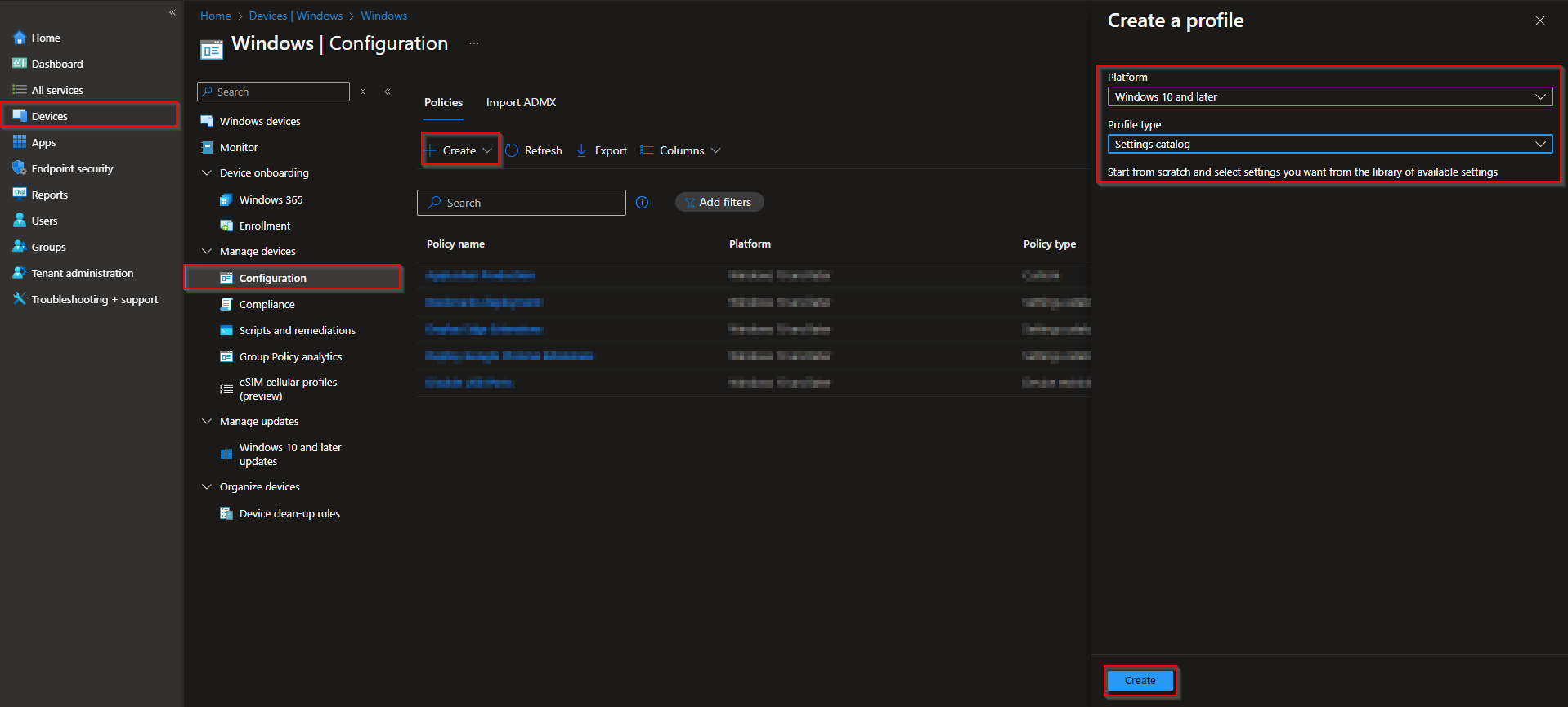
In the Microsoft Intune admin center, go to Devices → Windows → Configuration profiles. Click Create → New policy. Set Platform to Windows 10 and later and Profile type to Settings catalog. Click Create. On Basics, enter a Name (e.g. “Allow cellular data” or “Block cellular data”) and optionally a Description. Click Next.
Add the Cellular Data Setting
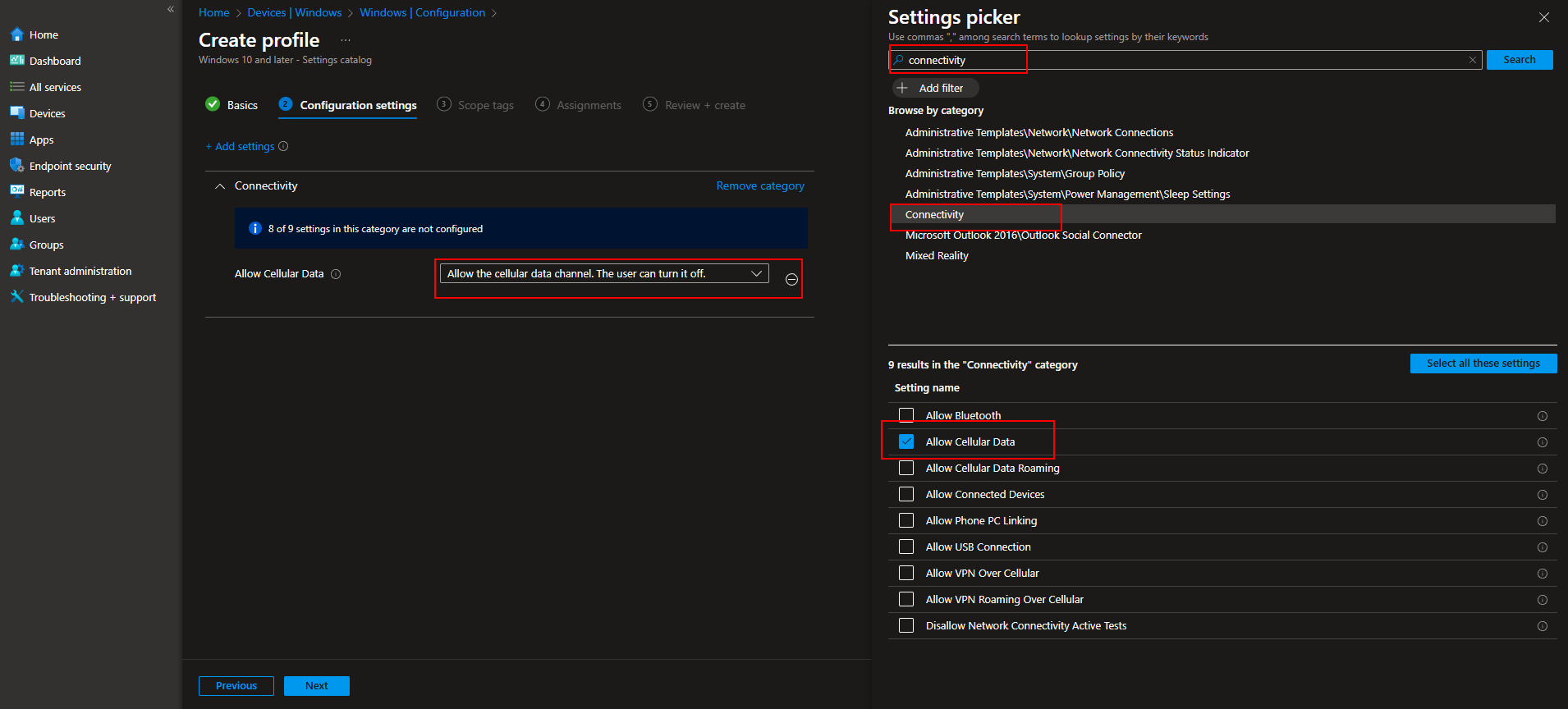
On Configuration settings, click Add settings. In the settings picker, search for Connectivity and open it. Select Allow Cellular Data. In the right-hand panel, choose Allow or Block depending on your policy. If Allow Cellular Data Roaming is available and you want to control it, set that to Allow or Block as well. Click Next when done.
Apply scope tags if your tenant uses them. On Assignments, add the user or device groups that should receive this profile (e.g. All Users, All Devices, or a specific group for field devices). Click Next, then Review + create, and Create.
After the profile syncs to targeted devices, cellular data will be allowed or blocked according to your selection. Users cannot override this when the policy is enforced. For more options, see Settings catalog and the Connectivity category on Microsoft Learn.
Summary
To allow or block cellular data with Microsoft Intune: create a Settings catalog configuration profile for Windows 10 and later, add the Allow Cellular Data setting under Connectivity, set it to Allow or Block (and optionally configure cellular data roaming if available), then assign the profile to the right user or device groups. Use block to reduce cost and steer traffic to Wi‑Fi; use allow where users need mobile connectivity.





