Windows 11 uses a centered taskbar by default. Many organizations prefer the classic left-aligned layout for consistency with Windows 10 or user preference. Intune doesn’t expose a built-in setting for taskbar alignment, but you can achieve it by setting a registry value with a PowerShell script and deploying that script through Intune’s PowerShell scripts feature.
This guide walks through creating a script that sets the TaskbarAl registry value to align the taskbar left, then uploading and assigning the script in the Intune admin center. The script runs in the user context so the change applies to the signed-in user’s HKCU.
What You’ll Do
- Create a PowerShell script that sets the
TaskbarAlDWORD in the current user’s registry to align the taskbar left. - Add the script in Intune under Devices → Windows → PowerShell scripts, run it with the logged-on user’s credentials, and assign it to a group.
Step 1: Create the PowerShell Script
Create a new PowerShell script (e.g. TaskbarAlignLeft.ps1). The alignment is controlled by the registry key HKCU:\Software\Microsoft\Windows\CurrentVersion\Explorer\Advanced. The value TaskbarAl (DWORD) controls alignment: 0 = left (classic), 1 = center (Windows 11 default). Set it to 0 to align the taskbar left. Example script:
$registryPath = "HKCU:\Software\Microsoft\Windows\CurrentVersion\Explorer\Advanced"
$name = "TaskbarAl"
$value = 0   # 0 = left, 1 = center
New-ItemProperty -Path $registryPath -Name $name -Value $value -PropertyType DWORD -Force -ErrorAction SilentlyContinue
Save the file. The script must run in the user context (not system) so that HKCU refers to the signed-in user. In Step 2 you’ll set “Run this script using the logged on credentials” to Yes.

Step 2: Deploy the Script in Intune
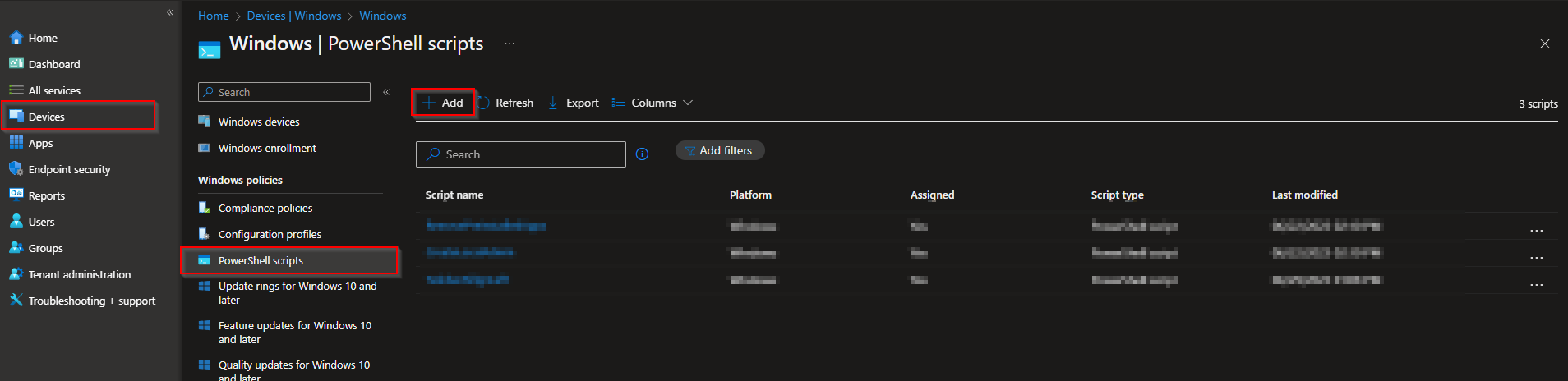
In the Microsoft Endpoint Manager admin center, go to Devices → Windows → PowerShell scripts. Click Add.
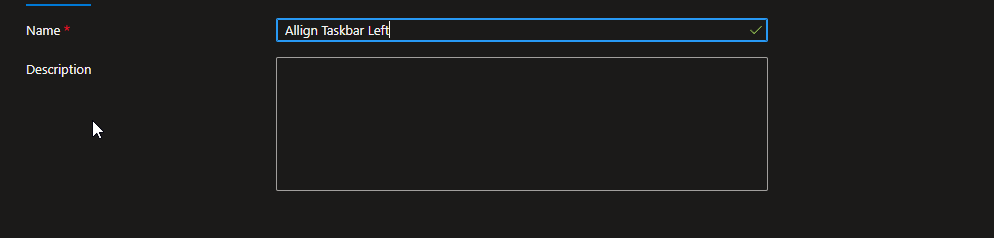
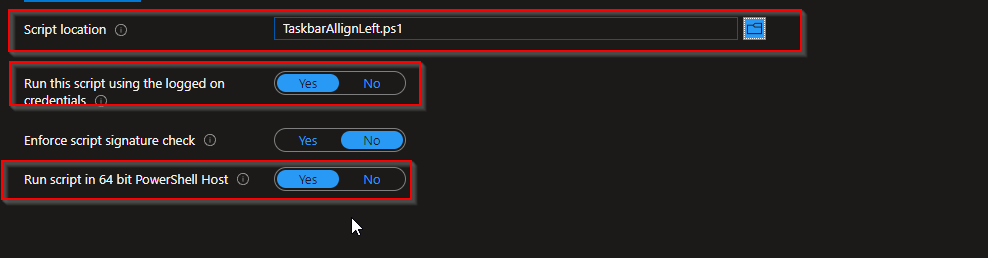
On Basics, give the script a name (e.g. Align Taskbar Left) and click Next. On the script upload page, upload your .ps1 file. Set:
- Run this script using the logged on credentials: Yes (so the registry change applies to HKCU for the current user)
- Enforce script signature check: No (unless you sign your scripts)
- Run script in 64 bit PowerShell Host: Yes
Click Next.
On Assignments, add the groups that should run this script (e.g. All Devices or a pilot group). Click Next, review the summary, and click Add.
Intune runs the script on assigned devices. Because the script uses HKCU, it applies to the user who is signed in when the script runs. The taskbar alignment updates; users may need to sign out and back in or restart Explorer for the change to appear immediately.
Wrap-up
You’ve aligned the Windows 11 taskbar left with Intune by creating a PowerShell script that sets TaskbarAl to 0 in the current user’s registry, then deploying it via Devices → Windows → PowerShell scripts with “Run using logged on credentials” set to Yes. Assign the script to the right users or devices; the taskbar will use the classic left alignment after the script runs and the user session is refreshed.





