The Microsoft Enterprise SSO plug-in for macOS lets apps that don’t use the Microsoft Authentication Library (MSAL) take part in single sign-on (SSO) with Microsoft Entra ID (Azure AD). Once a user has signed in once, the plug-in can supply tokens to other apps that support the extension, so users see fewer sign-in prompts when opening Azure AD–connected apps such as Safari, third-party VPN clients, or other native apps. The plug-in is configured via a Device features profile in Microsoft Intune. This post walks through creating that profile, adding app bundle IDs for non‑MSAL apps, optional keys to reduce prompts further, and what to expect for Safari and a VPN client. The plug-in requires macOS 10.15 or later. For current requirements and behaviour, see Microsoft’s Enterprise SSO documentation.
Create a Device Features Profile
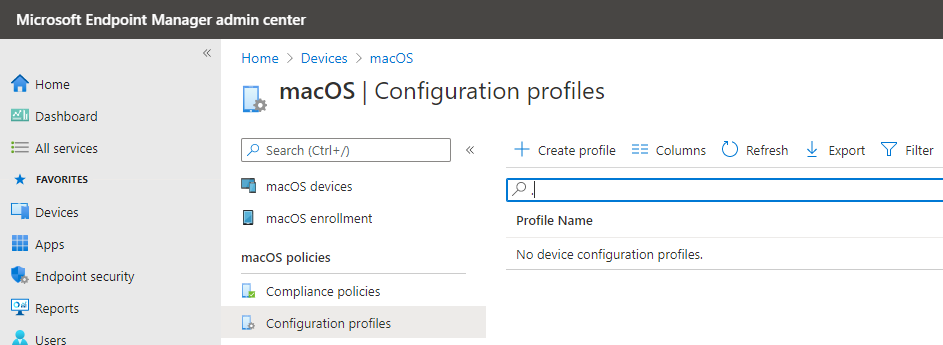
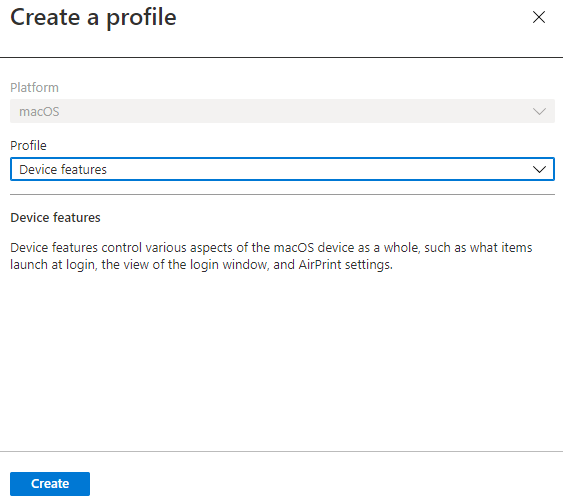
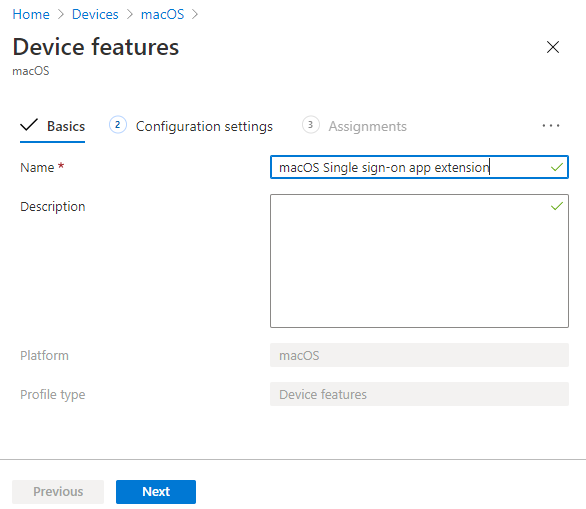
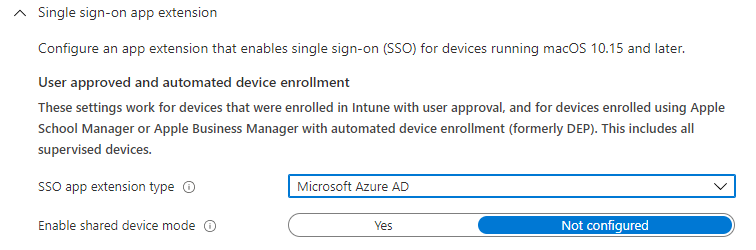
In the Microsoft Intune admin center, go to Devices → macOS → Configuration profiles and choose Create profile. Set Profile type to Device features and click Create. On Basics, give the profile a name (e.g. “macOS – Enterprise SSO”) and an optional description, then click Next. On Configuration settings, expand Single sign-on app extension. Set SSO app extension type to Microsoft Azure AD. In App bundle IDs, add the bundle IDs of apps that don’t use MSAL but should use the SSO plug-in (e.g. Safari, a VPN client). You can look up a bundle ID on a Mac in Terminal with:
osascript -e 'id of app "Name of App"'Example for Microsoft Outlook: osascript -e 'id of app "Microsoft Outlook"'. Add one bundle ID per line. Save the Single sign-on section and continue.
Below: creating a Device features profile and opening the Single sign-on app extension section with SSO app extension type Microsoft Azure AD and App bundle IDs.
The screenshot shows the Single sign-on app extension settings with Azure AD and bundle IDs configured.
Optional Keys to Reduce Prompts
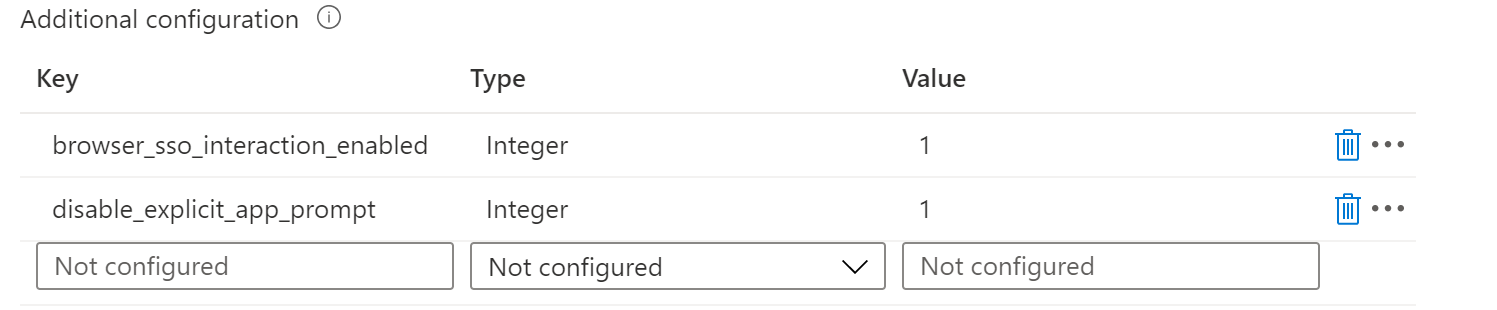
Microsoft’s docs describe two additional keys you can add to fine-tune the SSO experience. Add them in the same profile (or in an app configuration payload, depending on the admin center UI): browser_sso_interaction_enabled and disable_explicit_app_prompt. Set both as Integer with value 1. These can reduce how often the user is asked to sign in or confirm in the browser and in participating apps. Exact behaviour depends on the app and OS version; test in your environment.
Below: adding the additional SSO keys (browser_sso_interaction_enabled and disable_explicit_app_prompt) as Integer with value 1.
Assign the Profile
Finish the wizard and go to Assignments. Assign the profile to the user or device groups that should get the Enterprise SSO plug-in (e.g. all macOS devices or a pilot group). Save. The profile will apply at the next sync. After it’s applied, the SSO extension is available to the listed apps.
The following screenshot shows the Assignments step where the profile is assigned to a group.
What Users See
Behaviour varies by app. Microsoft 365 apps that use MSAL often already share sign-in after the first app is signed in; the SSO plug-in doesn’t always change that. For apps that don’t use MSAL. Such as Safari or a third-party VPN client that uses Azure AD. The difference is clearer: without the profile, users typically enter username and password each time; with the profile and the app’s bundle ID in the list, they can get a true SSO experience (e.g. no password after the first sign-in, or a streamlined prompt).
For Safari, with the profile applied and Safari’s bundle ID included, visiting Microsoft 365 or other Azure AD–protected sites can use the plug-in so the user isn’t repeatedly asked for full credentials. For a VPN client that supports Azure AD (e.g. Pulse Secure), adding its bundle ID can allow sign-in without re-entering password once the user has authenticated via the plug-in. Microsoft Edge (Chromium) may require a signed-in browser session for SSO to work with Microsoft 365; behaviour can differ between stable and beta builds. The feature continues to evolve; more apps may support MSAL or the extension over time.
Below: SSO in action with a VPN client (e.g. Pulse Secure) when the profile and bundle ID are applied. Sign-in without re-entering password.

The screenshot shows the SSO experience in Safari when the profile is applied. Fewer authentication prompts when visiting Azure AD–protected sites.
Summary
To improve sign-in on macOS with the Microsoft Enterprise SSO plug-in: create a Device features configuration profile in Intune (Devices → macOS → Configuration profiles → Create profile → Device features). In Single sign-on app extension, set type to Microsoft Azure AD and add the App bundle IDs of apps that don’t use MSAL (use osascript -e 'id of app "App Name"' in Terminal to find bundle IDs). Optionally add browser_sso_interaction_enabled and disable_explicit_app_prompt as Integer 1 to reduce prompts. Assign the profile to your macOS groups. Test with Safari and third-party Azure AD–aware apps (e.g. VPN); behaviour may vary by app and Edge version. The plug-in requires macOS 10.15 or later and is a good way to reduce authentication friction for Azure AD–connected apps on Macs.