Windows 11 version 25H2 (the 2025 Update) brings security improvements, enterprise capabilities, and refinements under the hood. Including Wi‑Fi 7 support, app removal via group policy, and the removal of legacy components such as PowerShell 2.0 and WMIC. To roll out this feature update to Intune-managed devices in a controlled way, you can use a Feature Update for Windows 10 and later policy in Microsoft Intune. This post walks through creating a dynamic Entra ID group for Windows 11 devices and a Feature Update profile that targets 25H2. This approach does not cover Windows Autopatch.
Scope: Windows 11 Only
Feature Update policies are assigned to groups. To limit the upgrade to devices already on Windows 11, we use a dynamic Entra ID group whose membership rule selects Windows 11 and MDM (Intune)–managed devices. Windows 10 devices are excluded by the rule and will not receive this profile.
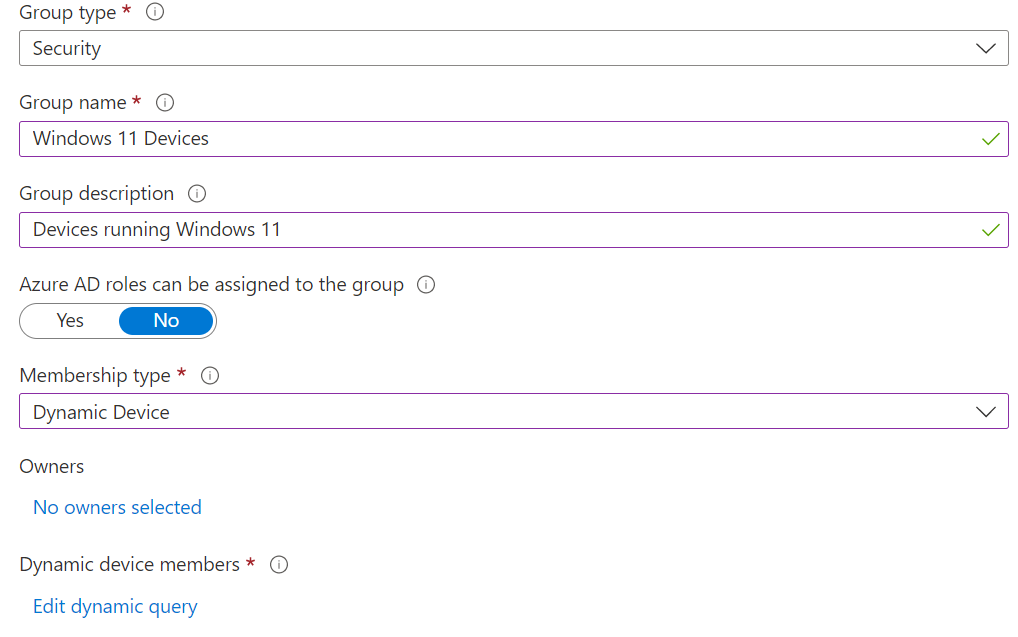
Step 1: Create a Dynamic Group for Windows 11 Devices
In the Azure portal, go to Microsoft Entra ID (or Azure Active Directory) → Groups. Click New group. Choose Dynamic device as the group type and set a name (e.g. “All Windows 11 – Intune managed”). Under Dynamic device members, click Add dynamic query and use a rule that includes only Windows 11 devices managed by Intune.
Use the following rule so that membership is limited to Windows 11 (OS version starting with 10.0.2) and MDM management:
(device.deviceOSVersion -startsWith "10.0.2") -and (device.DeviceOSType -startsWith "Windows") -and (device.managementType -eq "MDM")Save the group. For reference: 10.0.2 corresponds to Windows 11; 10.0.1 is used for Windows 10 (which is approaching end of support).
Step 2: Create a Feature Update Profile in Intune
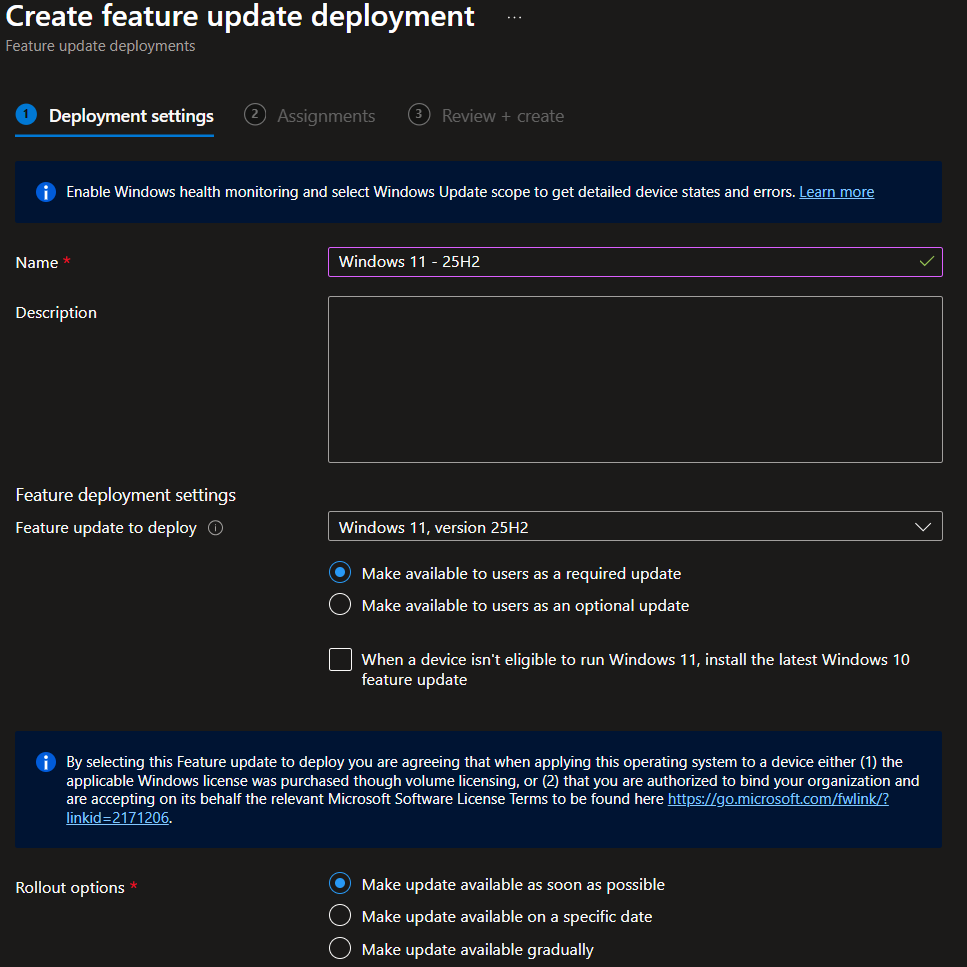
In the Microsoft Intune admin center, go to Devices → Windows → Feature updates for Windows 10 and later. Click Create profile. Give the profile a name (e.g. “Windows 11 25H2”) and, on the same page, set the Feature update to Windows 11, version 25H2 (or the exact build/version label shown in the dropdown).
Under Rollout options, choose how the update is offered:
- Make update available as soon as possible . Devices in the assignment receive the feature update as soon as the policy applies; no scheduled window.
- Make update available on a specific date . Same as above, but the offer starts on a chosen date. Useful when you want a short delay after creating the profile.
- Gradually roll out over a date range . The update is offered between a start and end date; Intune spreads devices across that window. You control the window but not the exact day each device is offered the update.
Pick the option that fits your change process, then continue.
Step 3: Assign the Profile
On the Assignments (or Scope tags) step, add the dynamic group you created (e.g. “All Windows 11 – Intune managed”). Complete the wizard and create the profile. Intune will start offering Windows 11 25H2 to devices in that group according to the rollout option you selected.
Summary
To deploy Windows 11 25H2 with Intune: create a dynamic Entra ID group that includes only Windows 11, MDM-managed devices using the rule above; then in Intune create a Feature Update for Windows 10 and later profile targeting 25H2, set the rollout option (immediate, specific date, or gradual), and assign the profile to that group. Devices in the group will be offered the 25H2 feature update within the schedule you configured. Exclude Windows 10 from this group if you do not want them to receive this policy; use a separate group and profile when you are ready to target Windows 10 for upgrade.