Ransomware encrypts data and demands payment to restore it. Microsoft Defender Attack Surface Reduction (ASR) rules add another layer of protection by controlling how executables and scripts run. The Use advanced protection against ransomware rule focuses on untrusted or suspicious executables (e.g. .exe and .dll) that exhibit ransomware-like behavior. Such as files from the internet, email, or removable media that haven’t been seen before or don’t meet trust criteria.
When you enable this rule via Microsoft Intune, Defender can block those executables from running, reducing the chance of ransomware getting a foothold. You can also use Audit mode first to log what would be blocked without blocking it, then switch to Block once you’re satisfied. This post walks through creating an Attack Surface Reduction Rules policy in Intune, configuring the ransomware ASR rule (Block or Audit), and checking that it’s applied.
What This ASR Rule Does
The Use advanced protection against ransomware rule:
- Uses Defender’s detection (including ML) to decide if an executable is trusted or potentially ransomware-related.
- Can block untrusted or suspicious executables from running when the rule is set to Block.
- Applies to executables from the internet, email, USB, and other untrusted or unsigned sources when they don’t meet trust criteria.
- Supports exclusions so you can allow specific paths or apps that are known good.
Blocked events (and audit events when in Audit mode) appear in the Microsoft Defender portal so you can review and adjust exclusions or policy as needed.
Create an Attack Surface Reduction Rules Policy
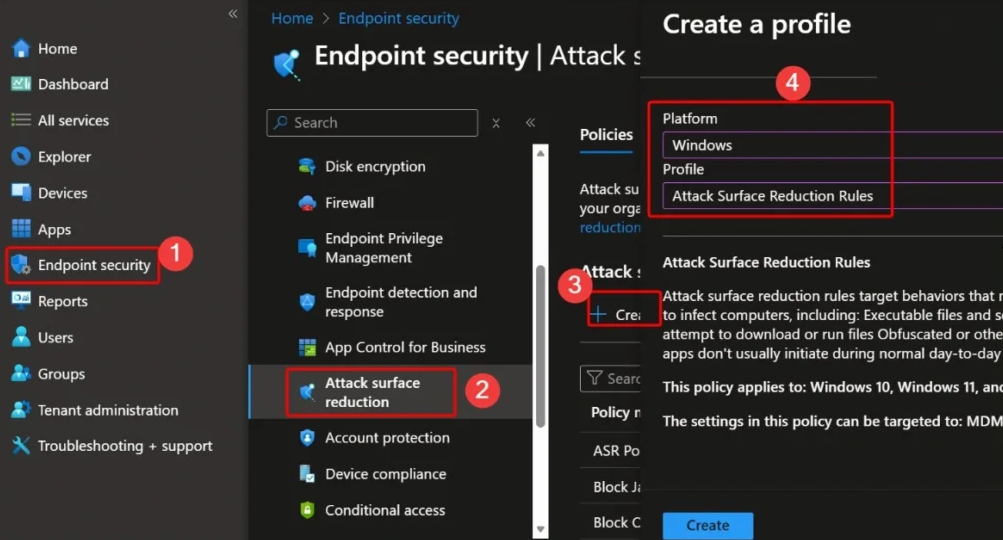
In the Microsoft Intune admin center, go to Endpoint security → Attack surface reduction. Click Create policy. Choose Windows as the platform and Attack Surface Reduction Rules as the profile type. Click Create.
Creating an Attack Surface Reduction Rules policy in Intune.
Basics and Name
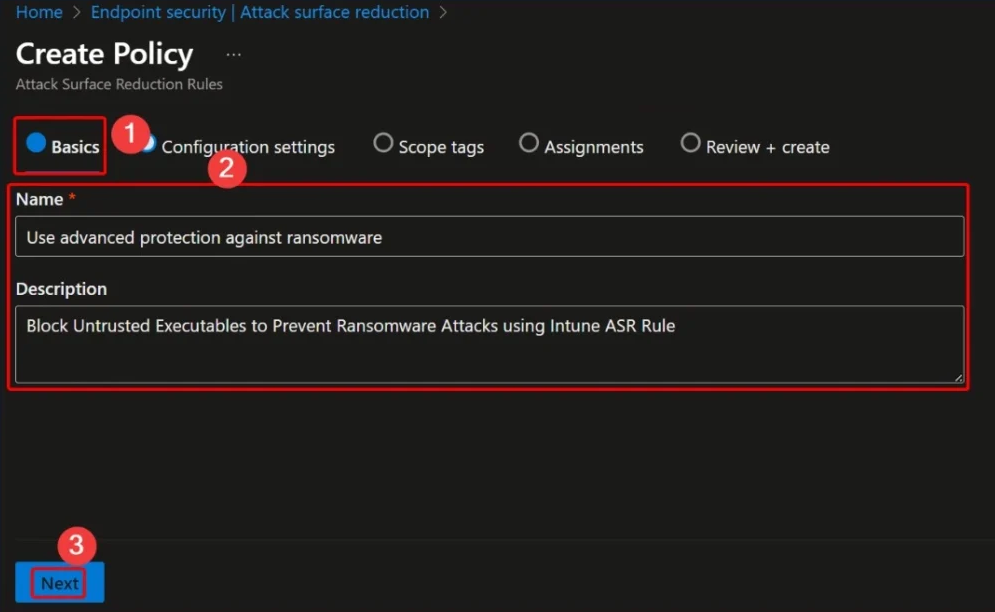
On Basics, give the policy a name (e.g. “Block untrusted executables to prevent ransomware attacks”) and an optional description so other admins know what the rule is for. Click Next.
Configuring basic information for the ASR policy.
Configure the Ransomware ASR Rule
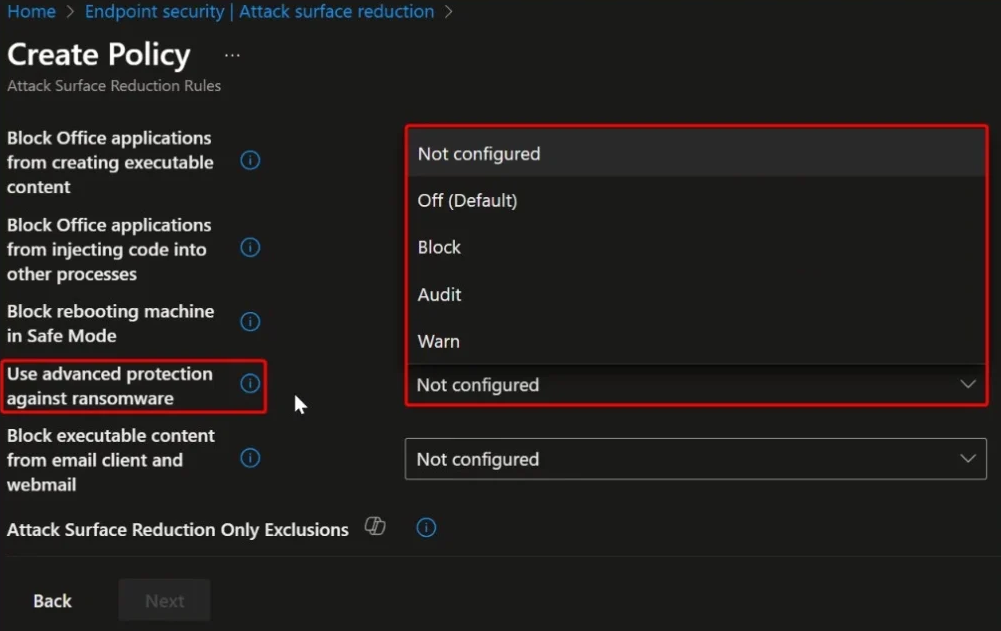
On Configuration settings, find Use advanced protection against ransomware. You can set it to:
- Not configured . Rule is not enforced.
- Off . Rule is disabled (default).
- Block . Suspicious/untrusted executables that match the rule are blocked from running.
- Audit . No blocking; events are logged so you can see what would have been blocked.
- Warn . User is warned but can choose to run the executable.
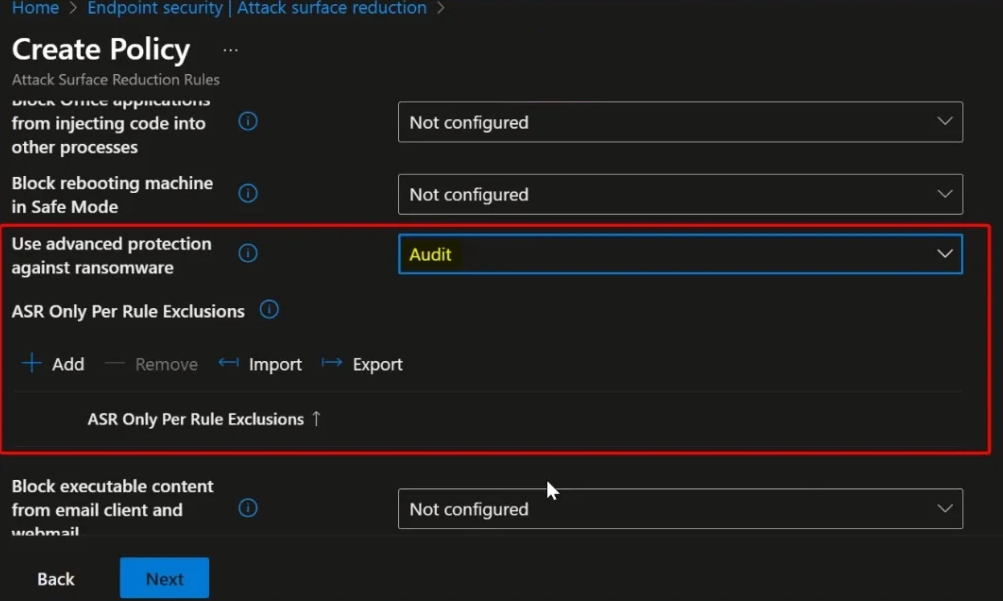
Use Audit first on a pilot group to see impact without blocking; then move to Block for production. Set the value you want and click Next.
Configuring the Use advanced protection against ransomware rule.
Selecting Audit mode for testing.
Scope Tags and Assignments
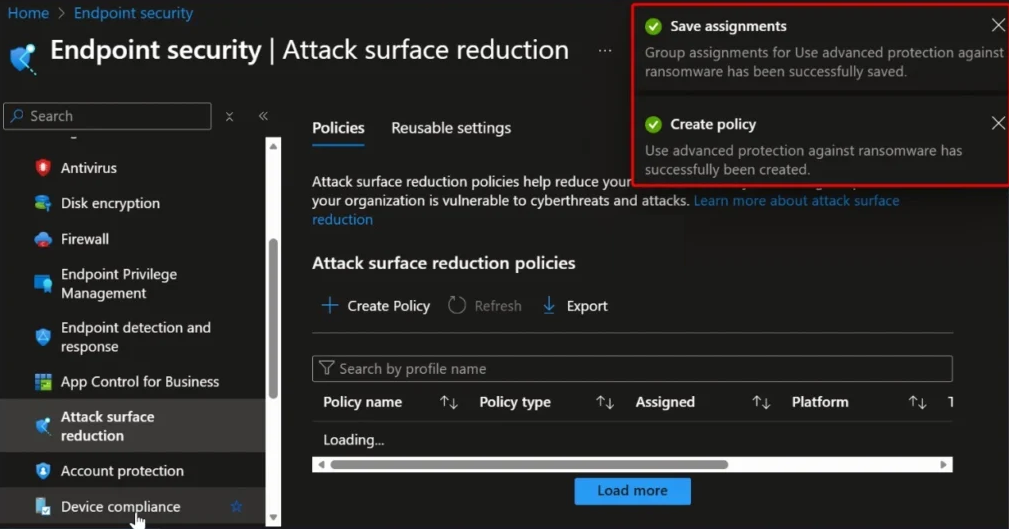
On Scope tags, add any tags you use, or skip and click Next. On Assignments, add the device or user groups that should get this rule. Start with a pilot group (e.g. with Audit), then expand to more devices and switch to Block when ready. Click Next, review the summary, and click Create. The policy will deploy to assigned devices on their next sync.
Scope tags and assignments for the ASR rule.
Check Policy Status
Under Endpoint security → Attack surface reduction, open your policy to see device and user check-in status (Succeeded, Error, Conflict, Not applicable, In progress). Policy can take up to several hours to apply; trigger a sync from Company Portal to test sooner. Review blocked or audited events in the Microsoft Defender portal to tune exclusions or confirm behavior.
Exclusions
If legitimate apps are blocked, you can add exclusions in the ASR policy (when supported) or via Defender configuration so those paths or applications are allowed. Check Microsoft docs for the exact exclusion format for this rule.
Wrap-Up
You can help block untrusted executables and reduce ransomware risk by enabling the Use advanced protection against ransomware ASR rule in Microsoft Intune. Create an Attack Surface Reduction Rules policy under Endpoint security → Attack surface reduction, set the ransomware rule to Block (or Audit first for testing), assign to your groups, and create. Monitor status in Intune and review events in the Defender portal to confirm the rule is applied and to add exclusions where needed.