AI is everywhere, and so is the pressure to give staff access without exposing company data. Blocking tools like ChatGPT only goes so far. People will keep asking, and sooner or later you need a safe path. Bing Chat Enterprise is Microsoft’s answer: AI chat with commercial data protection, so conversations aren’t used to train public models and aren’t retained for that. To use it you need a qualifying license (Microsoft 365 E3, E5, Business Standard, or Business Premium). It’s on by default in the tenant; you can turn it off if you prefer. For the full picture. Including privacy and protections. See the technical documentation and privacy and protections pages.
The screenshot below shows Bing Chat Enterprise information and commercial data protection details.
Why the Edge Sidebar Matters
The Microsoft Edge sidebar is a handy place for Bing Chat, but it used to let people use Bing Chat with a personal Microsoft account, which wasn’t acceptable in our environment. I had the sidebar disabled for a long time. With Edge for Business, work and personal context are handled more clearly, and the sidebar is a good way to surface Bing Chat Enterprise. So we turned it back on. We still lock down what appears there: things like WhatsApp, Shopping, Games, and Drop don’t belong on work devices, so we restrict them.
Sidebar Apps Are Extensions
Many sidebar experiences are delivered as browser extensions. If you already manage Edge extensions (e.g. block everything and allow only a short list), controlling the sidebar follows the same pattern: block all extensions by default and add only the extension IDs you want. That keeps Bing Chat Enterprise and approved apps (Search, Discover, Outlook, Microsoft 365, OneNote Feed) while blocking Shopping, Games, WhatsApp, and the rest.
The screenshot below shows the Microsoft Edge sidebar settings in the browser.
Below: Edge sidebar features and how to restrict them in an enterprise environment.
Intune: Edge Extensions Profile
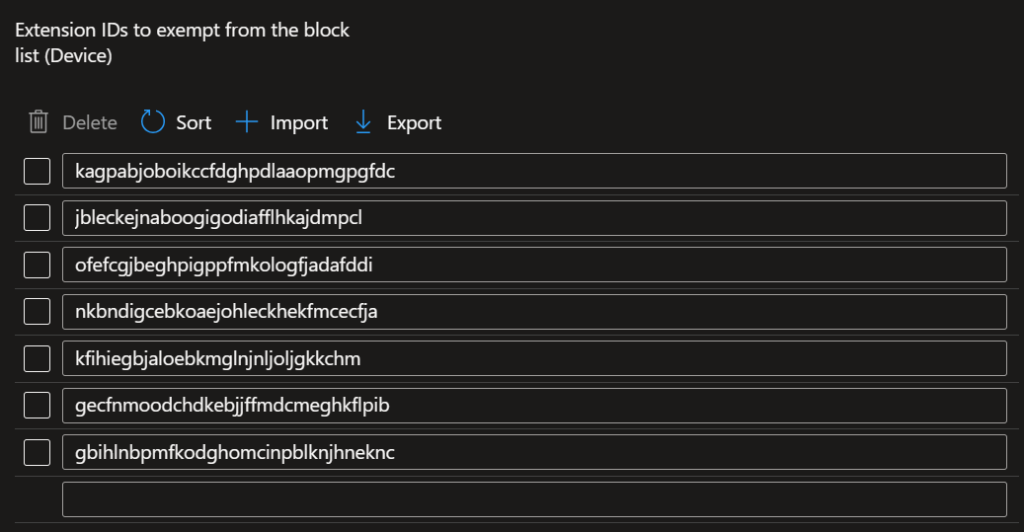
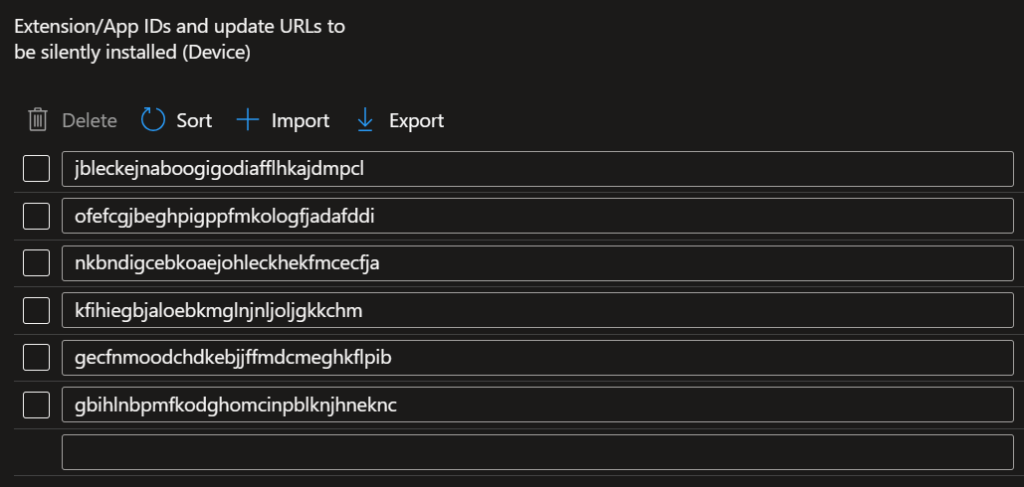
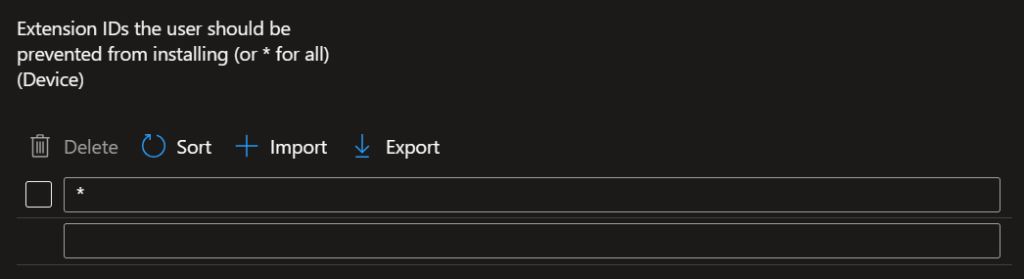
In Intune (or Group Policy if you prefer), use a Settings catalog profile. Create one for Microsoft Edge → Extensions, for example:
- Extension IDs to exempt from the block list (Device) . List the IDs you want to allow.
- Extension/App IDs and update URLs to be silently installed (Device) . Optionally force-install specific extensions.
- Extension IDs the user should be prevented from installing (or * for all) (Device) . Set to
*to block all except those in the exempt list.
Name the profile something like “Win 10/11 – Settings Catalog – Microsoft Edge – Extensions” and describe it as configuring allowed extensions for Edge. With “prevent from installing” set to * and only the desired IDs in the exempt list, users get Bing Chat Enterprise and your chosen sidebar apps; everything else is blocked.
Reference IDs I use for the allow list:
- Search:
jbleckejnaboogigodiafflhkajdmpcl - Discover:
ofefcgjbeghpigppfmkologfjadafddi,nkbndigcebkoaejohleckhekfmcecfja - Outlook:
kfihiegbjaloebkmglnjnljoljgkkchm - Microsoft 365:
gecfnmoodchdkebjjffmdcmeghkflpib - OneNote Feed:
gbihlnbpmfkodghomcinpblknjhneknc
Confirm current IDs in Microsoft’s or Edge’s documentation if anything changes.
The following screenshot shows the Intune Edge Extensions configuration (exempt list, block list, and related settings).
Intune: Edge Sidebar Profile
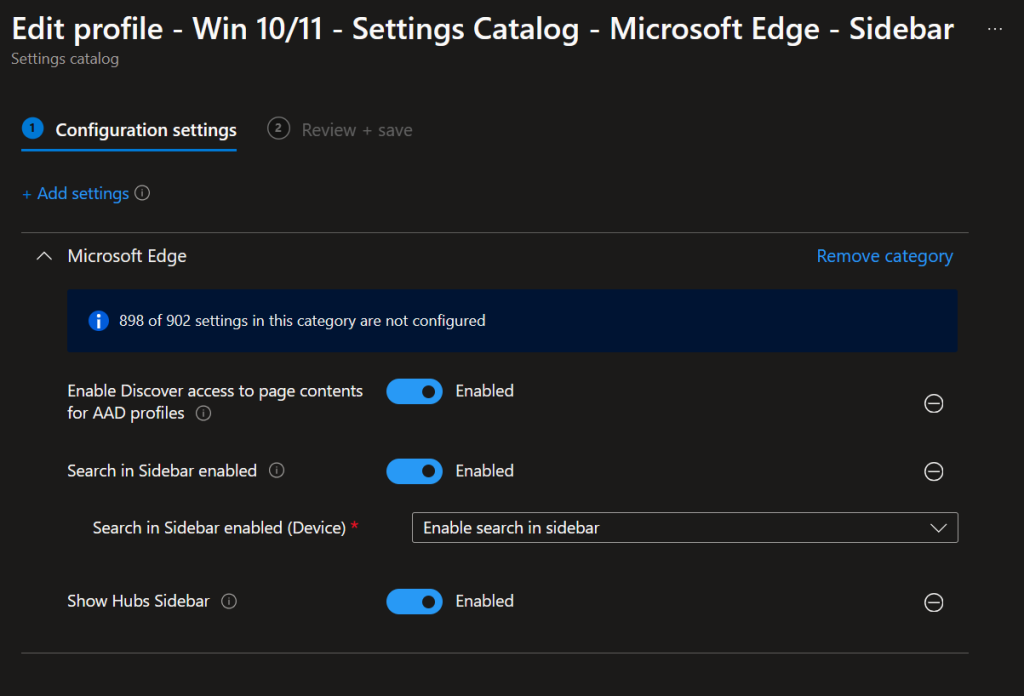
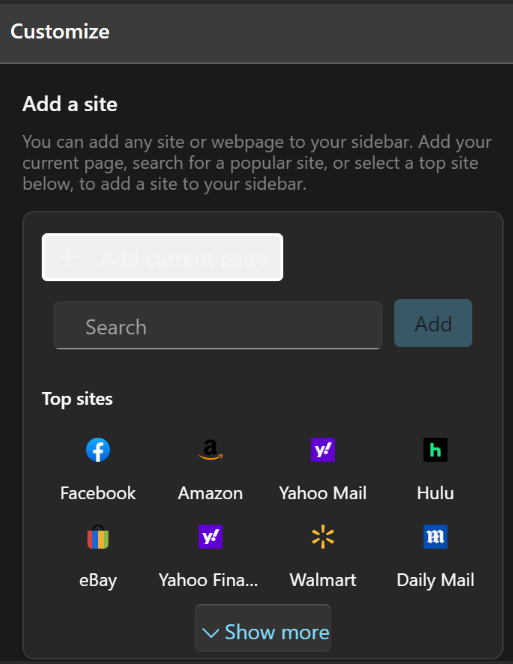
Add a second layer with a Settings catalog profile for Microsoft Edge → Sidebar. Use it to configure sidebar behaviour (what’s allowed or disabled). Together with the extensions profile, you get Bing Chat Enterprise in the sidebar without Shopping, Games, WhatsApp, or other unwanted apps. A future improvement would be a policy to control or disable “Add a site”. Not critical today, but useful when available.
Below: the Microsoft Edge Sidebar settings configuration in an Intune profile.
Wrap-Up
Bing Chat Enterprise gives you AI chat with commercial data protection; the Edge sidebar is a convenient way to use it. By re-enabling the sidebar in Edge for Business and managing it with Intune. Blocking all extensions and exempting only the ones you want, plus a Sidebar settings profile. You keep productivity tools like Bing Chat Enterprise while locking out Shopping, Games, WhatsApp, and similar. That balance keeps security and compliance in place while giving people the AI they need.