Users can install Microsoft Edge extensions from the Edge Add-ons store or from other sources. When you manage devices with Microsoft Intune, you often want extensions to come only from the store so you avoid unapproved add-ons that could leak data or weaken security.
The Control the installation of external extensions policy in Edge lets you block extensions from outside the Edge Add-ons store. When you enable it via Intune, users can only install extensions from the store; external extensions are blocked. If the policy is off or not set, users can still install from other sources. This post walks through creating that policy in Intune, enabling or disabling it, and checking that it’s applied.
What This Policy Does
When Block external extensions from being installed for users is enabled:
- Only extensions from the Microsoft Edge Add-ons store can be installed.
- Extensions from other sites or sideloaded packages are blocked.
- You keep control over which extensions are allowed and reduce the risk of data loss or malware from unapproved add-ons.
When it’s disabled or not configured, users can install external extensions; that’s more flexible but less secure for managed devices.
Create a Settings Catalog Profile
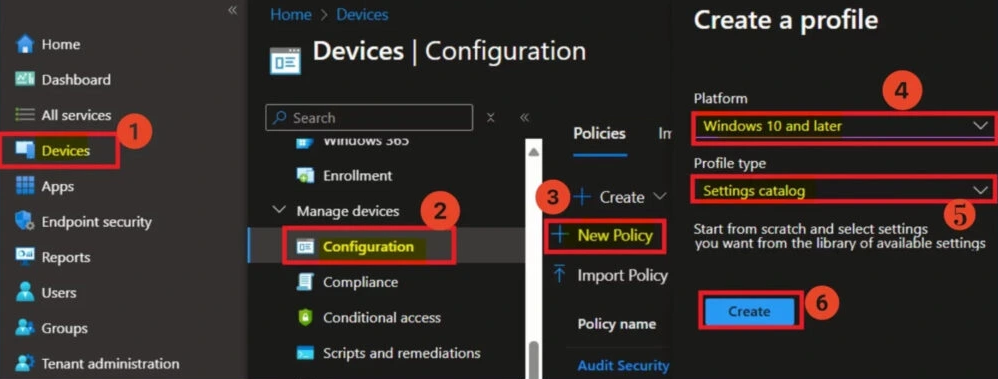
In the Microsoft Intune admin center, go to Devices → Configuration. Click Create → New policy. Choose Windows 10 and later and Settings catalog, then click Create.
Creating a new configuration profile in Intune.
Basics and Name
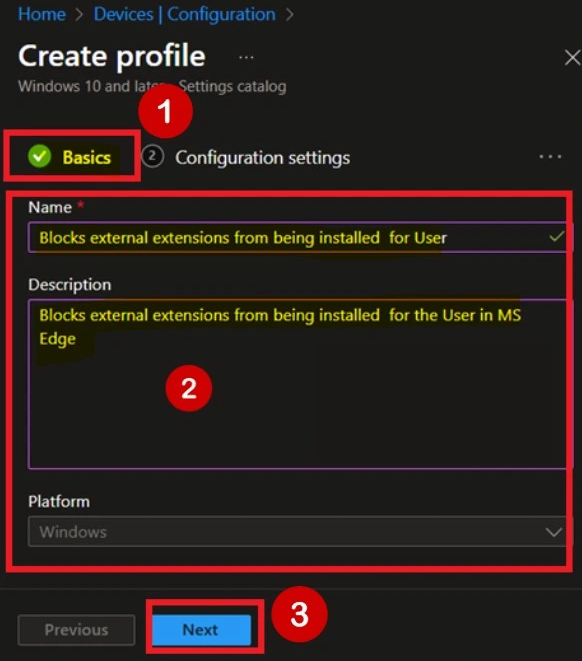
On Basics, give the profile a name (e.g. “Block external extensions from being installed for user”) and an optional description, such as “Block external extensions from being installed for the user in MS Edge.” Click Next.
Configuring basic information for the policy.
Add the Edge Extensions Setting
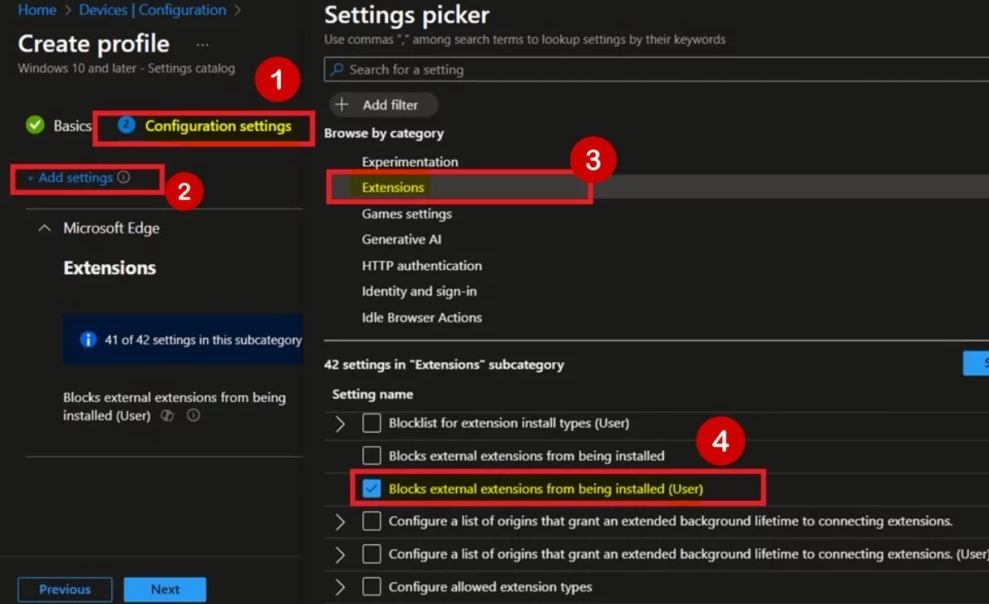
On Configuration settings, click Add settings. Open the Microsoft Edge category and the Extensions subcategory. Find Block external extensions from being installed for users, select it, and close the settings picker.
Adding the Block external extensions policy.
Enable or Disable the Policy
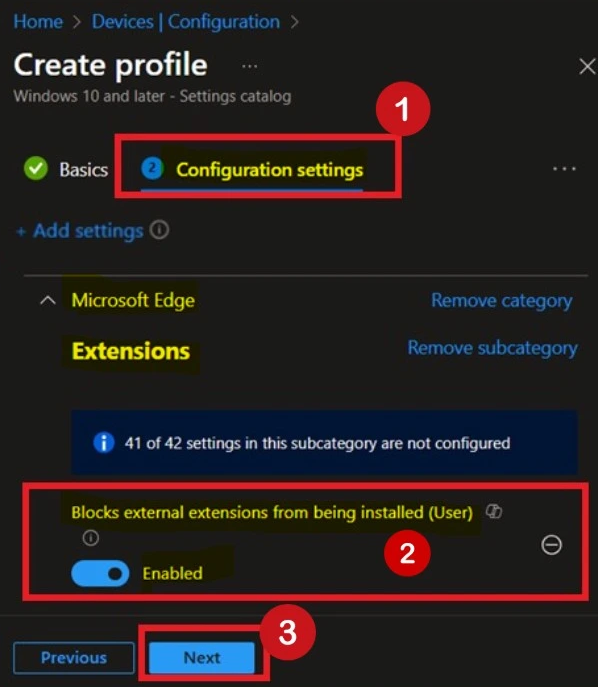
By default the setting is Disabled (users can install external extensions). To block external extensions, set it to Enabled. When Enabled, the policy turns on and only store extensions can be installed. Click Next.
Enabling the Block external extensions policy.
Scope Tags and Assignments
On Scope tags, add any tags you use, or skip and click Next. On Assignments, add the groups that should get this policy (e.g. all users or a pilot group). Click Next, review, and click Create. The policy will deploy to assigned devices on their next sync.
Check Policy Status
Under Devices → Configuration, open your policy to see device and user check-in status. Policy can take up to several hours to apply; you can trigger a sync from Company Portal to test sooner. When status shows Succeeded for the assigned group, the policy is applied.
Verify on a Device
On a target device, open Edge and go to edge://extensions. Try adding an extension from a non-Edge source; with the policy enabled, it should be blocked. You can also check edge://policy and confirm the external extensions policy is present and set to Enabled.
Turning the Policy Off
To allow external extensions again: open the policy in Intune, edit Configuration settings, set Block external extensions from being installed for users to Disabled, and save. Devices will get the update on their next sync.
Wrap-Up
You can allow or block external Edge extensions using Microsoft Intune by creating a Settings catalog profile, adding the Block external extensions from being installed for users setting under Microsoft Edge → Extensions, and setting it to Enabled (block) or Disabled (allow). Assign the profile to your groups and verify in edge://policy and edge://extensions. With the policy enabled, only extensions from the Edge Add-ons store can be installed, which helps keep managed browsers secure.